

Step-by-step guide
How to write source code in plain text: TextEdit, file extensions, Terminal and Vim (Mac)
Short answer: source code must be written and saved as plain text. If you type code in a word processor or in TextEdit's default rich text mode, the file is saved as .rtf with hidden formatting codes, and the program will not work. Switch TextEdit to plain text (Format > Make Plain Text, Shift-Command-T), or create the file directly in the Terminal with Vim, and turn on file extensions so you can see whether a file is .rtf, .txt or .py.
This is lesson 3 of my Python course (2021). In this guide you will write the same line of code three ways on a Mac: first in TextEdit with formatting (the mistake), then in TextEdit as plain text, and finally in the Terminal with Vim to create a real Python file called car.py. Along the way you will learn how to show hidden file extensions, use ls and cat to check what is really inside a file, avoid the classic Vim :qw mistake, and keep in mind why companies protect their source code.
In this article
- Make a folder for your code and open a file manager that shows extensions
- Open TextEdit and notice the formatting toolbar
- Type a line of code in rich text (the mistake to see once)
- Save it and see that it becomes an RTF file
- Check the real extension in the file manager
- Check the extension from the Terminal with ls
- Switch TextEdit to plain text and type the code again
- Save the plain text file as .txt with UTF-8
- Compare both files with ls and cat
- Create a Python file in the Terminal with Vim
- Press i for insert mode and type your code
- Save and quit with Esc and :wq
- Confirm the file with ls and cat
- Show all filename extensions in Finder
- Check the result: three files, three formats
- Why source code has to be plain text
- What is source code and why do companies protect it?
- Follow the rules of your programming language
- Vim cheat sheet for beginners
- Troubleshooting: my code file does not work
- Tips for writing your first source code files
- Frequently asked questions
- Watch the video
Step 1Make a folder for your code and open a file manager that shows extensions
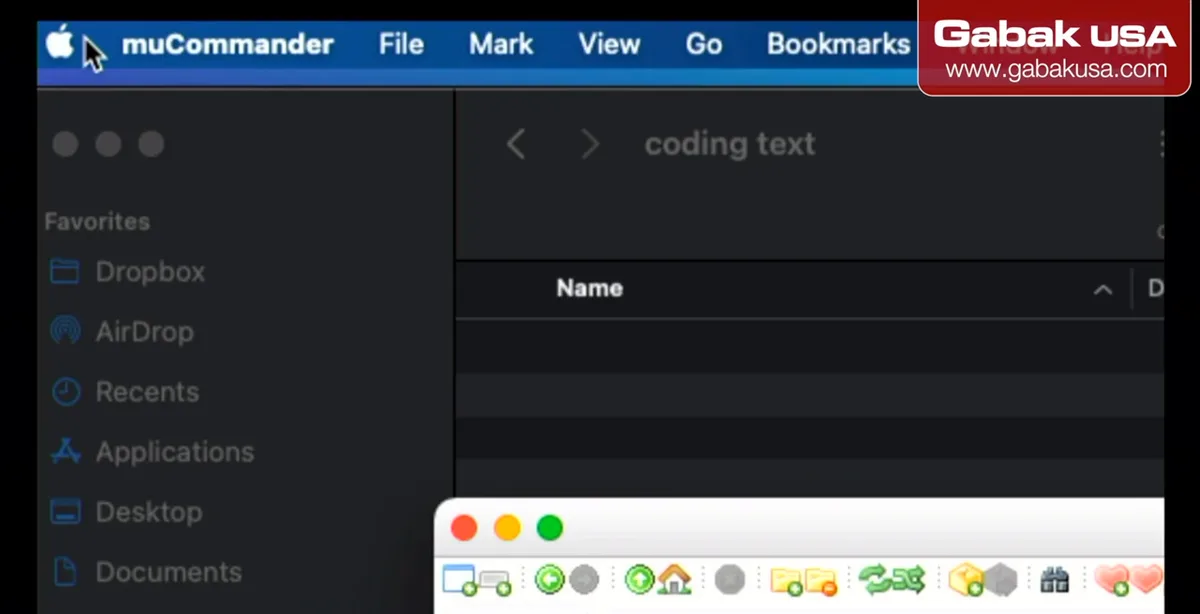
- Create a folder for your practice files. In the video it is a folder called coding text on the Desktop, empty at the start.
- Open a dual-pane file manager such as muCommander on Mac; on Windows Total Commander does the same job (it is in the style of the old Norton Commander).
- Why: these tools show the full file name with its extension, which Finder and File Explorer hide by default. You need to see the extension to know what kind of file you created.
Step 2Open TextEdit and notice the formatting toolbar
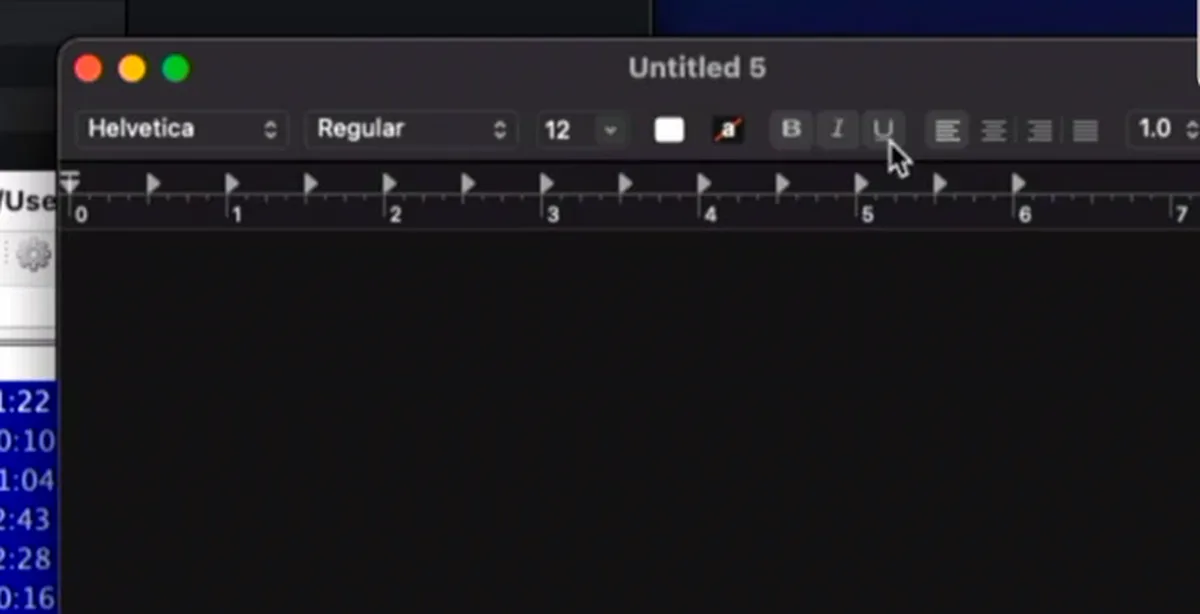
- Open TextEdit (the text app included with macOS) and choose New Document.
- Look at the top of the window: a toolbar with font, size, bold, italic, alignment and a ruler. That means the document is in rich text mode.
- Rule of thumb: if you see a formatting toolbar, whatever you type will be saved with formatting, and that is not what code needs.
Step 3Type a line of code in rich text (the mistake to see once)
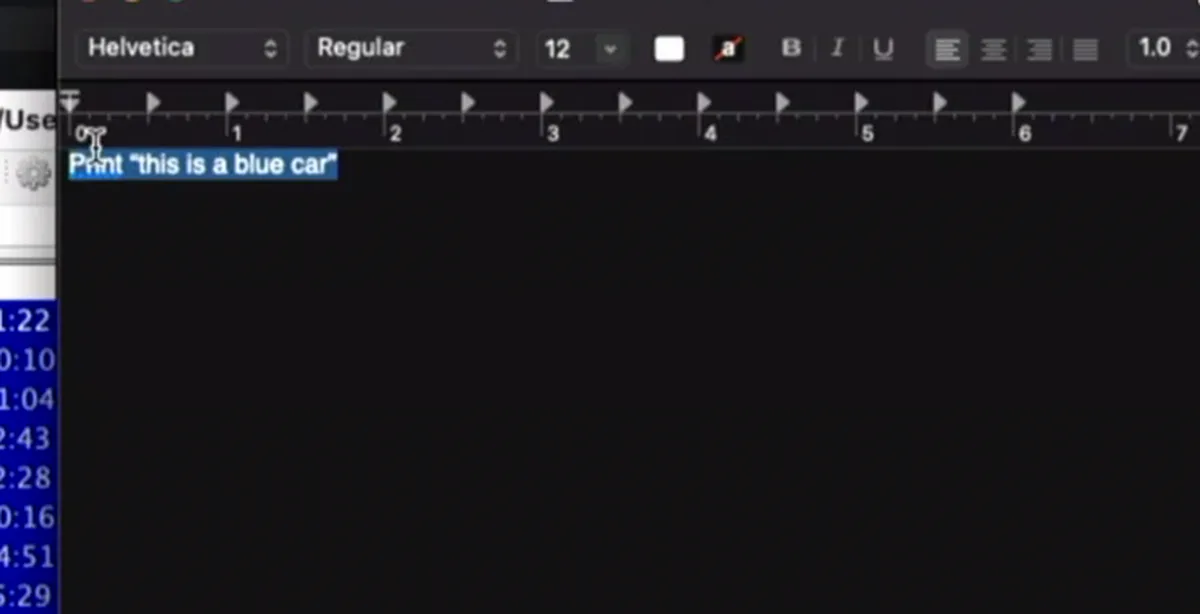
- Type a simple instruction, for example
print "this is a blue car". TextEdit may capitalize it to Print automatically. - In rich text you can also change the font, size or color. Every change adds hidden formatting to the file.
- This is only an experiment so you can compare the files later; do not write real code this way.
Step 4Save it and see that it becomes an RTF file
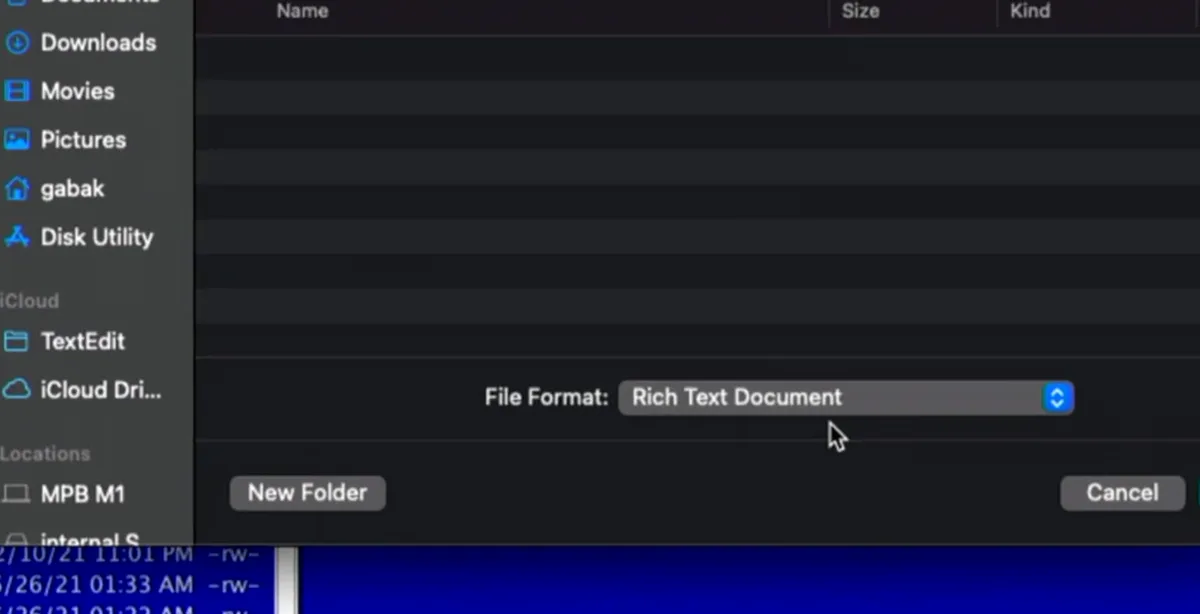
- Choose File > Save, name it (the video uses format) and save it in the coding text folder.
- Look at File Format: it says Rich Text Document, so the extension will be .rtf (Rich Text Format).
- Common mistake: saving code from Word, Pages or rich TextEdit. The file looks fine on screen, but programs that read it get the formatting codes too, and things do not work.
Step 5Check the real extension in the file manager
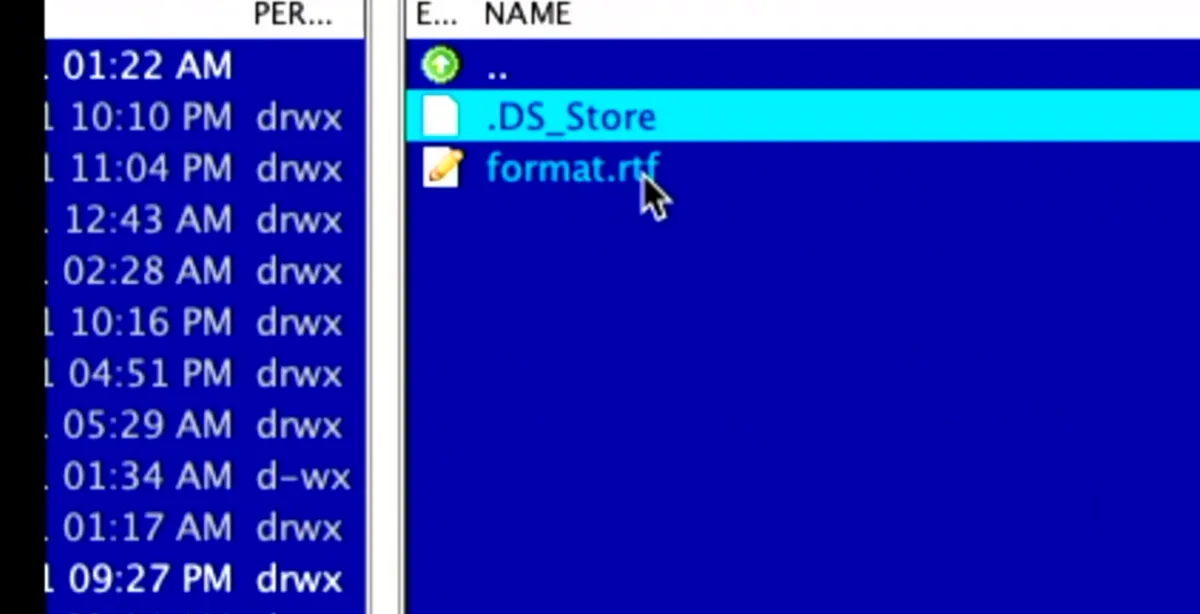
- In Finder the file just appears as format, with no extension visible, but it still has one.
- In muCommander the same file shows as format.rtf. That is the point of using it.
- Finder and Windows hide extensions to keep things simple for regular users. If you are a technician or you are learning to program, you need to see everything.
Step 6Check the extension from the Terminal with ls
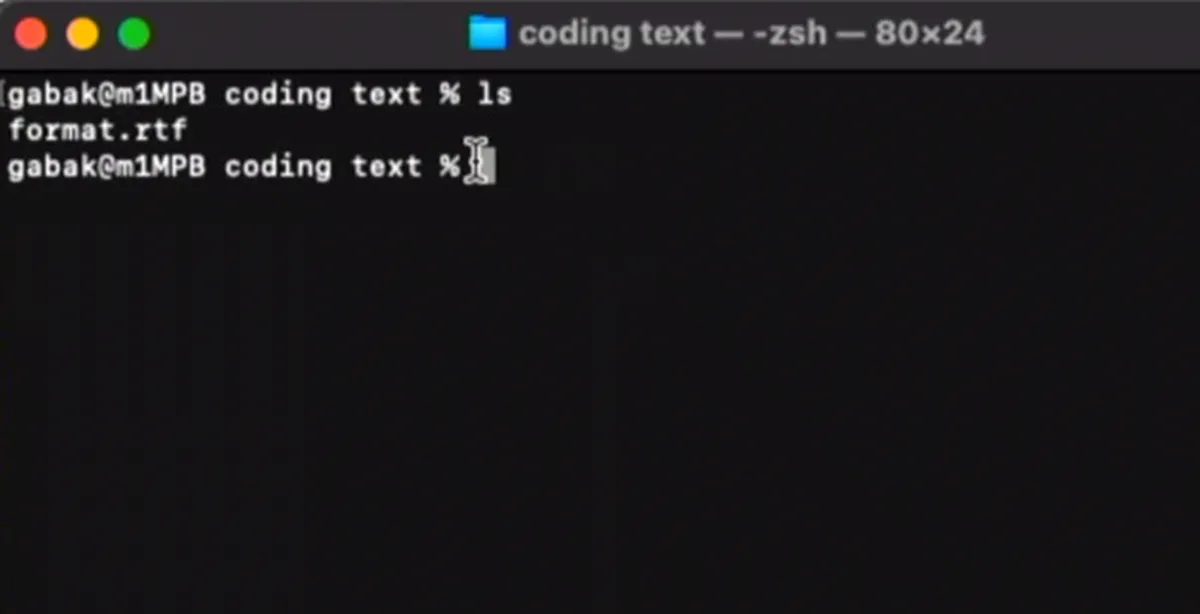
- Open the Terminal: press Command + Space, type terminal and press Return.
- Go to your folder (for example
cd ~/Desktop/"coding text") and typels. The command lists the files with their extensions: format.rtf. - Tip:
lsnever hides extensions, so it is a quick way to check what you really saved.
Step 7Switch TextEdit to plain text and type the code again
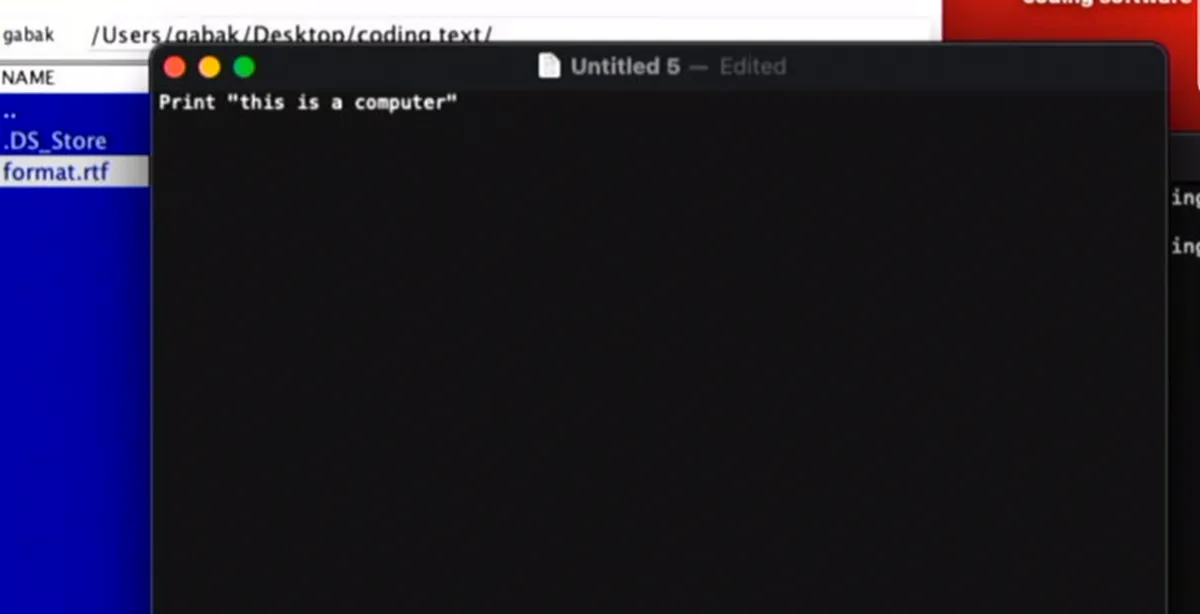
- Create a new TextEdit document and, before typing, press Shift-Command-T (or choose Format > Make Plain Text).
- The toolbar and ruler disappear. Now whatever you type is pure plain text, with no fonts or styles stored in the file.
- Type the line again, for example
print "this is a computer". - Tip: to make this permanent, go to TextEdit > Settings > New Document and choose Plain text as the default format.
Step 8Save the plain text file as .txt with UTF-8
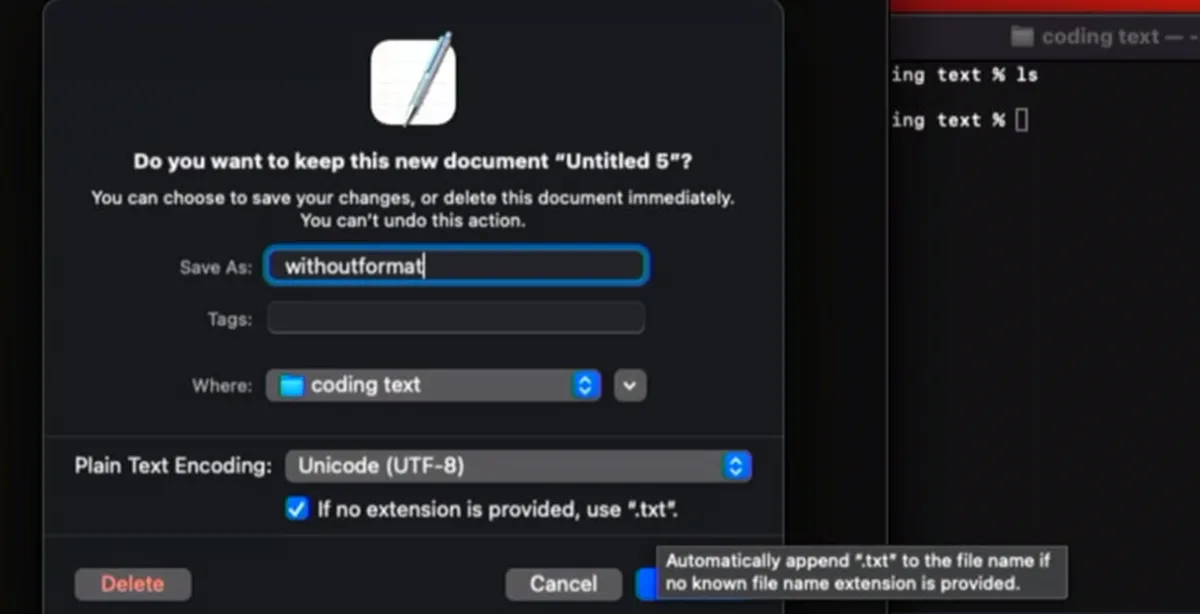
- Close the window or choose Save. Name it (the video uses withoutformat).
- Check that Plain Text Encoding is Unicode (UTF-8) and that If no extension is provided, use ".txt" is checked.
- You will get withoutformat.txt. Later, for Python, you would type the name with .py at the end instead.
Step 9Compare both files with ls and cat
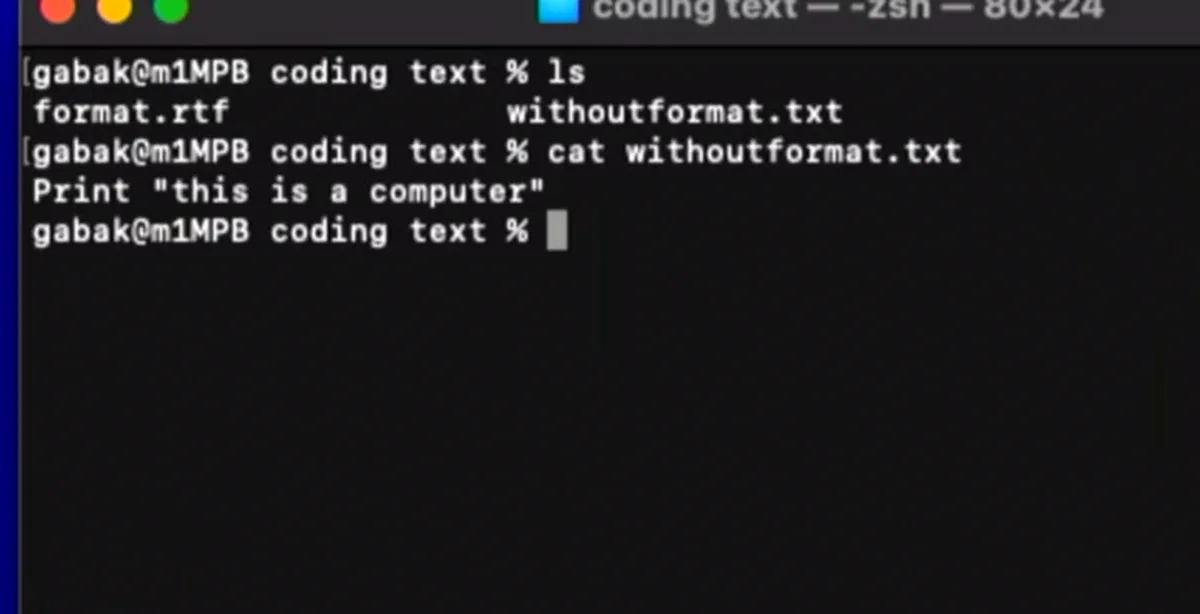
- In the Terminal press Control + L to clear the screen (your files are not deleted, only the screen is cleaned).
- Type
ls: you now see format.rtf and withoutformat.txt. - Type
cat with, press Tab to auto-complete the name, and press Return.catprints the content: only the line you typed, nothing else. That is what a code file must look like.
Note: Run cat format.rtf too and you will see the extra formatting codes around your text. That is exactly what breaks a program.
Step 10Create a Python file in the Terminal with Vim
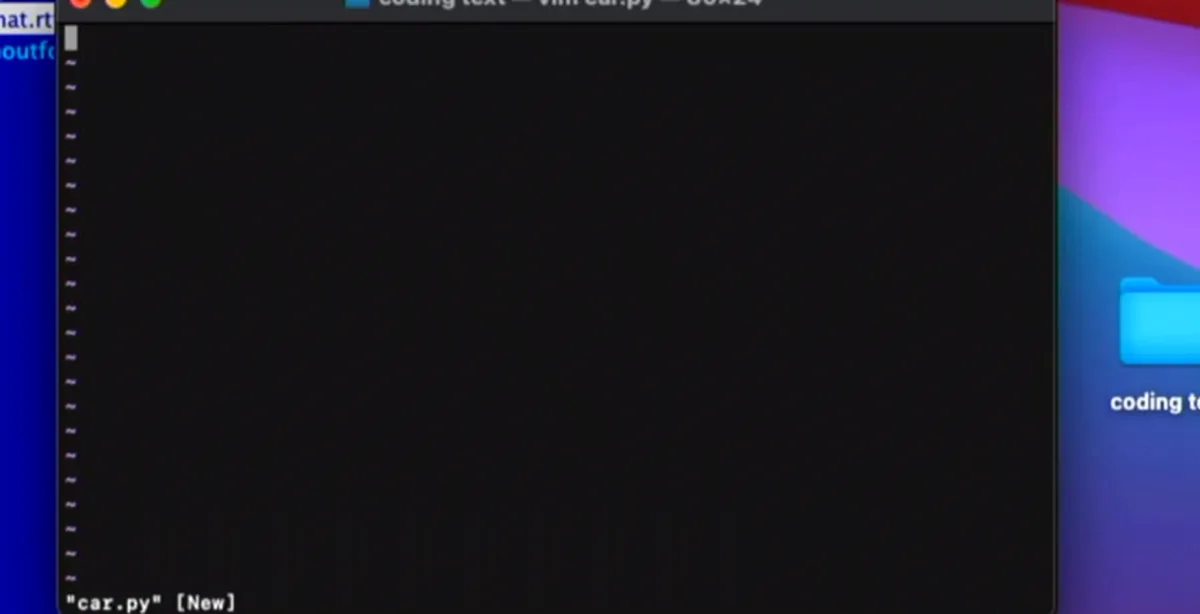
- You can create a code file without any graphical app. Type
vim car.pyand press Return (vim: V as in Victor, I, M). - Vim opens an empty file and shows "car.py" [New] at the bottom. The .py extension makes it a Python file.
- Vim is a pure text editor: it never adds formatting and never auto-capitalizes what you type.
Step 11Press i for insert mode and type your code
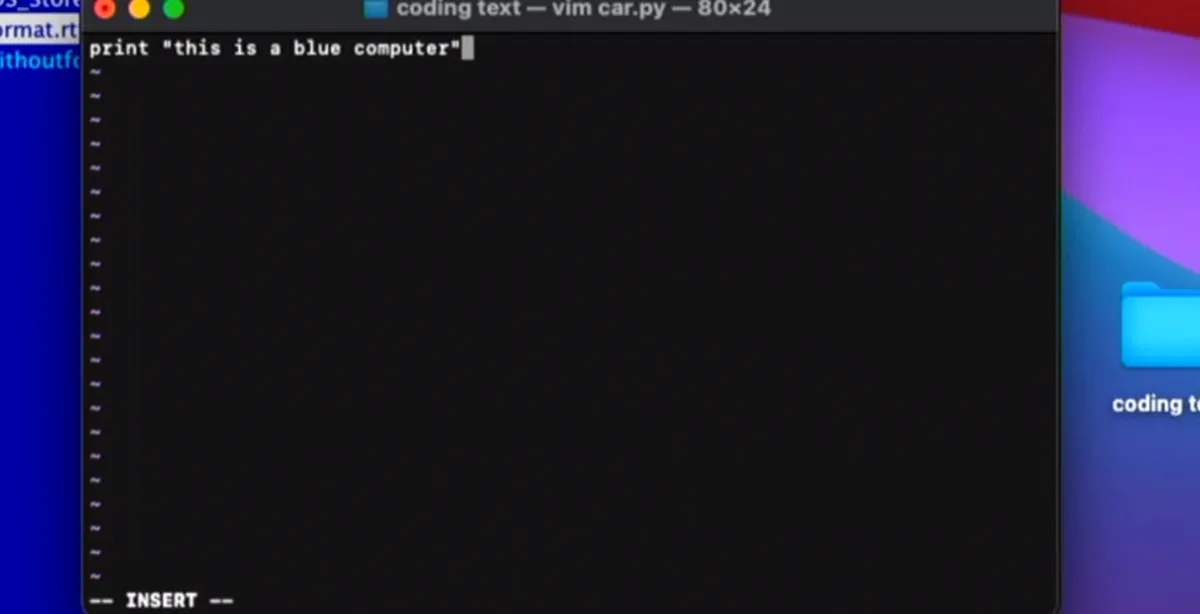
- When Vim opens you cannot type text yet. Press i and -- INSERT -- appears at the bottom.
- Type your line, for example
print "this is a blue computer". Notice that it stays lowercase, exactly as typed. - Common mistake: typing before pressing i. In normal mode, letters are commands and can move or delete text.
Note: The video writes print "..." without parentheses, which is old Python 2 syntax. In Python 3 write print("this is a blue computer") so the file runs.
Step 12Save and quit with Esc and :wq
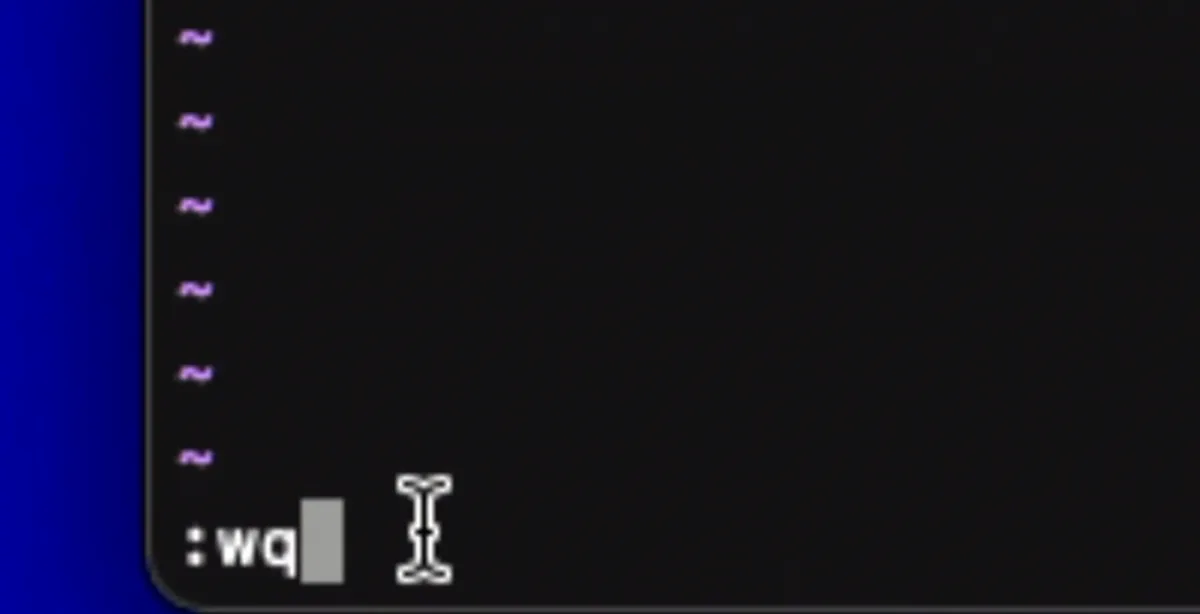
- Press Esc: the INSERT label disappears and you are back in normal mode.
- Type a colon :. It appears at the bottom of the window. Then type wq and press Return: w = write (save), q = quit.
- The order matters. In the video I first typed
:qwand got an error;:wqworked.
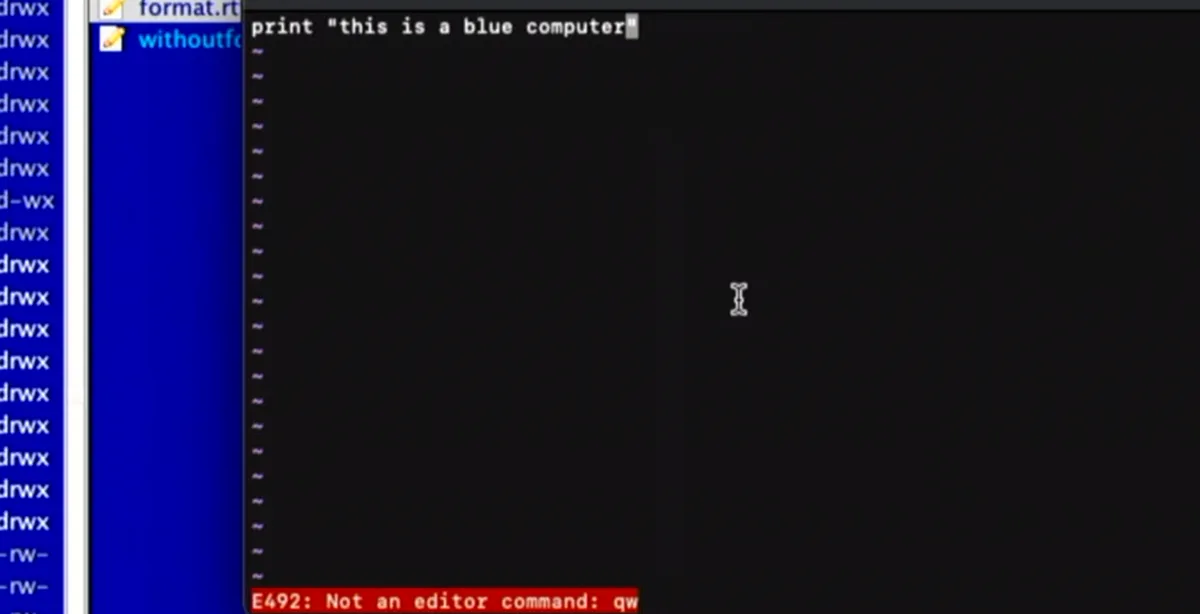
Caution: :qw gives E492: Not an editor command. Vim is not like a regular editor where you click close and save; if you do not type the command right, it will not work. Use :wq, or :q! to quit without saving.
Step 13Confirm the file with ls and cat
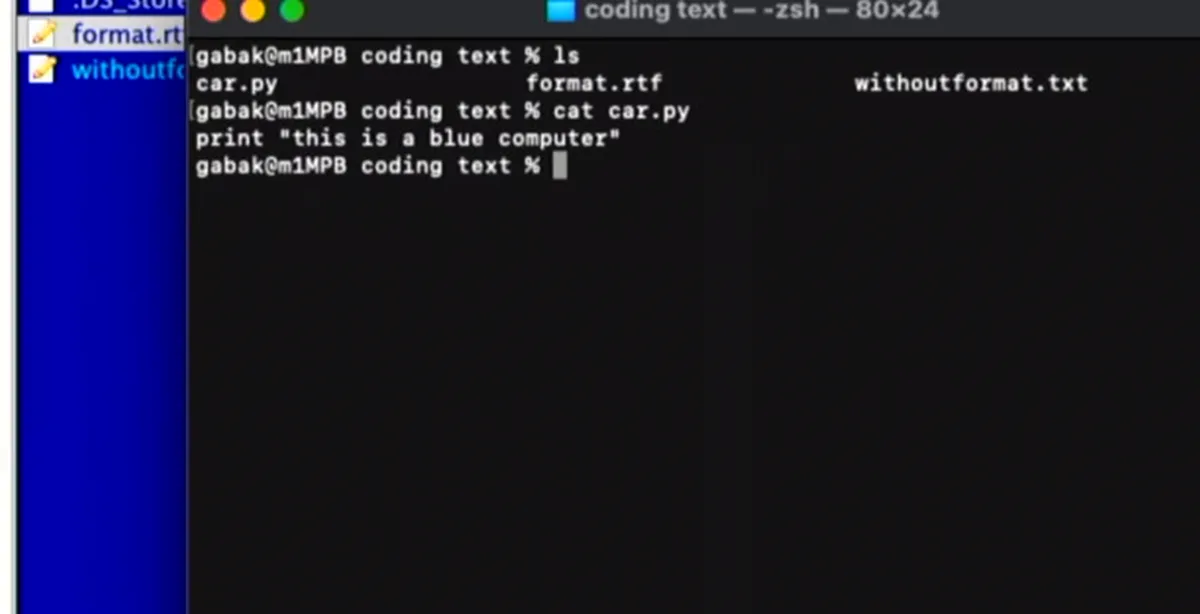
- Clear the screen with Control + L and type
ls: car.py is now in the folder with the other two files. - Type
cat car.pyto see what is inside: justprint "this is a blue computer". - That is the whole idea: you can do almost anything in the command line without depending on Notepad or any other app. Practice these steps on your own computer.
Step 14Show all filename extensions in Finder
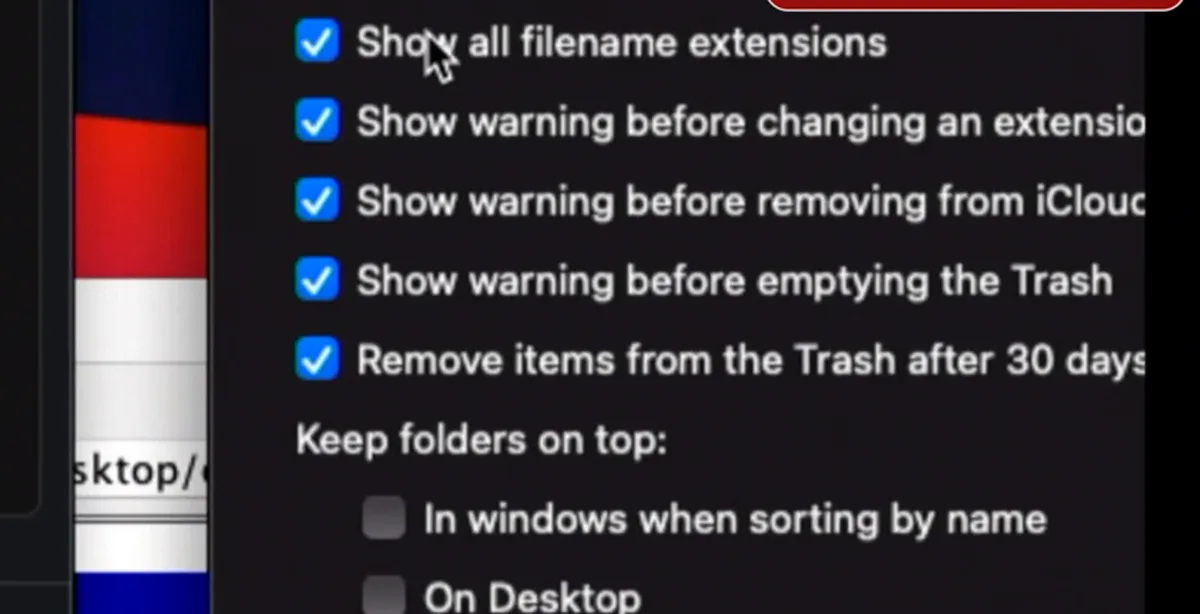
- In Finder choose Finder > Settings (Preferences on older macOS), click Advanced and check Show all filename extensions.
- On Windows, File Explorer has the same option: View > Show > File name extensions on Windows 11, or the File name extensions box on the View tab on Windows 10.
- Tip: also leave Show warning before changing an extension on, so you do not rename a file by accident.
Step 15Check the result: three files, three formats
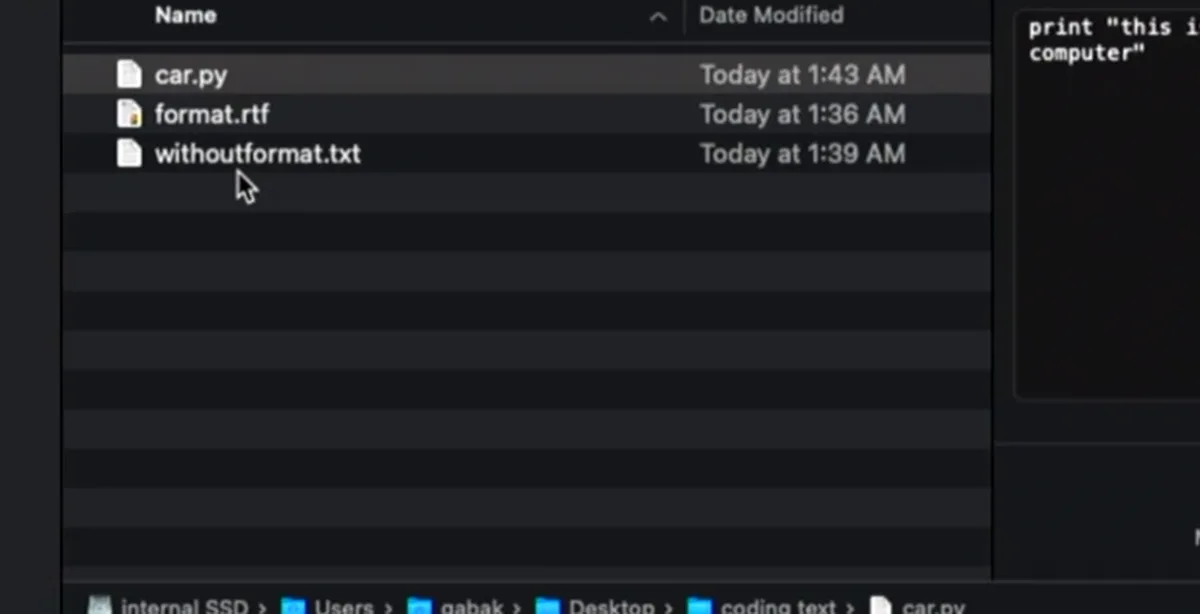
- Now Finder shows car.py, format.rtf and withoutformat.txt, with every extension.
- Only car.py and withoutformat.txt are plain text. The .rtf file is the one to avoid for code.
- In the video I unchecked the option again at the end; for programming I recommend leaving it on so the system does not hide anything from you.
Why source code has to be plain text
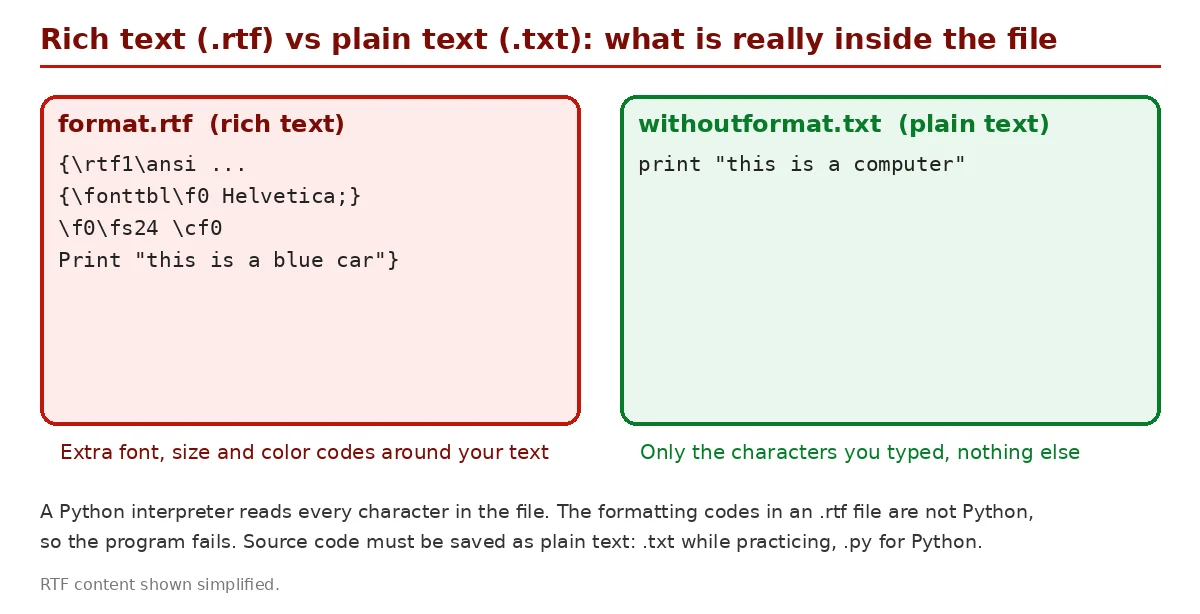
When you give instructions to a computer you do it in plain text. A compiler or interpreter reads every character in the file, so the font names, sizes and style codes that a rich text file stores are read too, and they are not valid code. The result is an error or nothing at all.
- Word processors (Word, Pages, Google Docs) and TextEdit in rich text mode add formatting. Do not use them for code.
- Plain text editors (TextEdit in plain text mode, Notepad, Vim, nano) save only the characters you type.
- Code editors such as Visual Studio Code are also plain text editors, with extras like colors for the syntax and a Run button. The colors are on screen only, they are not saved in the file.
Once the file is saved as plain text with the right extension, the language's tools can translate it for the computer. How that translation works is explained in compiler vs interpreter.
What is source code and why do companies protect it?
Source code is the human-readable text of a program: the instructions programmers write in a programming language. It is usually transformed by a compiler or an assembler into binary machine code that the computer can execute, or run by an interpreter.
A small program can be one or two lines, like the examples in this guide; a complex one can be hundreds or thousands of lines. That is why most companies keep their source code safe: if someone steals it, they can duplicate the software, modify it a little and have their own version without typing all those lines.
Note: keep backups of your own code and do not publish it if you do not want it copied.
Follow the rules of your programming language
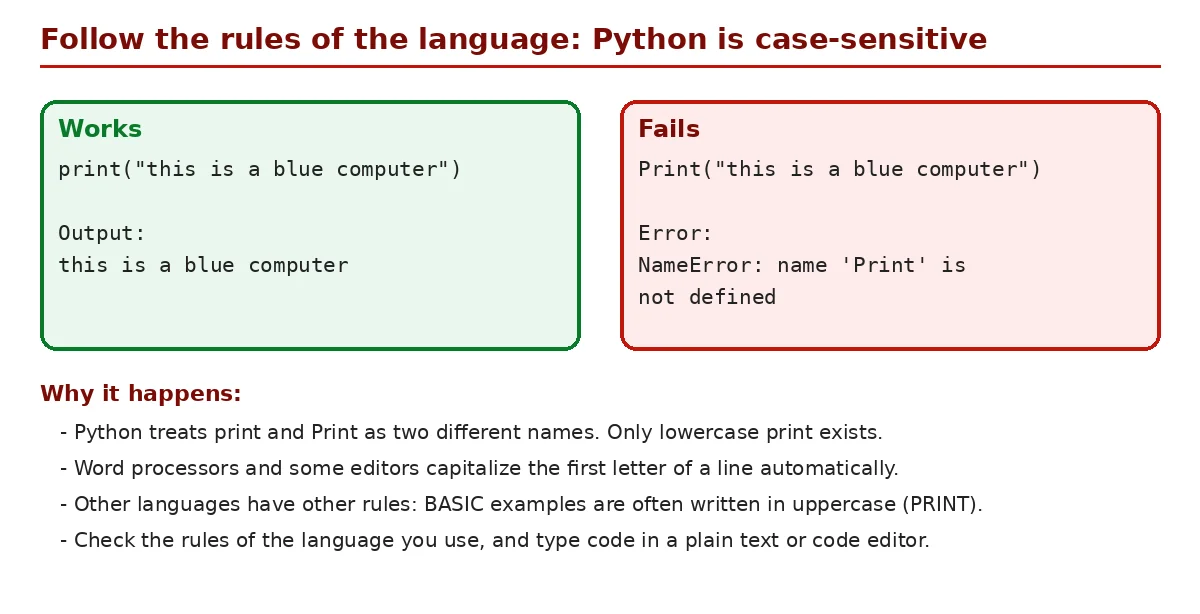
Plain text is only the first rule. Each language also has its own syntax: some do not care about uppercase, others do. Python is case-sensitive, so print works and Print does not, which is one more reason not to use an editor that capitalizes the first letter of a line for you.
- Python 3:
print("this is a blue computer")(lowercase, with parentheses). - Save Python files with the .py extension, for example
car.py. - To run it you need Python installed: see how to install Python on a Mac and how to run a Python file from the command line.
Vim cheat sheet for beginners
| What you want | Keys | Mode |
|---|---|---|
| Open or create a file | vim car.py | Terminal |
| Start typing | i | Normal -> Insert |
| Stop typing | Esc | Insert -> Normal |
| Save and quit | :wq then Return | Normal |
| Save only | :w | Normal |
| Quit without saving | :q! | Normal |
| Wrong order (error) | :qw -> E492 | Normal |
If you prefer something simpler in the Terminal, nano car.py also creates a plain text file and shows its shortcuts at the bottom (Control + O to save, Control + X to exit).
Troubleshooting: my code file does not work
| Problem | Likely cause | Fix |
|---|---|---|
| Code saved from TextEdit does not run | File is .rtf with formatting | Format > Make Plain Text, save again |
| File is called script.py.txt | Editor added .txt automatically | Show extensions and rename to .py |
| Finder shows no extension | Extensions are hidden | Finder > Settings > Advanced > Show all filename extensions |
E492: Not an editor command: qw | Typed :qw instead of :wq | Press Esc, then type :wq |
| Letters do nothing or move the cursor in Vim | Not in insert mode | Press i first |
NameError: name 'Print' is not defined | Capital P | Use lowercase print |
SyntaxError on print "..." in Python 3 | Python 2 style print | Use print("...") with parentheses |
Tips for writing your first source code files
- Keep all practice files in one folder (like *coding text*) so
lsandcatare easy to use. - Turn on file extensions on every computer you use for programming.
- Use Tab to auto-complete file names in the Terminal; it avoids typing mistakes.
- Use Control + L to clean the Terminal screen when it gets crowded.
- Start with a plain text or code editor, not a word processor.
- New to programming? Read what a programming language is: syntax and semantics first.
Frequently asked questions
Can I write code in Microsoft Word or Pages?
No. Word processors save formatting together with your text, so the file is not plain text and the program will fail. Use a plain text editor or a code editor.
How do I make TextEdit save plain text on a Mac?
Choose Format > Make Plain Text or press Shift-Command-T before saving. To make it the default, go to TextEdit > Settings > New Document and select Plain text.
What is the difference between .rtf and .txt?
An .rtf (Rich Text Format) file stores your text plus formatting such as fonts, sizes and colors. A .txt file stores only the characters you typed.
How do I show file extensions on a Mac?
In Finder choose Finder > Settings, click Advanced and select Show all filename extensions. In the Terminal, ls always shows the full file names.
How do I show file extensions on Windows?
In File Explorer, choose View > Show > File name extensions on Windows 11, or check File name extensions on the View tab on Windows 10.
How do I save and exit in Vim?
Press Esc to leave insert mode, then type :wq and press Return. :q! quits without saving.
What does E492: Not an editor command mean in Vim?
Vim did not recognize the command you typed after the colon, for example :qw instead of :wq. Press Esc and type the command again correctly.
What file extension do Python files use?
Python source code files use .py, for example car.py. They are plain text files that you run with the Python interpreter.
Watch the video


Comments
Comments appear after Gabriel reviews them.
Loading comments…