

Step-by-step guide
How to run Python on the command line in Windows (cmd, interactive mode and .py files)
Short answer: to run Python on the command line in Windows, open the Command Prompt (type cmd in the Start menu), type python3 (or python / py) and press Enter to get the >>> prompt, where every line you type runs right away. To run a Python file, save your code as a .py file, go to its folder with cd and type python3 yourfile.py.
This is lesson 10 of my Python course (2021). Here you will practice both ways of using Python from the terminal: interactive mode, which is perfect for quick tests like 2+2, and running a script file, which is how real programs run. You will also see your first SyntaxError on purpose, so you understand why Python only accepts code written its own way. After the steps you will find a command cheat sheet, a troubleshooting table for errors like 'python' is not recognized, and an FAQ.
In this article
- Open the Command Prompt
- Start Python with python3
- Run your first command: 2+2
- See why Python gives a SyntaxError
- Exit the Python interpreter
- Go to your practice folder with cd and dir
- Look inside a Python file with type
- Clear the screen and open Notepad
- Write a print() line
- Save the file as hellotest.py
- Check that the file is there
- Run the Python file
- Interactive mode vs running a .py file: when to use each
- Command Prompt and Python commands cheat sheet
- python, python3 or py: which command should you use on Windows?
- Troubleshooting: common errors when running Python from cmd
- Tips to practice Python on the command line
- Frequently asked questions
- Watch the video
Step 1Open the Command Prompt
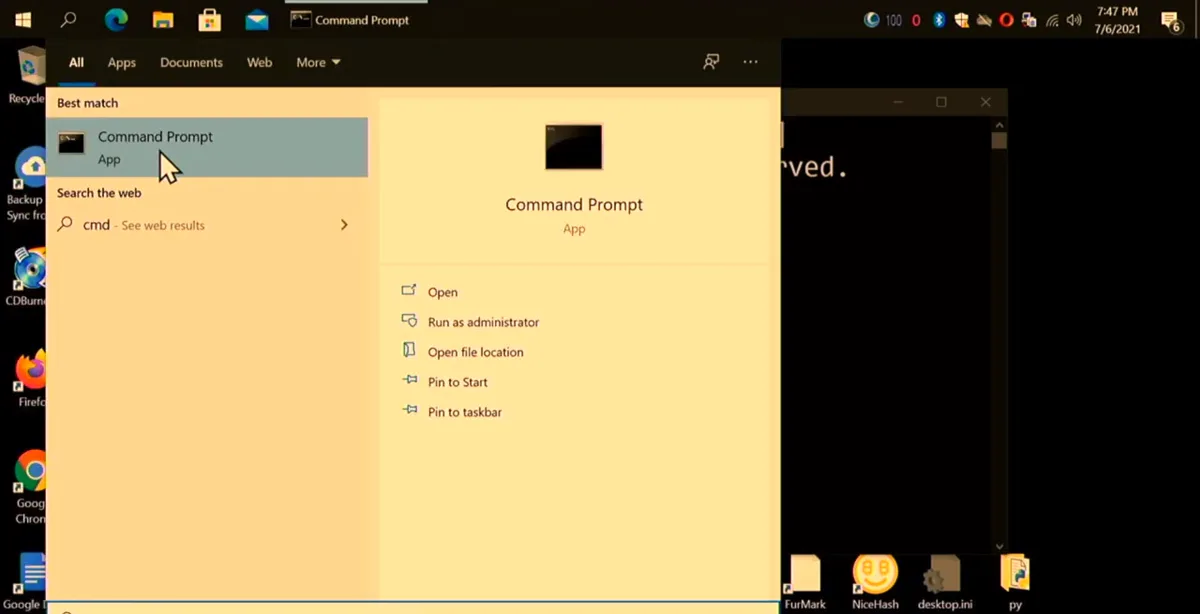
- Click the Start button (bottom or top of the screen, depending on where your taskbar is) and type
cmd. - Click Command Prompt in the results. A black window opens at your user folder, for example
C:\Users\User>. - You do not need Run as administrator for this lesson; a normal window is safer for practice.
Step 2Start Python with python3
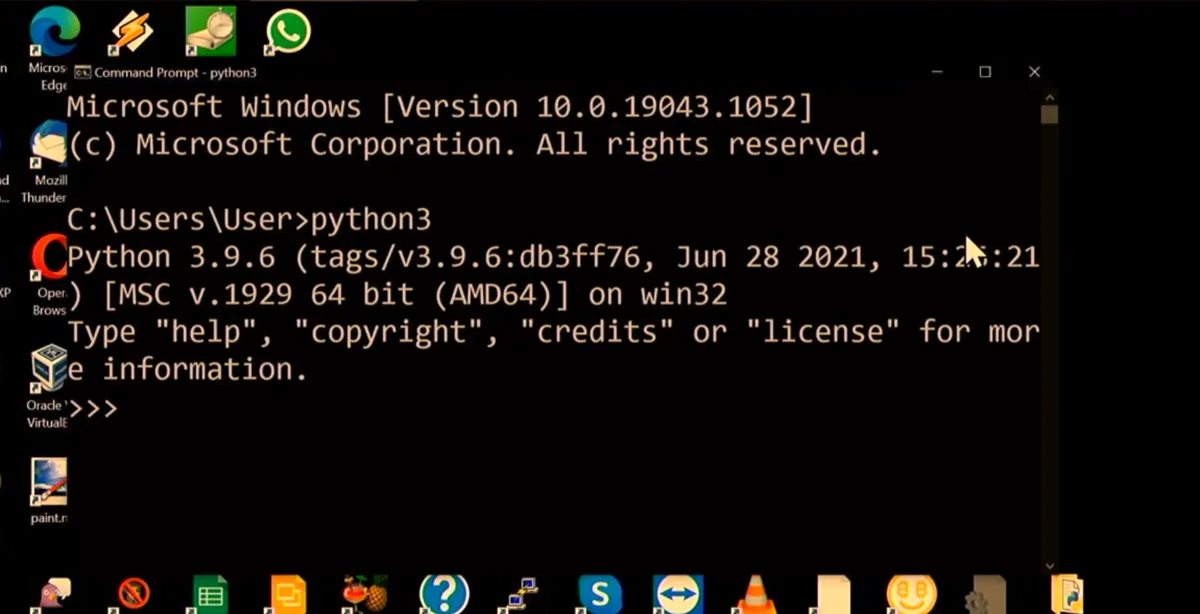
- Type
python3and press Enter. Python prints its version (in the video Python 3.9.6, 64 bit) and shows the>>>prompt. - That prompt means you are now talking to Python, not to Windows. You are ready to run any command line.
- If Windows says the command is not recognized or opens the Microsoft Store, Python is not installed or not on your PATH; see the troubleshooting table below. Depending on how you installed it,
pythonorpymay be the command that works.
Step 3Run your first command: 2+2
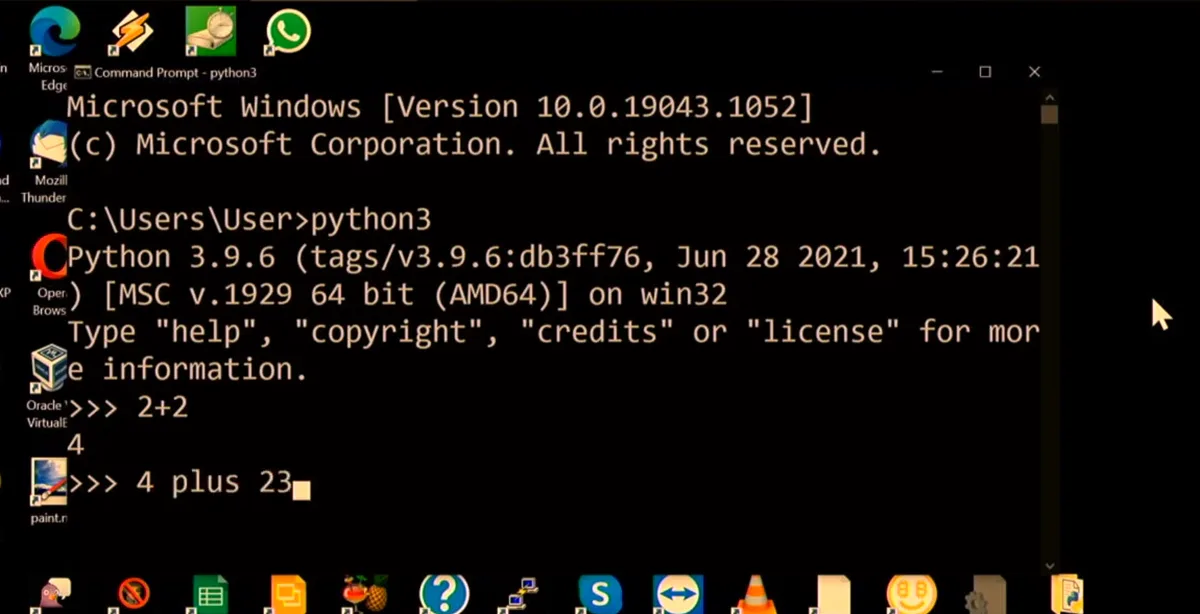
- Type
2+2and press Enter. Python answers4immediately. - This is interactive mode (also called the REPL): each line runs as soon as you press Enter, which makes it great for testing small ideas.
- Try other math like
1+1,10*3or7/2to get comfortable.
Step 4See why Python gives a SyntaxError
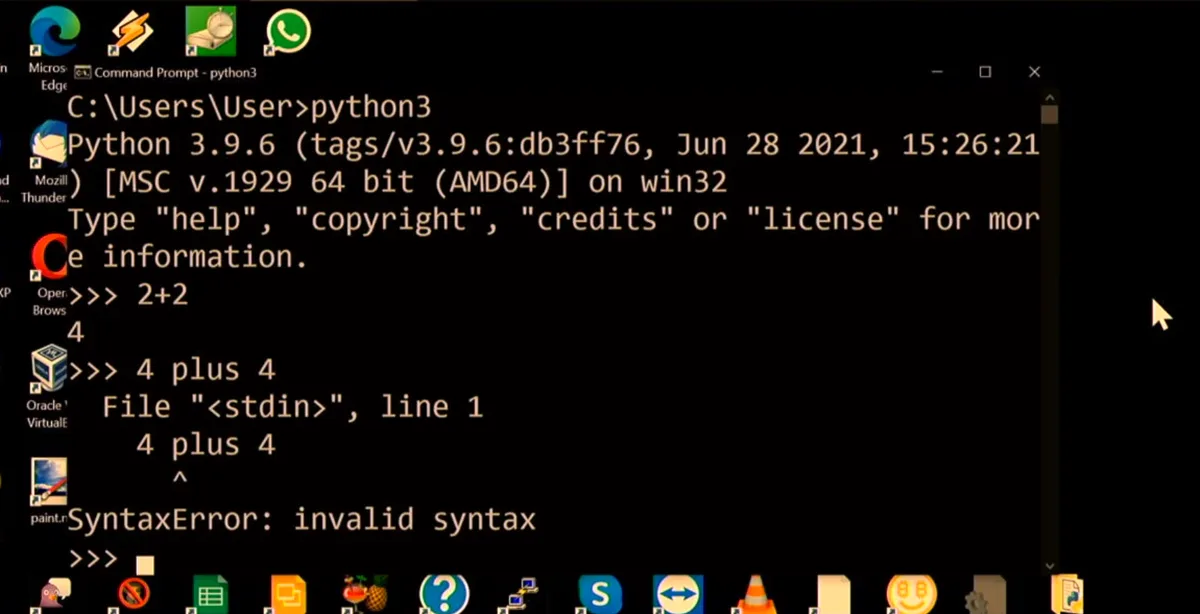
- Now type
4 plus 4. Python answersSyntaxError: invalid syntaxand points at the problem with a little^. - Why? You are breaking the rules of the language. Python understands Python; it does not understand English, Spanish or any other human language.
- Write it the way Python expects,
4+4, and it works every time. Reading the error line carefully is a habit that will save you hours later.
Step 5Exit the Python interpreter
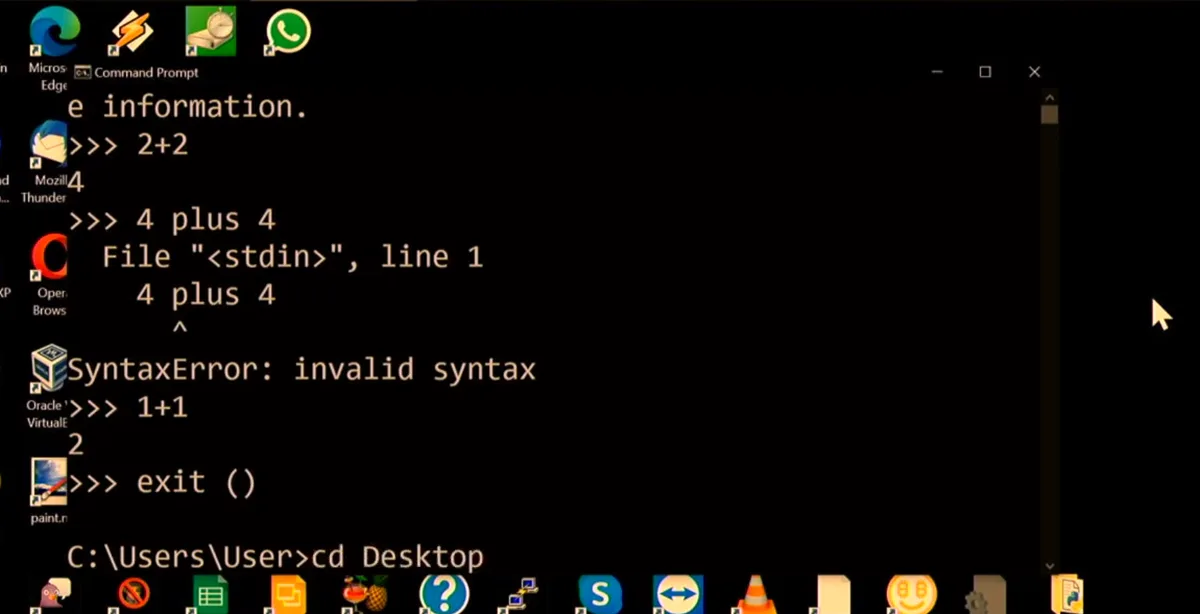
- To leave Python, type
exit()(exit, open parenthesis, close parenthesis) and press Enter. - The prompt changes back to
C:\Users\User>: you are talking to Windows again, not to Python. - Common mistake: typing Windows commands like
cdordirat the>>>prompt. They only work at the normal Windows prompt.
Step 6Go to your practice folder with cd and dir
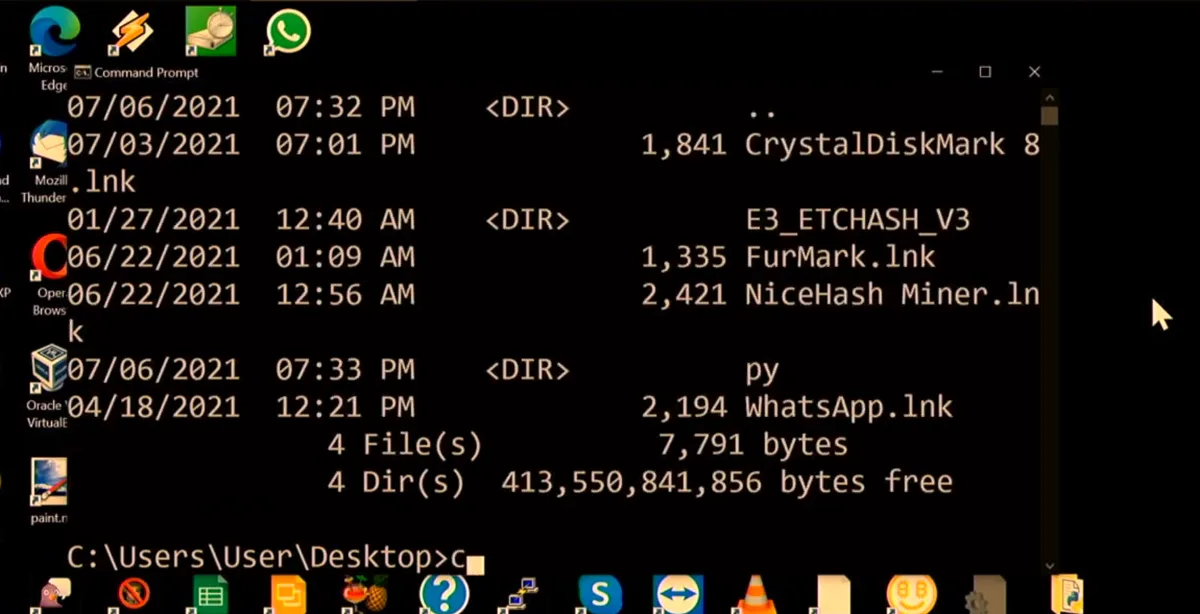
- Type
cd Desktopto move into the Desktop folder, thendirto list what is there. - In the video there is a folder called py for the course files, so the next command is
cd py. - Tip: type the first letters of a name and press Tab; cmd completes the folder or file name for you.
Step 7Look inside a Python file with type
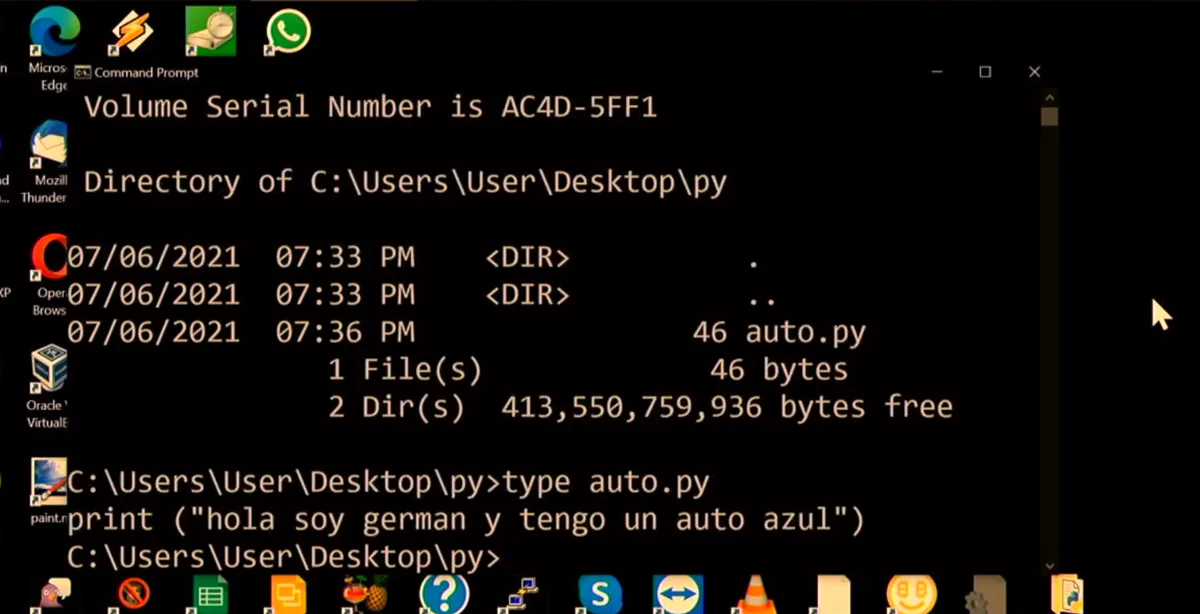
- The folder already has a file called
auto.py. Typetype auto.pyand Windows shows its content without opening an editor. - The file has only one line: a
print("...")statement with a short sentence about a blue car. - A
.pyfile is just plain text. The.pyextension tells Windows and Python that the text is Python code.
Step 8Clear the screen and open Notepad
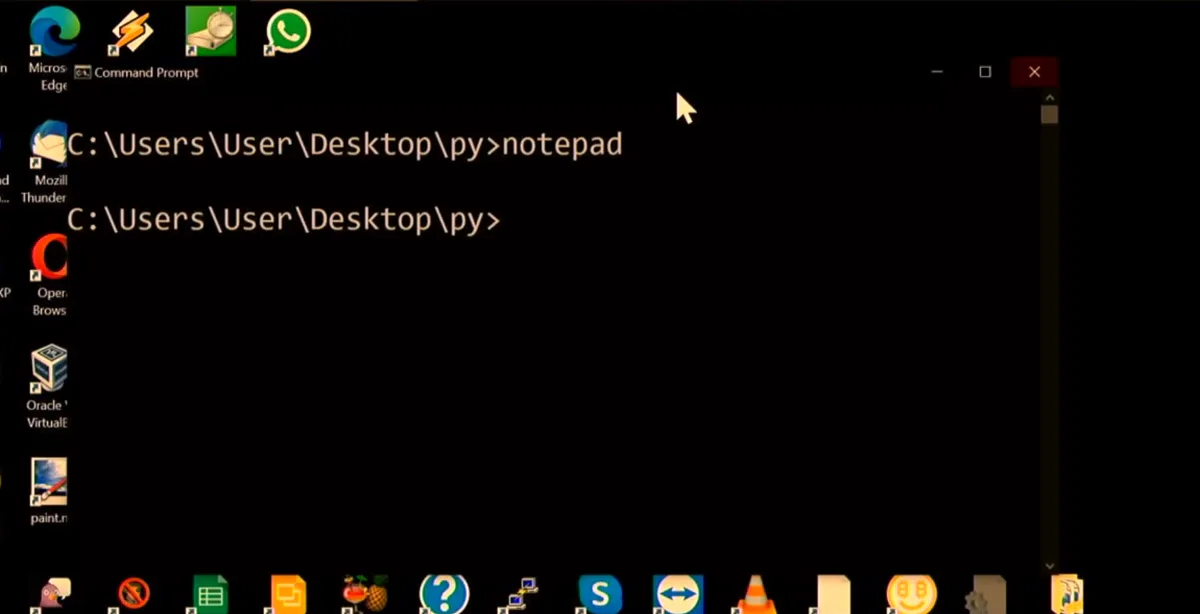
- Type
clsto clear the screen so it is easier to read. - Type
notepadand press Enter. Notepad opens; it is very basic, but enough to write a first Python file. - Later you can switch to a code editor such as Visual Studio Code, which colors your code and catches mistakes as you type.
Step 9Write a print() line
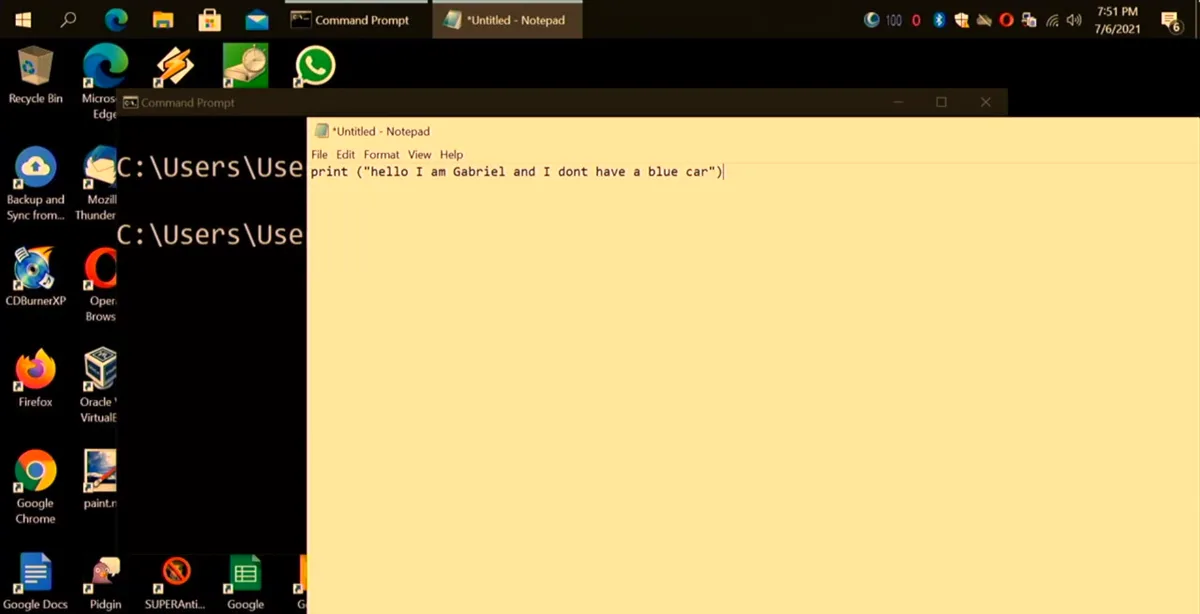
- Type:
print("hello I am Gabriel and I dont have a blue car")(use your own sentence). - Everything you want to show goes between quotation marks, and the quotes go inside the parentheses: parenthesis, quote, your text, close quote, close parenthesis.
- Common mistakes: a missing closing quote or parenthesis, or curly “smart quotes” pasted from a word processor. Any of them gives a SyntaxError.
Step 10Save the file as hellotest.py
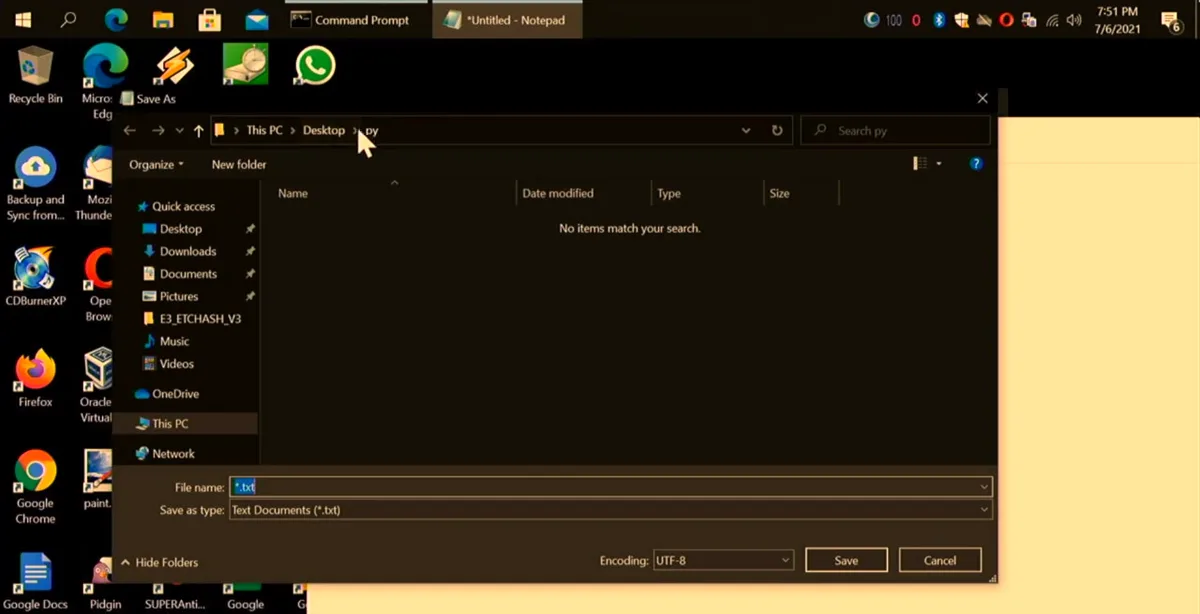
- Click File > Save. Windows asks where to save: choose Desktop > py.
- Name it
hellotest.py. The name must end in.pybecause it is Python. - Then close Notepad and go back to the Command Prompt.
Caution: Notepad's Save as type box says Text Documents (*.txt). If your file ends up as hellotest.py.txt, save it again with Save as type: All files, or type the name in quotes: "hellotest.py".
Step 11Check that the file is there
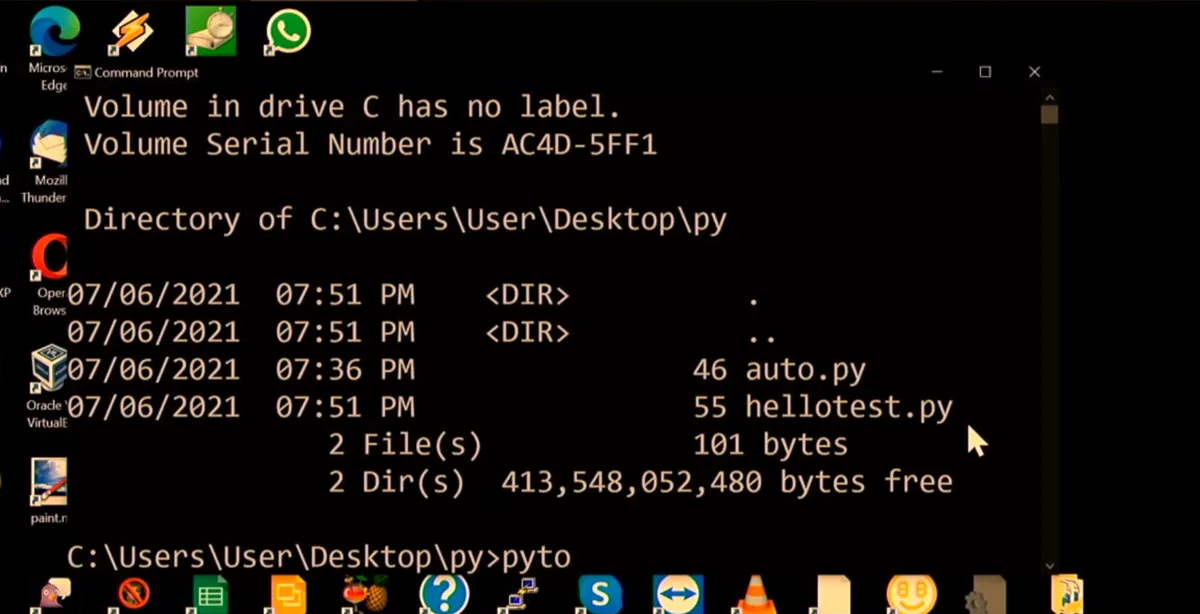
- Type
diragain. You should now seeauto.pyandhellotest.pyin the folder. - On a Mac or Linux computer the command to list files is
lsinstead ofdir. - If you only see
hellotest.py.txt, fix the name first (see the caution in the previous step).
Step 12Run the Python file
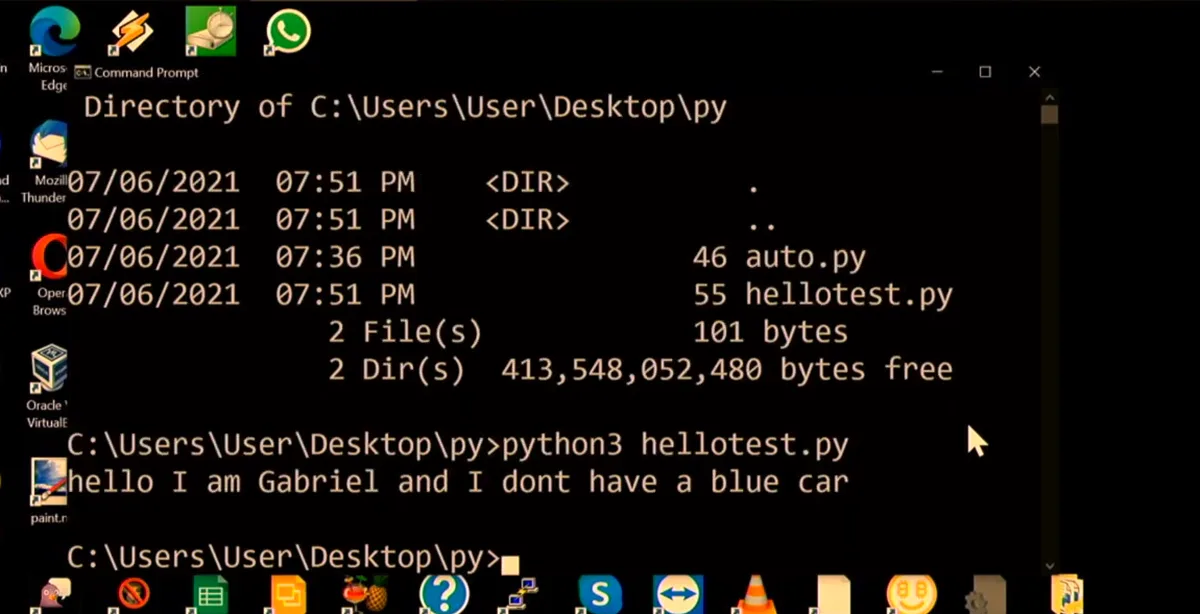
- Type
python3 helloand press Tab so the file name completes tohellotest.py, then press Enter. - Python reads the file from top to bottom and prints your sentence: hello I am Gabriel and I dont have a blue car. That is how you run any Python file on a Windows computer.
- Notice you are at the normal Windows prompt, not at
>>>. Running a file is a Windows command that starts Python for you.
Interactive mode vs running a .py file: when to use each
Python on the command line works in two ways, and the video shows both:
| Interactive mode (REPL) | Running a script file | |
|---|---|---|
| How to start | python3 (or python / py) | python3 file.py |
| Prompt you see | >>> | normal C:\...> prompt |
| Code is saved? | No, it is gone when you exit | Yes, in the .py file |
| Best for | Quick math, testing one line, learning | Real programs, anything you want to run again |
| How to leave | exit() | The program ends by itself |
A good beginner routine: test a line in interactive mode, and when it works, copy it into your .py file. When your files grow, a real editor helps a lot; see how to install Visual Studio Code on Windows for Python.
Command Prompt and Python commands cheat sheet
| Command | Where you type it | What it does |
|---|---|---|
cmd | Start menu search | Opens the Command Prompt |
python3 / python / py | Windows prompt | Starts the Python interpreter |
exit() | >>> prompt | Leaves Python (quit() also works) |
cd Desktop | Windows prompt | Moves into a folder |
cd .. | Windows prompt | Goes up one folder |
dir | Windows prompt | Lists files (Mac/Linux: ls) |
type auto.py | Windows prompt | Prints the content of a text file (Mac/Linux: cat) |
cls | Windows prompt | Clears the screen (Mac/Linux: clear) |
notepad | Windows prompt | Opens Notepad |
python3 hellotest.py | Windows prompt | Runs a Python file |
The Tab key completes folder and file names, and the up arrow brings back the last command, so you rarely need to retype anything. If you like working from the terminal, the same ideas apply to other tools too, for example when you control a Blackmagic HyperDeck from the command line with Telnet.
python, python3 or py: which command should you use on Windows?
In the video, python3 starts the interpreter. On Windows the command that works depends on how Python was installed:
- py: the Python launcher for Windows. The official Python documentation recommends
pywhen you have more than one version, for examplepy -3.9, andpy --listshows the versions installed. - python: the standard name; works when Python is on your PATH or was installed from the Microsoft Store / Python install manager.
- python3: works on Mac and Linux, and on Windows installs that include it. The current Python docs say the
python3command on Windows is there mainly to catch the habit of typing the Mac/Linux command.
Note: if one command does not work, simply try the next one. The rest of the lesson is exactly the same: py hellotest.py runs the file the same way as python3 hellotest.py.
On a Mac you open Terminal instead of cmd and use python3, ls and cd; Linux works the same way.
Troubleshooting: common errors when running Python from cmd
| What you see | Likely cause | Fix |
|---|---|---|
| *'python3' is not recognized as an internal or external command* | Python not installed, or not on PATH | Install Python 3, or try py / python |
Typing python opens the Microsoft Store | Windows app alias, Python not installed | Install Python, then open a new cmd window |
SyntaxError: invalid syntax | Code not written in Python rules (like 4 plus 4) | Check symbols, quotes and parentheses |
can't open file ... No such file or directory | You are in the wrong folder or the name is wrong | cd to the folder, check with dir |
File is hellotest.py.txt | Notepad saved it as a text document | Save as *All files* or rename it |
NameError on a word | Text without quotation marks | Put the text between quotes inside print() |
| Windows commands fail with SyntaxError | You are still at the >>> prompt | Type exit() first |
Tips to practice Python on the command line
- Keep all your lesson files in one folder (like the py folder on the Desktop) so
cdtakes you there fast. - Use short file names without spaces, such as
hellotest.py; spaces force you to use quotes in cmd. - Change your print sentence, save, and run the file again with the up arrow + Enter. Repeating this loop is the fastest way to learn.
- Read every error message from the bottom line up: the last line says what kind of error it is.
- When you are ready for more than one line, add a second
print()below the first and run the file again; Python runs the lines in order, top to bottom.
Frequently asked questions
How do I run Python from the command line in Windows?
Open the Command Prompt (type cmd in the Start menu), type python3, python or py and press Enter. You get the >>> prompt, where each line of Python runs immediately.
How do I run a .py file in cmd?
Go to the folder of the file with cd (check it with dir) and type python3 filename.py, or python filename.py / py filename.py, then press Enter.
How do I exit Python in the Command Prompt?
Type exit() and press Enter. quit() also works, and so does Ctrl+Z followed by Enter on Windows.
Why do I get SyntaxError: invalid syntax?
Because the line is not written the way Python expects, for example 4 plus 4 instead of 4+4, or a missing quote or parenthesis. Fix the symbols and run it again.
Why does Windows say python is not recognized?
Python is not installed or its folder is not on your PATH. Install Python 3, then open a new Command Prompt and try python, py or python3.
Can I write Python code in Notepad?
Yes. Notepad is enough for small scripts; just save the file with the .py extension (use Save as type: All files so it does not become .txt).
What is the difference between python and python3?
Both start Python 3 on most modern systems. On Mac and Linux python3 is the usual command; on Windows python or the py launcher are the standard ones, and python3 works on some installs.
What command lists files on Mac or Linux instead of dir?
Use ls to list files, cd to change folders and python3 file.py to run a Python file in the Terminal.
Watch the video


Comments
Comments appear after Gabriel reviews them.
Loading comments…