

Step-by-step guide
How to install Python on a Mac: check your version in Terminal and upgrade to the latest Python 3
Short answer: to install Python on a Mac, download the latest macOS installer from python.org, double-click the .pkg file, click Continue and Agree, enter your password, and when it finishes open a new Terminal window and type python3. If it prints the new version number, Python 3 is installed and ready.
This is lesson 7 of my Python course (2021). Before installing anything, you will first check which Python your Mac already has: in the video the Mac still had the old Python 2.7 (with a warning not to use it) and an older Python 3.8.2, and then I upgraded it to Python 3.9.5, the latest version that day. You will learn how to open Terminal fast, how to see every Python command with the Tab key, how to leave the Python prompt the right way and how to confirm the upgrade worked. After the steps you will find what changed in newer macOS versions, a troubleshooting table and an FAQ.
In this article
- Open Terminal with Spotlight
- Type python to see what is already installed
- Read the Python 2.7 warning and do not use it
- Leave the Python prompt with exit()
- Press Tab to list every Python command
- Check the current Python 3 version
- Exit Python 3 and clear the screen
- Download the macOS installer from python.org
- Open the installer and check the macOS requirement
- Click Continue and Agree to the license
- Enter your Mac password
- Look at the new Python folder (IDLE and certificates)
- Close the installer and move it to the Trash
- Open a new Terminal and confirm python3
- Does a Mac come with Python? What changed in newer macOS
- Mac Terminal commands used in this Python install guide
- Troubleshooting: Python on Mac not working
- Tips after you install Python on your Mac
- Frequently asked questions
- Watch the video
Step 1Open Terminal with Spotlight
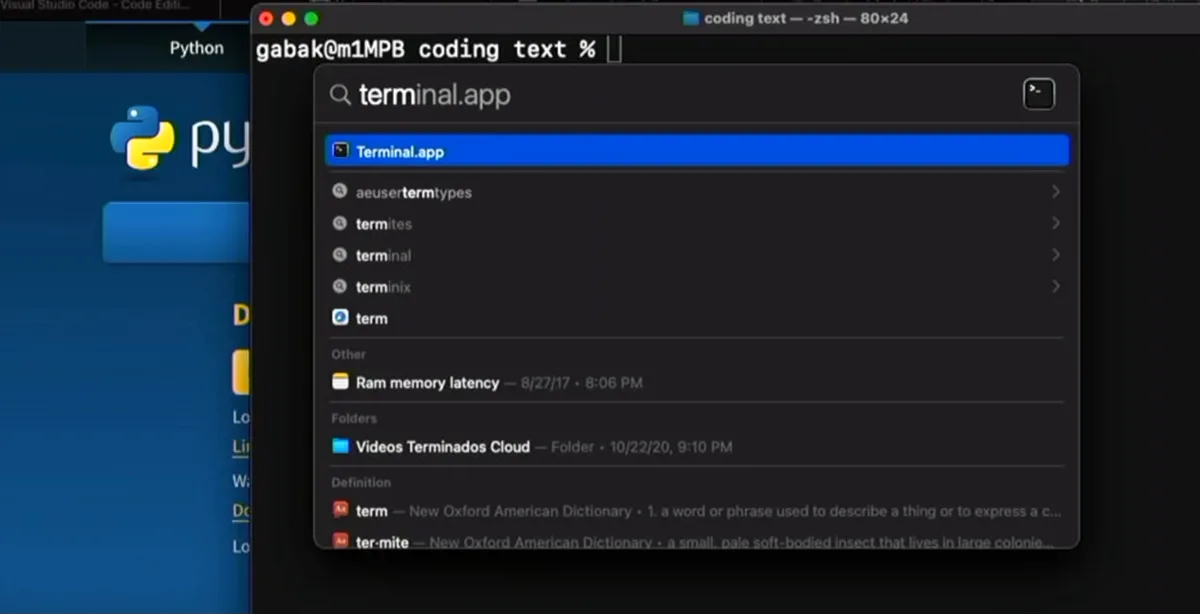
- Press Command + Space to open Spotlight, type
terminaland press Enter. - A Terminal window opens with a prompt that ends in
%(the zsh shell). This black window is where you talk to macOS and to Python with text commands. - Tip: press Control + L any time to clear the screen, as I do in the video, so the output is easy to read.
Step 2Type python to see what is already installed
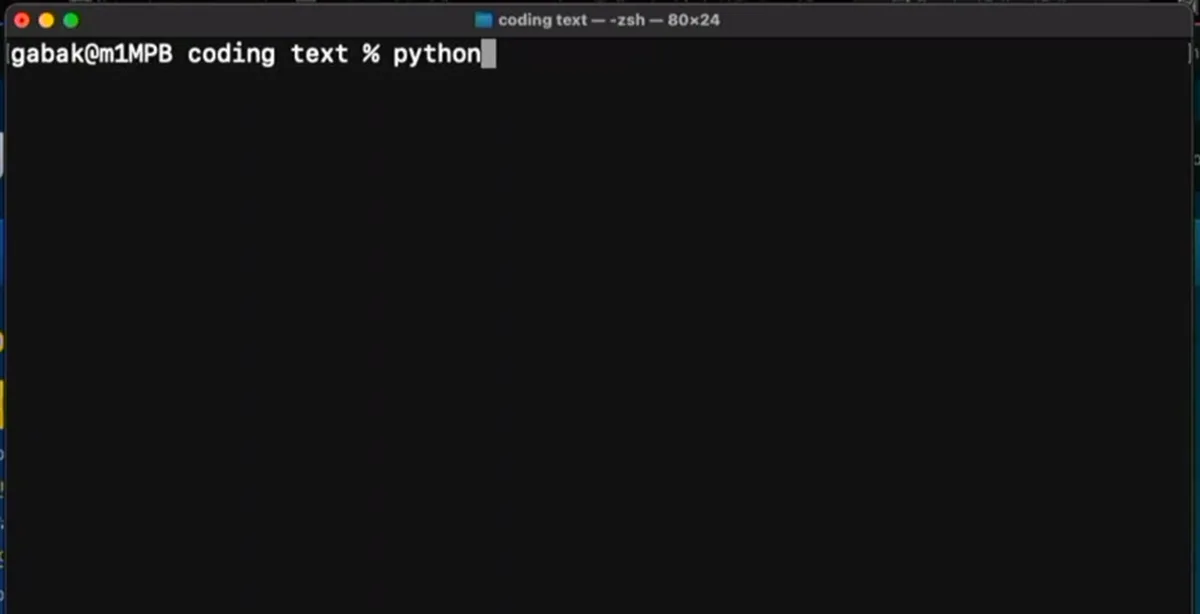
- Type
pythonand press Enter. On many Macs from that time, macOS answered with its own built-in copy of Python. - This is a quick way to find out what the Mac already has before you download anything.
- On newer macOS versions this command may say command not found; that is normal, see the section about newer macOS below.
Step 3Read the Python 2.7 warning and do not use it
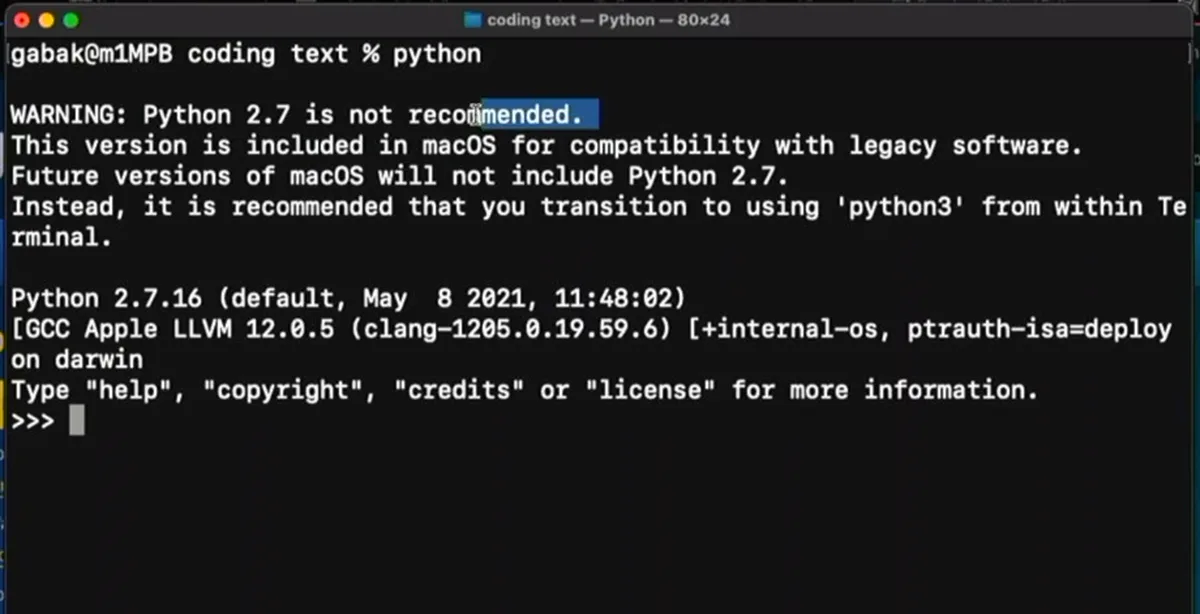
- In the video the command opened Python 2.7.16 with a clear warning: Python 2.7 is not recommended, it is only included for legacy software, and you should use
python3instead. - Python 2 is obsolete: it stopped receiving fixes in January 2020, and modern lessons, books and libraries are written for Python 3.
- Common mistake: following a course with Python 2.7 and getting errors on simple things like
print. Always check that you are on Python 3.
Caution: Do not try to remove or modify the Python that came with macOS; it belonged to the system. Install Python 3 next to it instead.
Step 4Leave the Python prompt with exit()
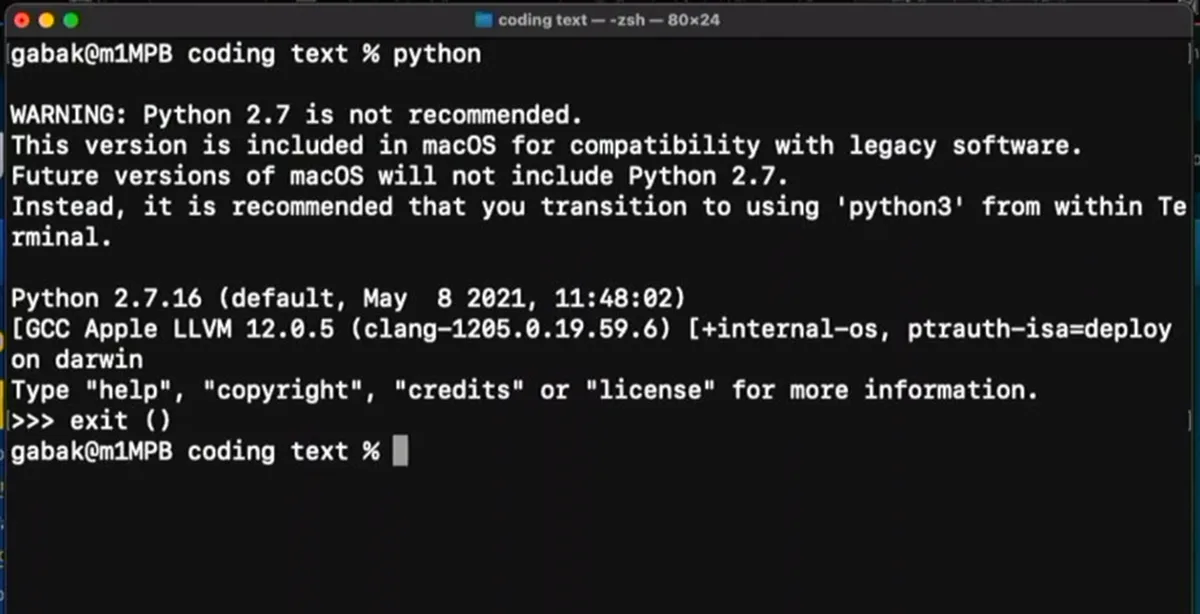
- When you see
>>>you are inside Python, not in the Mac shell. Typeexit()(exit, open parenthesis, close parenthesis) and press Enter. - The normal prompt comes back, so you can type Terminal commands again.
quit()or Control + D also close Python on a Mac.
Note: In the video I also press Control + Z. On a Mac that suspends Python (you will see zsh: suspended) instead of closing it; it is harmless, but exit() or Control + D is the clean way out.
Step 5Press Tab to list every Python command
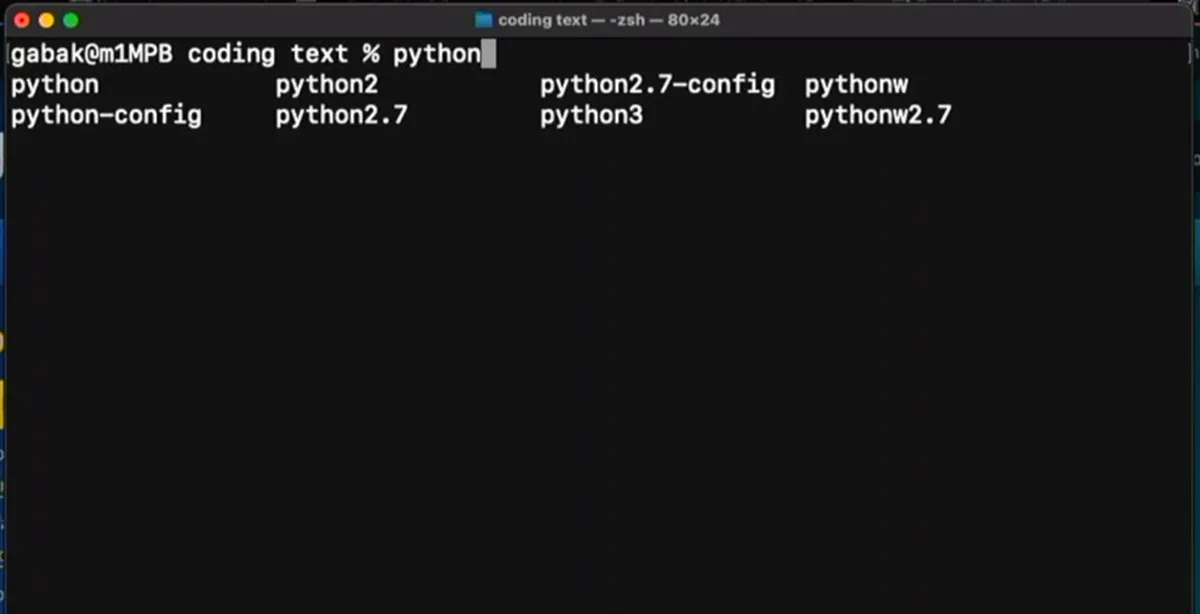
- Type
pythonand press the Tab key twice. zsh lists every command that starts with that word. - In the video the list shows
python,python2,python2.7,python3,python-configandpythonw: the Mac had both Python 2 and Python 3. - Tab completion also saves typing and avoids spelling mistakes in long commands, so use it everywhere in Terminal.
Step 6Check the current Python 3 version
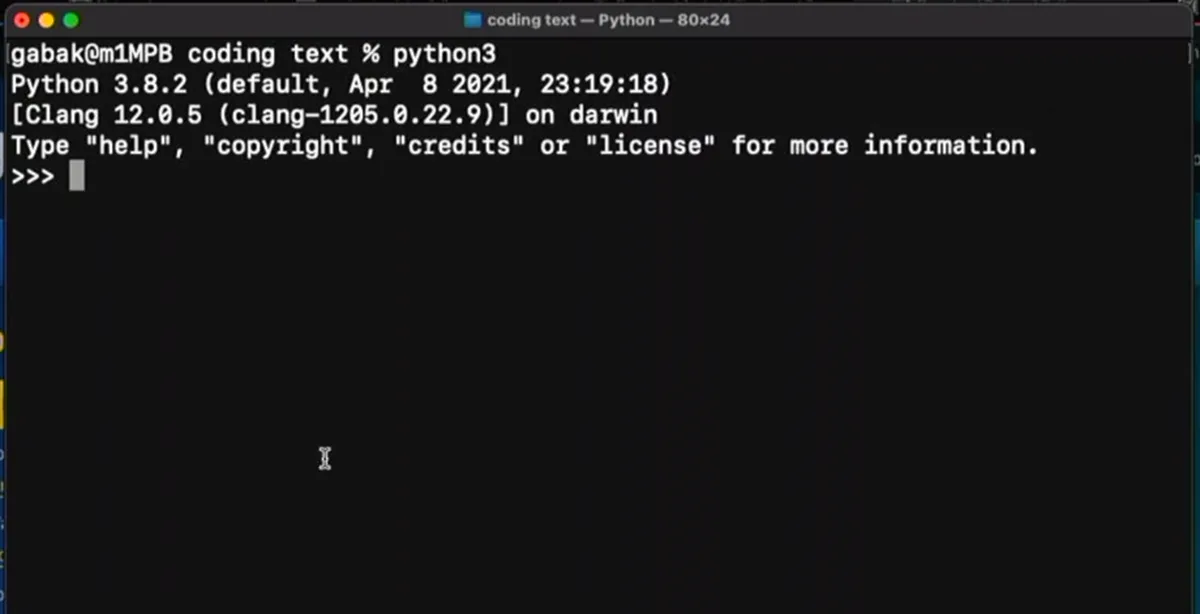
- Type
python3and press Enter. In the video it opened Python 3.8.2. - The latest version that day was 3.9.5, so this Mac was one version behind. Comparing these two numbers tells you if an upgrade is worth it.
- Write the version down; at the end you will check that it changed.
Step 7Exit Python 3 and clear the screen
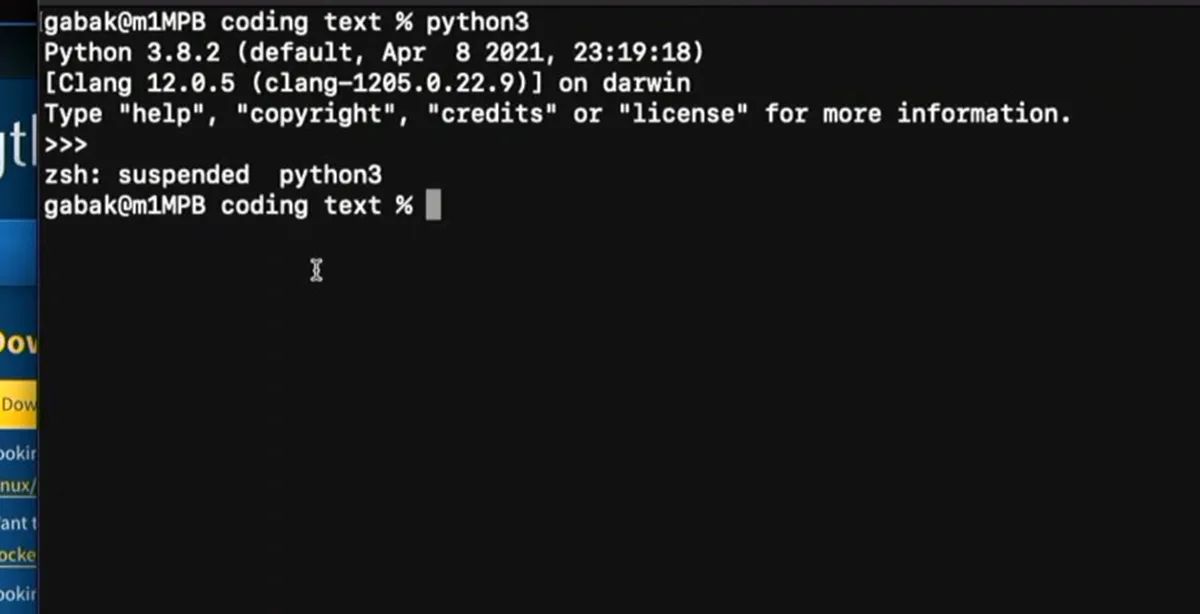
- Leave Python 3 the same way:
exit()and Enter. In the video I used Control + Z, which shows zsh: suspended python3. - Press Control + L to clear the window.
- If you suspended Python by accident, closing the Terminal window ends it; you can also type
fgto bring it back and then exit().
Step 8Download the macOS installer from python.org
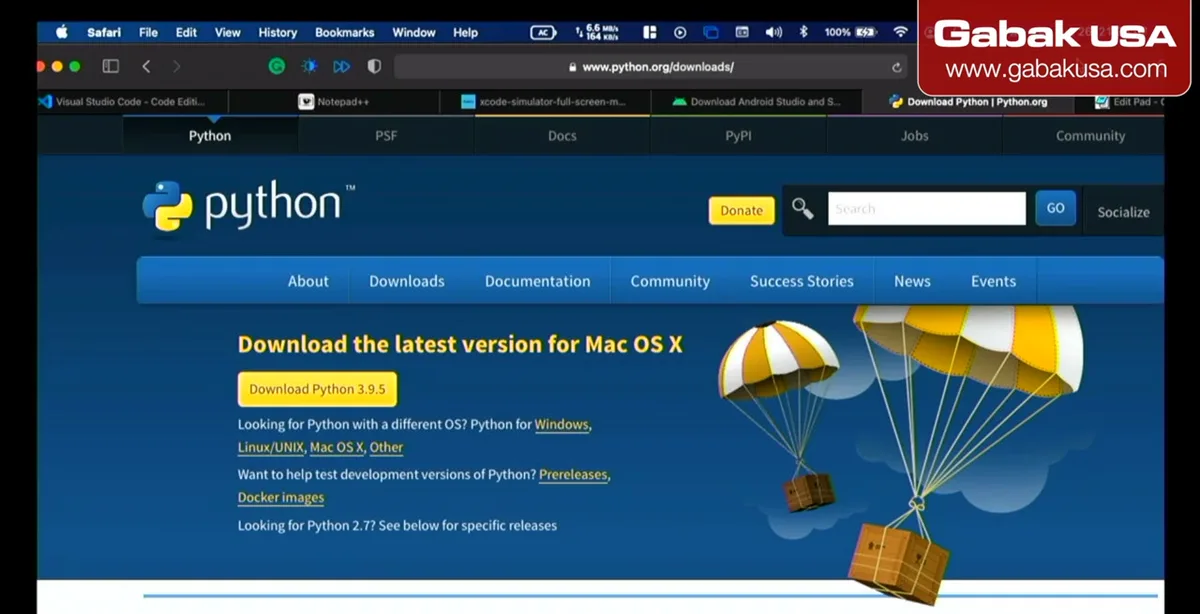
- Go to python.org and open Downloads. The site detects your Mac and shows a yellow button with the latest version (3.9.5 in the video).
- Click it and, if the browser asks, click Allow to let the download finish.
- Only download Python from the official python.org site; random download sites can bundle adware.
Note: Today the version number is much higher (the python.org macOS page lists Python 3.15.2 and 3.14.10 as of October 2026). The steps are the same; always take the newest stable release unless your course asks for a specific one.
Step 9Open the installer and check the macOS requirement
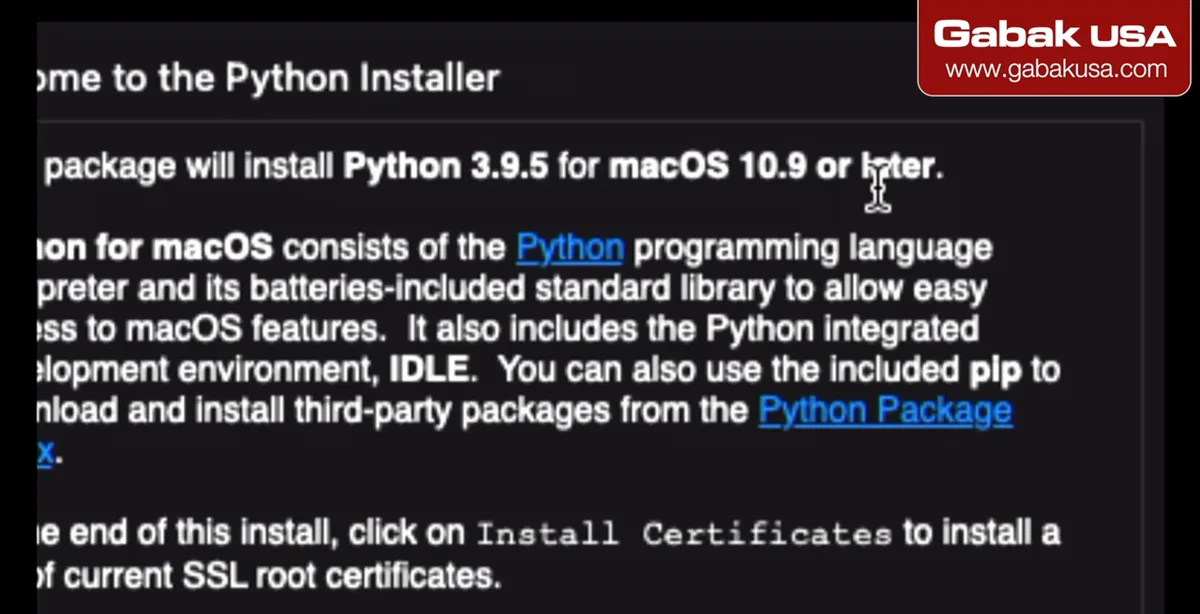
- Double-click the downloaded
.pkgfile (it is in your Downloads folder). The Introduction screen explains what will be installed. - Read the requirement line: the 3.9.5 package needed macOS 10.9 or later. If your Mac is older than the requirement, the installer will not work.
- The same screen mentions IDLE (a simple editor), pip (to install packages) and a step called Install Certificates; we use it after the install.
Step 10Click Continue and Agree to the license
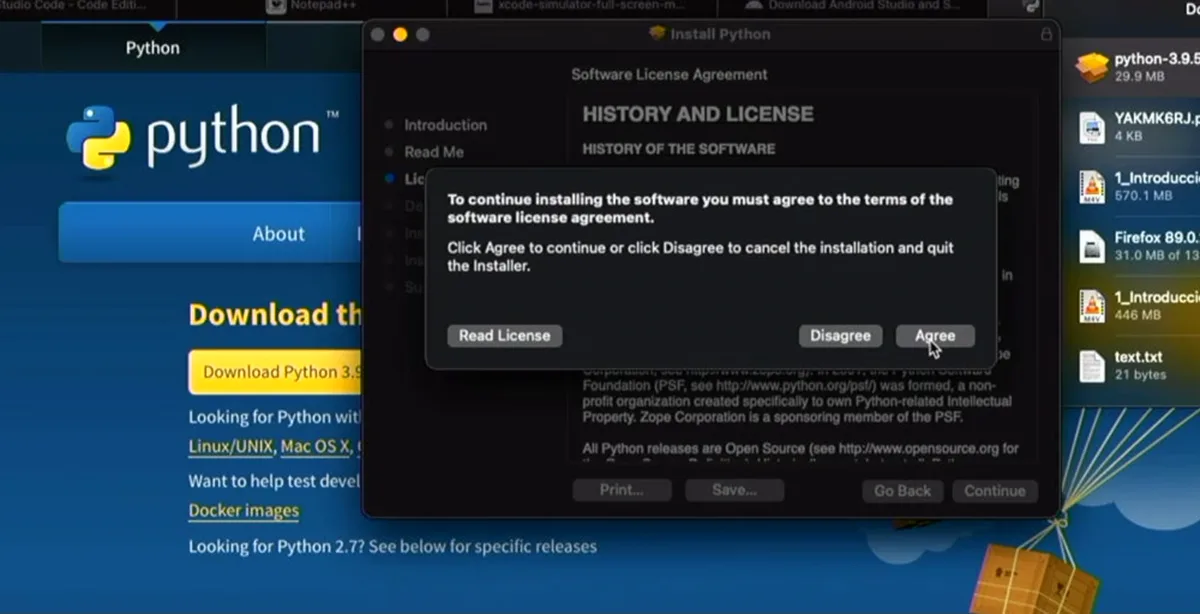
- Click Continue through Read Me and License, then Agree when the license box appears.
- Keep the default destination and click Install. The default install is what tutorials expect.
- Common mistake: clicking Disagree by accident, which closes the license step; just click Continue again.
Step 11Enter your Mac password
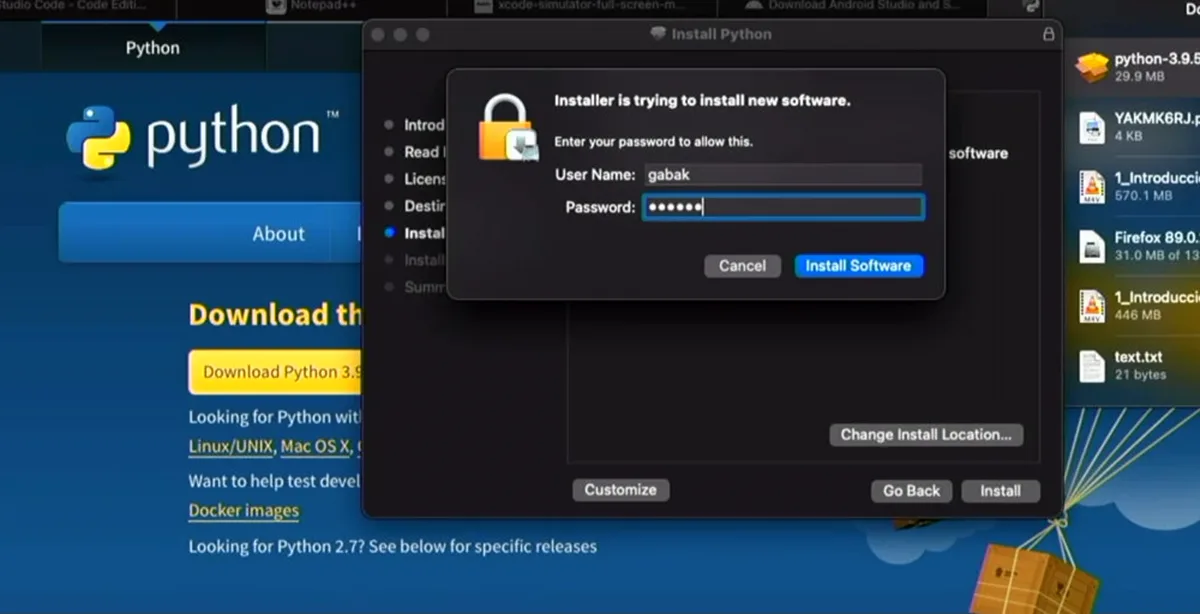
- macOS asks for your user name and password because Python is installed for all users of the Mac.
- Type the password you use to log in and click Install Software.
- If your account is not an administrator, ask the owner of the Mac to type an admin name and password here.
Caution: Only type your password into this real macOS dialog, never into a website or a pop-up that claims to install Python for you.
Step 12Look at the new Python folder (IDLE and certificates)
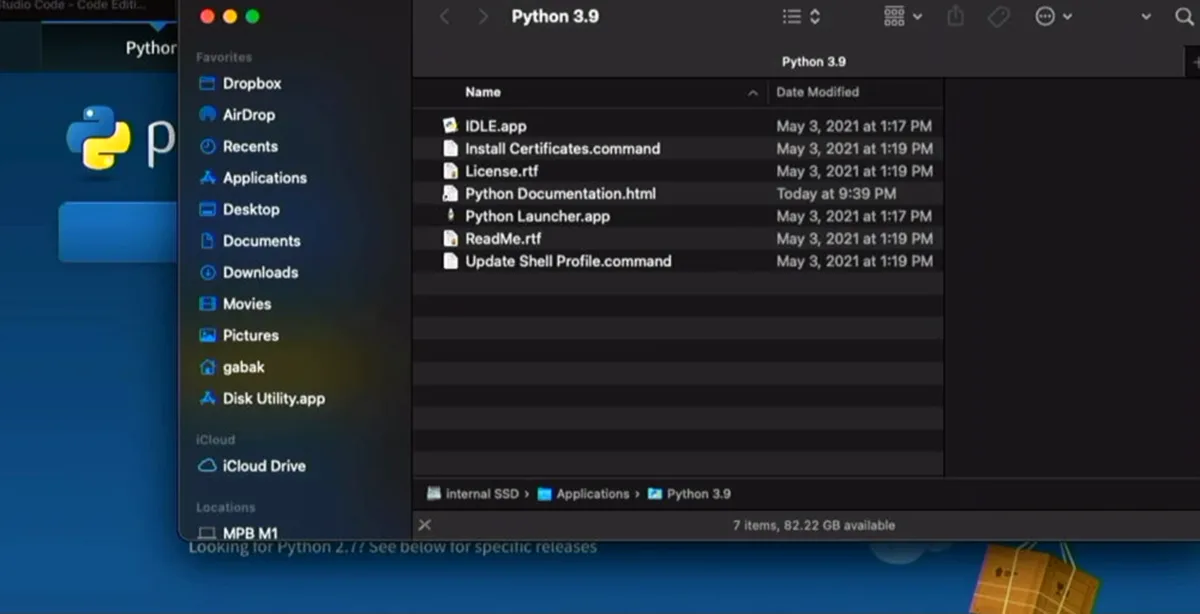
- When the install ends, Finder opens the new Python folder inside Applications (Python 3.9 in the video).
- Inside you find IDLE, Python Launcher, the documentation and Install Certificates.command.
- Double-click Install Certificates.command: according to the official Python docs it installs SSL root certificates so Python can download things over HTTPS. Skipping it can cause certificate errors later.
Step 13Close the installer and move it to the Trash
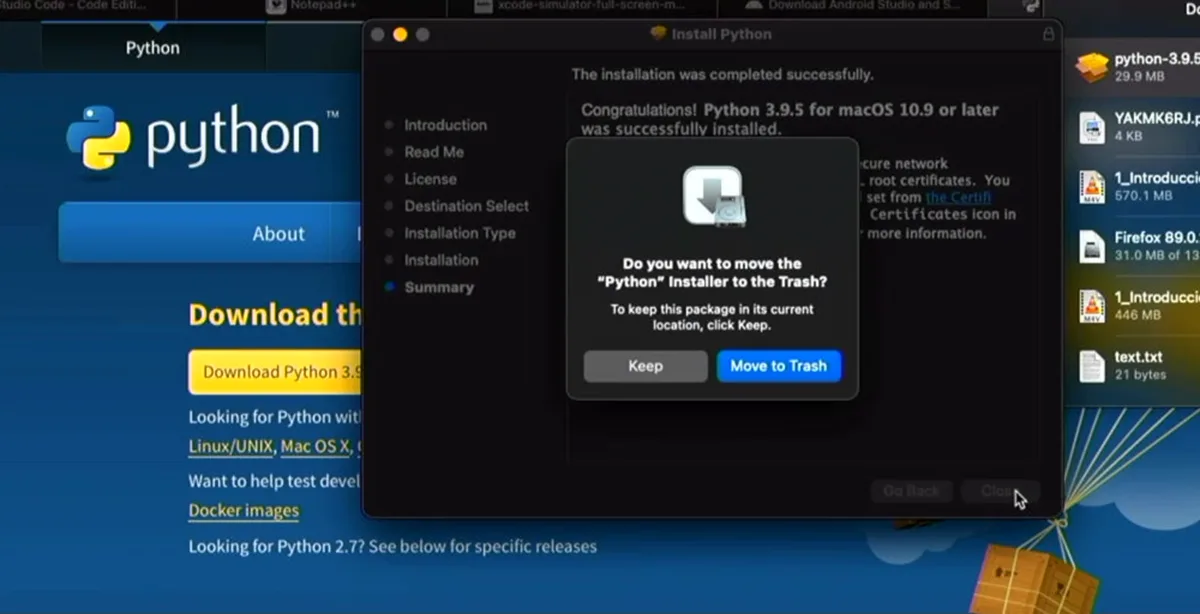
- The Summary screen says the installation was completed successfully. Click Close.
- macOS asks if you want to move the installer to the Trash. Click Move to Trash: you do not need the .pkg file anymore.
- Then close the Terminal window you used before. Old windows keep the old settings.
Step 14Open a new Terminal and confirm python3
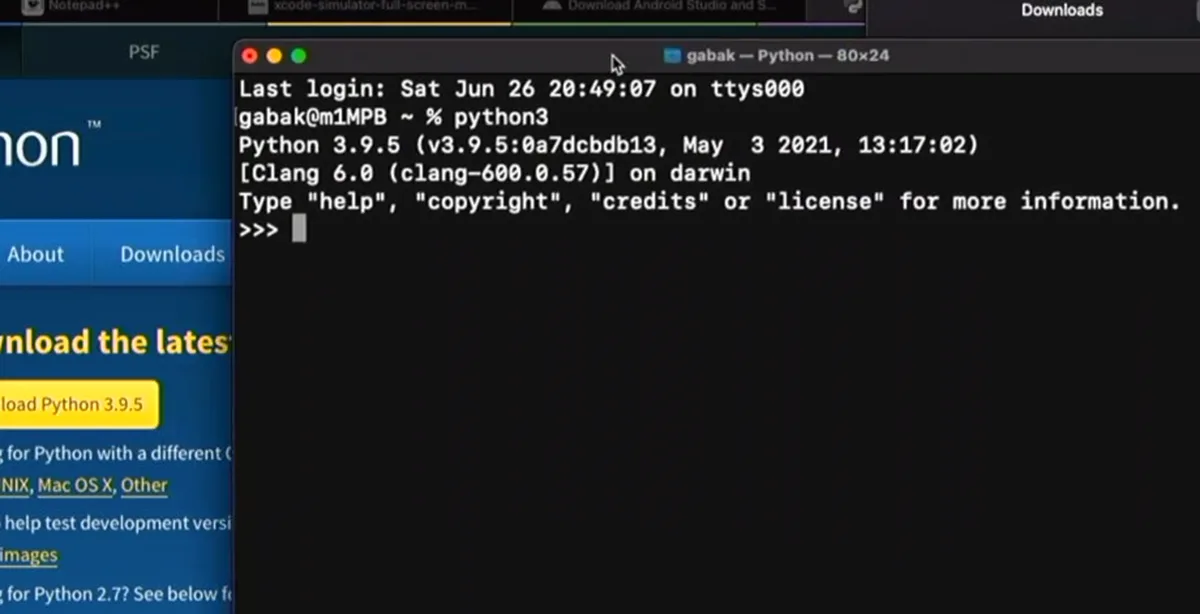
- Open a new Terminal window and type
python3. In the video it now shows Python 3.9.5, the version we just downloaded. - The old Python versions are still on the Mac, but
python3now runs the new one. - From here you can start writing code. Type
exit()to leave and you are done.
Does a Mac come with Python? What changed in newer macOS
When this video was recorded (2021), macOS still shipped Python 2.7 for old software, and that is why the warning appears. Apple announced in the macOS Catalina release notes that scripting runtimes would not stay in macOS, and in macOS Monterey 12.3 Apple removed Python 2.7 completely.
What that means for you today:
- Typing
pythonon a recent Mac usually gives *command not found*. Usepython3. - Typing
python3before installing anything may offer to install Apple's Command Line Tools, which include their own Python 3. That works, but it is usually older than the newest python.org release. - The python.org installer shown in the video is still the simplest way for beginners to get the latest Python 3, with IDLE included.
Note: the official Python documentation says current python.org installers are universal2 builds that run natively on Apple Silicon and Intel Macs, typically from macOS 10.15 Catalina on. Check the download page for the exact minimum before you install on an older Mac.
Mac Terminal commands used in this Python install guide
| Command or key | What it does |
|---|---|
Command + Space, then terminal | Opens Terminal with Spotlight |
python | Runs the old system Python (only on older macOS) |
python3 | Starts Python 3 and shows its version |
python3 --version | Shows the version without opening Python |
| Tab (twice) | Lists every command that starts with what you typed |
exit() / quit() / Control + D | Leaves the Python prompt |
| Control + Z | Suspends Python (does not close it) |
| Control + L | Clears the Terminal screen |
After installing, the next lesson in the course shows the Windows side; if you also use a PC, see how to run Python on the command line in Windows.
Troubleshooting: Python on Mac not working
| Problem | Likely cause | Fix |
|---|---|---|
python3 still shows the old version | You are using a Terminal window opened before the install | Close Terminal completely and open a new window |
| *command not found: python* | Newer macOS has no python command | Use python3 instead |
| Installer says your macOS is too old | The release needs a newer macOS | Update macOS or pick an older Python release from python.org that supports your version |
| Password prompt rejects you | Your account is not an administrator | Ask an admin to type their name and password |
| SSL or certificate errors when downloading packages | Install Certificates was not run | Double-click Install Certificates.command in the Python folder |
You see zsh: suspended python3 | You pressed Control + Z | Type fg then exit(), or close the window |
Tips after you install Python on your Mac
- Practice the habit from the video: always run
python3first to confirm the version before following any tutorial. - Open IDLE from the Python folder in Applications if you want a simple window to type code without the Terminal.
- When your projects grow, a real code editor helps a lot; Visual Studio Code is free and also exists for Mac.
- Keep one folder for your course files so you can move to it quickly with
cdin Terminal. - Check python.org for updates from time to time: a newer patch release of the same series (for example 3.9.4 to 3.9.5) replaces the old one, while a new series installs in its own folder next to it.
- If you need a clean macOS for testing, you can also create a macOS bootable USB and reinstall the system.
Frequently asked questions
How do I install Python on a Mac?
Download the latest macOS installer from python.org, open the .pkg file, click Continue and Agree, enter your password, then open a new Terminal window and type python3 to confirm the version.
Does my Mac already have Python installed?
Older macOS versions included Python 2.7, and some Macs also have Python 3 from Apple's developer tools. Open Terminal and type python3 to see what you have; Apple removed Python 2.7 in macOS 12.3.
Should I use Python 2.7 or Python 3 on my Mac?
Use Python 3. Python 2.7 is obsolete, no longer receives fixes since 2020, and even macOS warned that it was only kept for legacy software.
How do I check my Python version on a Mac?
Open Terminal and type python3 --version, or just python3 to open the interpreter; the first line shows the version number.
Why does python3 still show the old version after installing?
The Terminal window was opened before the install. Close Terminal completely, open a new window and type python3 again.
How do I exit Python in the Mac Terminal?
Type exit() or quit() and press Enter, or press Control + D. Control + Z only suspends Python.
What is Install Certificates.command?
A small script in the new Python folder in Applications that installs SSL root certificates for Python so it can download over HTTPS without certificate errors.
Is Python free on Mac?
Yes. Python is free and open source, and the official installer from python.org costs nothing.
Watch the video


Comments
Comments appear after Gabriel reviews them.
Loading comments…