

Step-by-step guide
How to turn your PC into a Wi-Fi router with Windows 10 Mobile hotspot (and when to use RouterOS instead)
Short answer: to turn your PC into a Wi-Fi router in Windows 10, plug the cable modem into the computer's Ethernet port, open Settings > Network & Internet > Mobile hotspot, choose to share the Ethernet connection over Wi-Fi, set a network name, an 8+ character password and the band (2.4 GHz or 5 GHz), and turn the hotspot on. Phones and laptops then connect to the PC like they would to a router, up to 8 devices at a time.
In the video I did this because my internet plan had just been upgraded to a gigabit, but speed tests only showed about 80-90 Mbps. The problem was my old router, so while I waited for a new one I used a spare Windows 10 computer as the router. This is a quick, free fix for an emergency, a dead router or a temporary setup; it is not a replacement for a real router in a busy office.
Below you will find the exact steps from the video, what hardware you need, why the speed is limited by the slowest link, how to manage connected devices, and the more powerful option: installing MikroTik RouterOS on an old PC.
In this article
- Understand how the PC-as-router setup works
- Add a second network adapter if you need one
- Connect the modem to the PC with an Ethernet cable
- Check the Ethernet adapter status and link speed
- Open Mobile hotspot settings
- Share the Ethernet connection over Wi-Fi
- Set the network name and password
- Choose the Wi-Fi band: 2.4 GHz, 5 GHz or Any available
- Use a password of at least 8 characters
- Turn the hotspot on
- Connect a phone or laptop to the PC hotspot
- See and manage the connected devices (up to 8)
- Change the password to remove devices
- Find the real bottleneck: check your router's ports
- Compare speeds before and after
- Why use your PC as a router (and its limits)
- Speed: your internet is only as fast as the slowest link
- Better option: MikroTik RouterOS on an old PC
- What to look for in a real router
- Troubleshooting the Windows Mobile hotspot
- Frequently asked questions
- Watch the video
Step 1Understand how the PC-as-router setup works
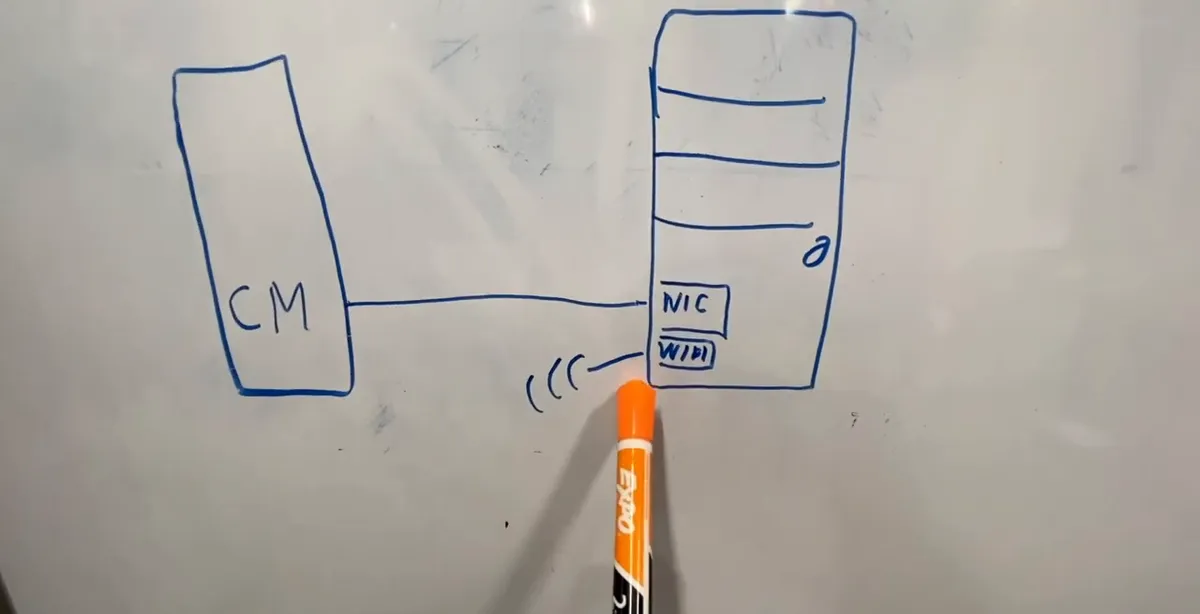
- The internet comes from the **cable modem** into the computer's **Ethernet card (NIC)**. The PC does the routing work, and its **Wi-Fi card works as the access point** for your other devices.
- You need **at least two network adapters**: one wired port for the modem and one Wi-Fi adapter to share the connection. More adapters are fine, but two is the minimum.
- A **laptop works the same way**: connect its Ethernet port to the modem and share its Wi-Fi.
- Common mistake: trying to share Wi-Fi to Wi-Fi with a single adapter and expecting full speed. Keep the modem on the wired port.
Step 2Add a second network adapter if you need one
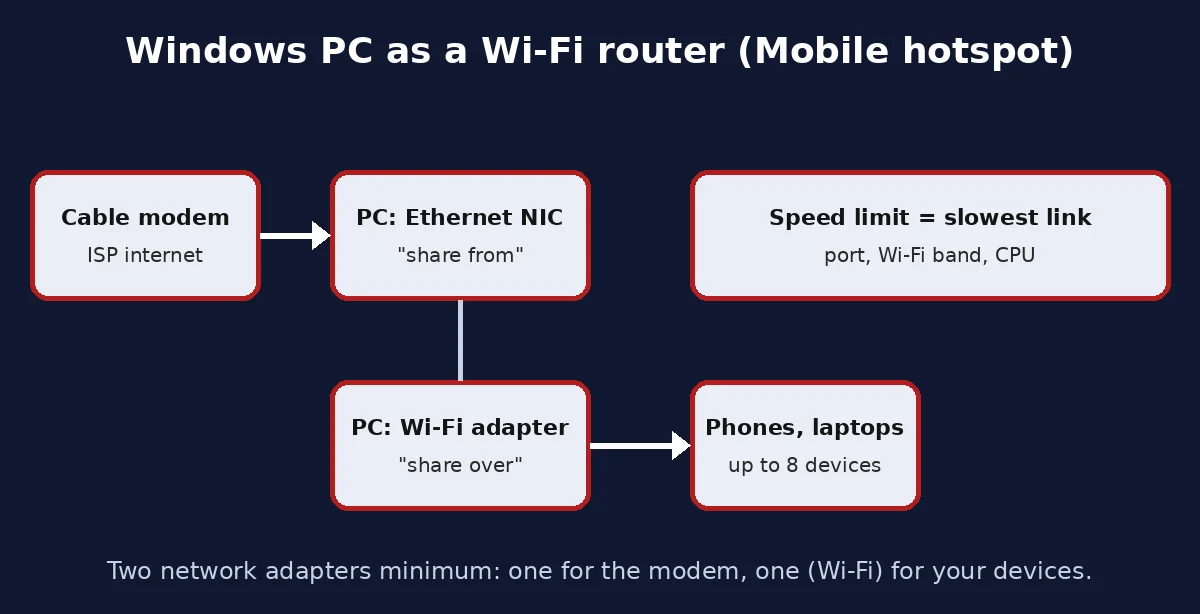
- Most laptops already have Wi-Fi. A desktop without Wi-Fi needs a **small USB Wi-Fi adapter** or a **PCIe Wi-Fi card**; both work for this.
- If your desktop has Wi-Fi but no free Ethernet port, a USB Ethernet adapter is the other way around.
- Tip: for a gigabit plan, the wired port must be a **gigabit (1000 Mbps) port**; a 10/100 port caps you at about 100 Mbps.
Step 3Connect the modem to the PC with an Ethernet cable
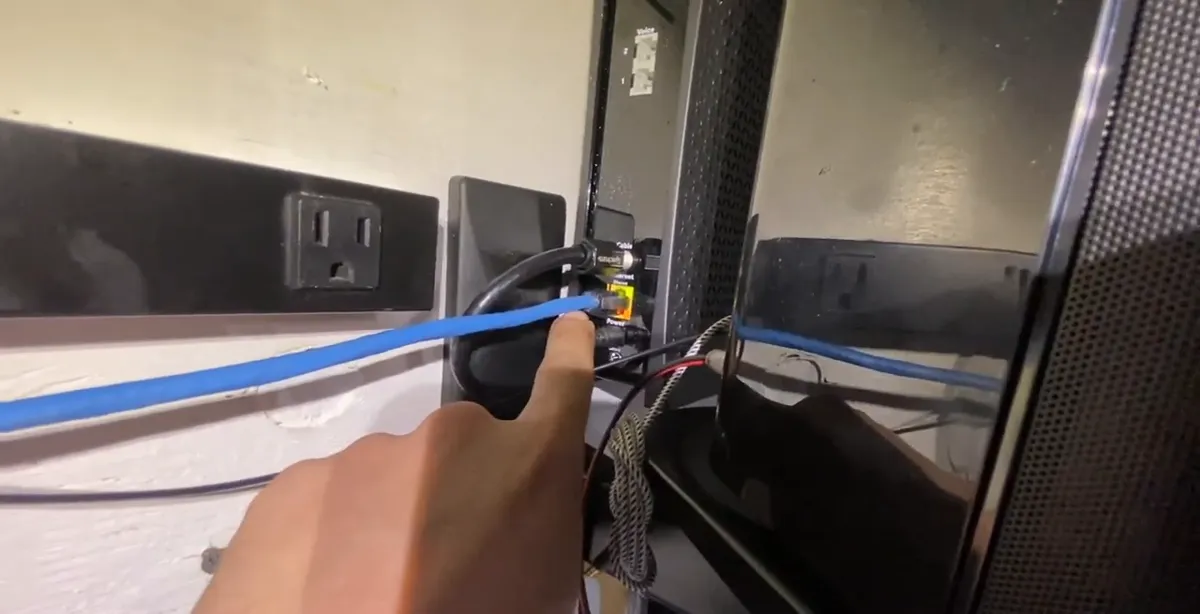
- Use the **Ethernet cable** from the modem's LAN port, not the coax cable that comes from the wall. The coax only goes into the modem.
- Plug the other end into the PC's network card. Windows should detect the connection in a few seconds.
- If the modem was connected to another router before, you may need to **power-cycle the modem** so it gives an address to the new device.
Note: In the video the modem goes directly to the computer; the old router is not in the path anymore.
Step 4Check the Ethernet adapter status and link speed
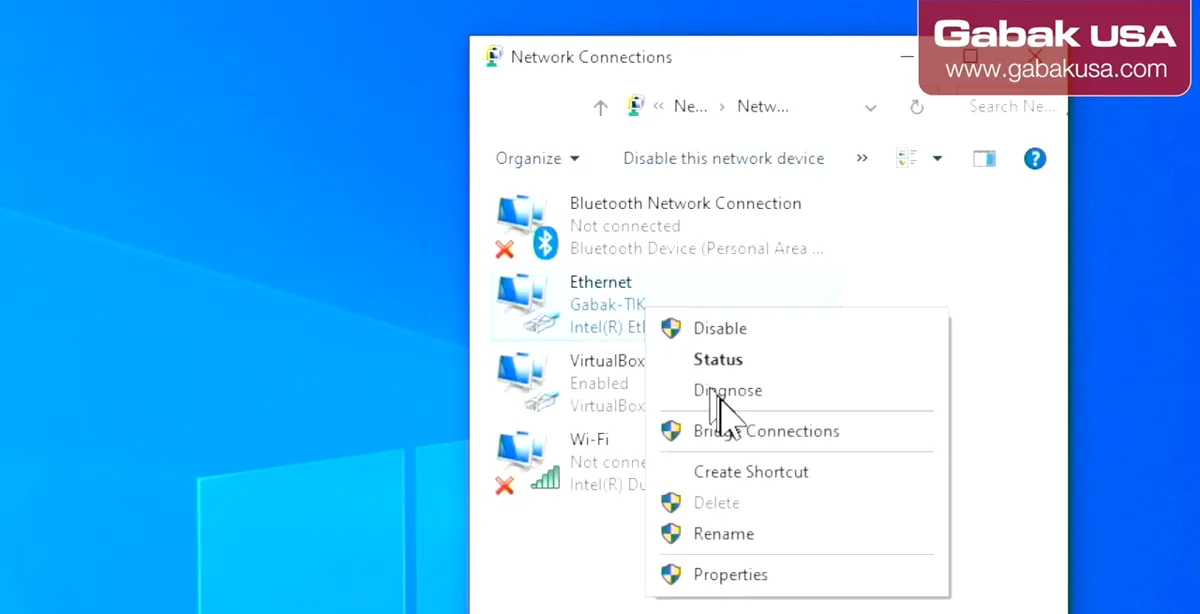
- Open **Network Connections** (Control Panel or type ncpa.cpl in Run), right-click the **Ethernet** adapter and choose **Status**.
- The **Speed** line shows the link rate. In the video it showed a gigabit link, which proves the PC port is not the bottleneck.
- You may also see virtual adapters (VirtualBox, VPN). Ignore them; only the real Ethernet card connected to the modem matters.
Step 5Open Mobile hotspot settings
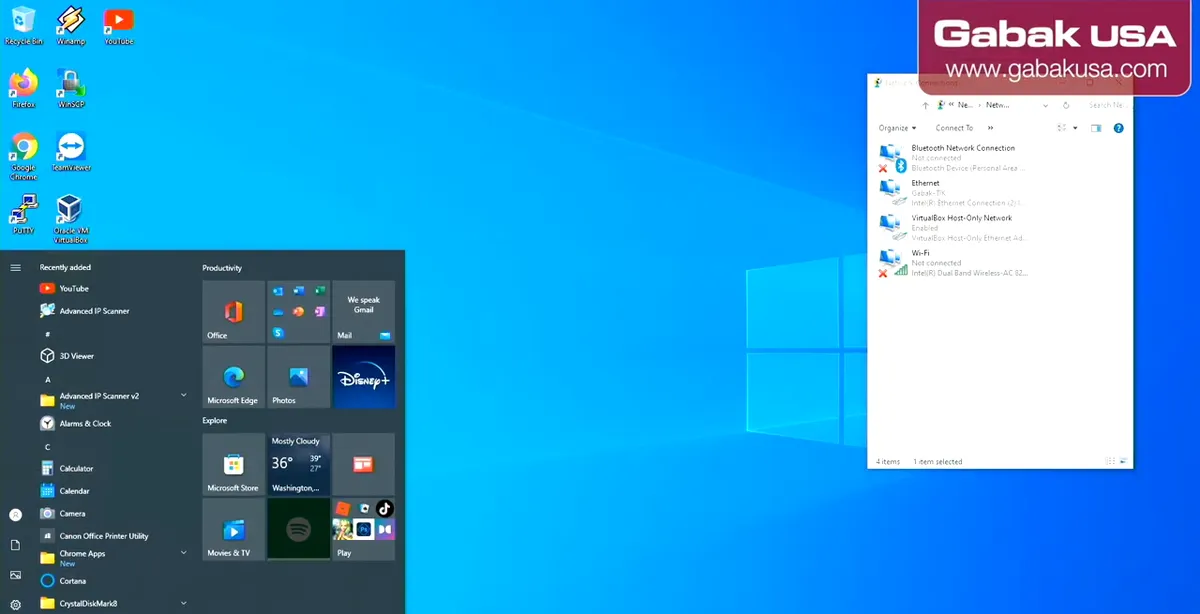
- Click **Start** and type **hotspot**, then open **Mobile hotspot settings**. The full path is **Settings > Network & Internet > Mobile hotspot**.
- The same feature exists in **Windows 11**, where it is also in Quick Settings.
- The first time, Windows asks which connection you want to share.
Step 6Share the Ethernet connection over Wi-Fi
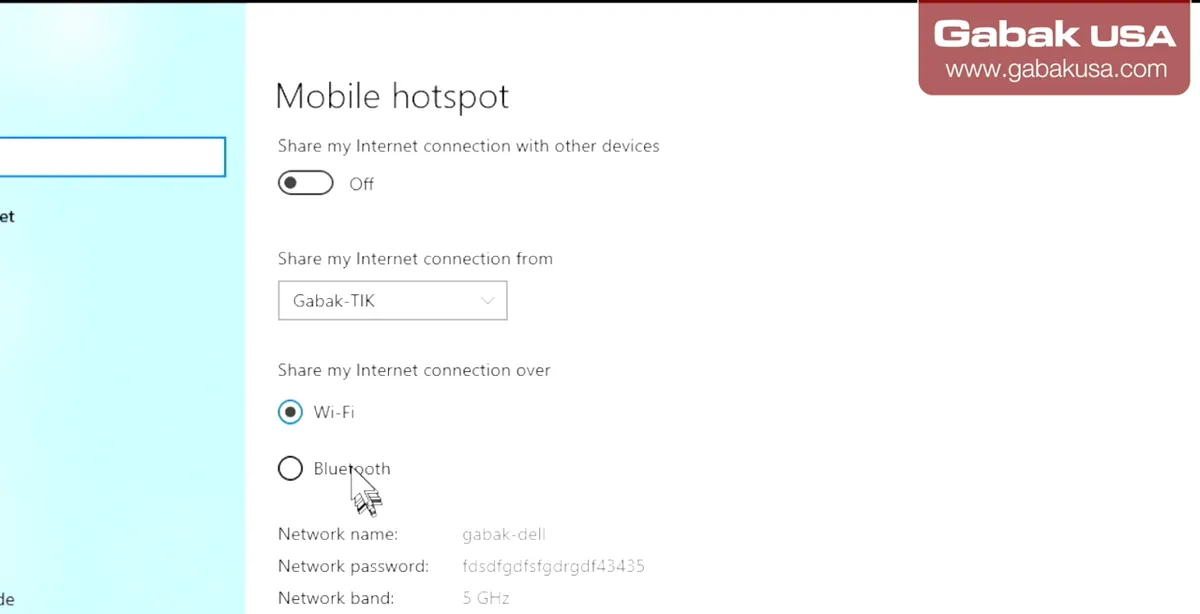
- Under **Share my Internet connection from**, pick the **Ethernet** adapter that is connected to the modem.
- Under **Share over**, choose **Wi-Fi**. Bluetooth is available too, but Wi-Fi is easier and much faster.
- Common mistake: leaving the share-from list on a virtual or disconnected adapter. If devices connect but have no internet, check this first.
Step 7Set the network name and password
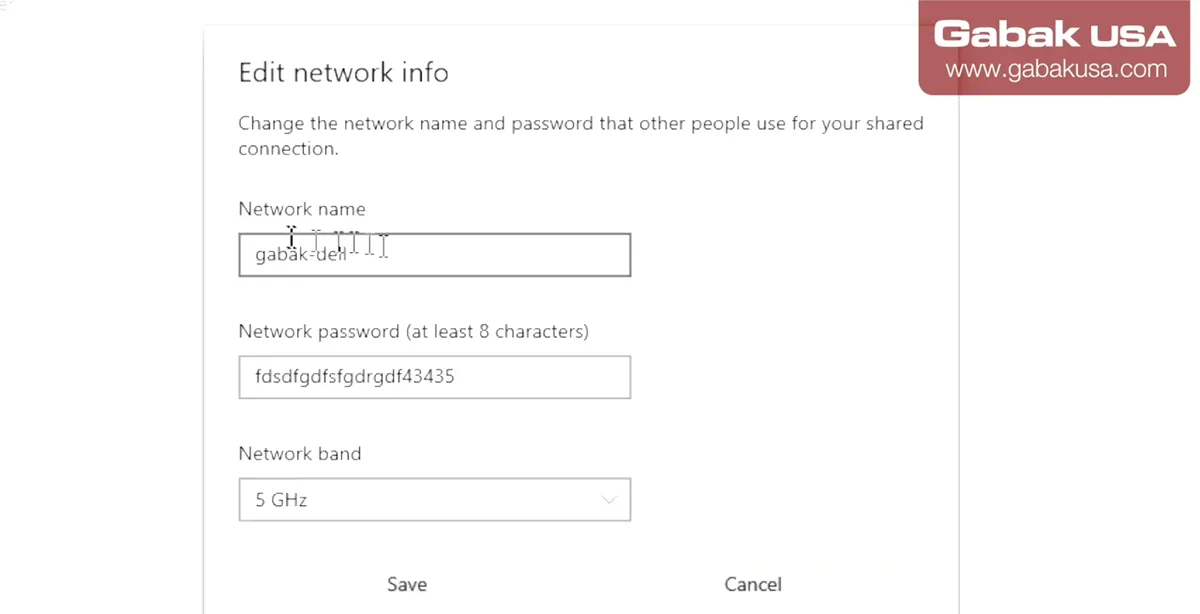
- Click **Edit**. Type a **Network name** (in the video: a simple name for the Dell computer) and a **Network password**.
- Use something you can share with the people who need it, but not something obvious if the PC is in a public place.
- Click **Save** when the three fields are set.
Step 8Choose the Wi-Fi band: 2.4 GHz, 5 GHz or Any available
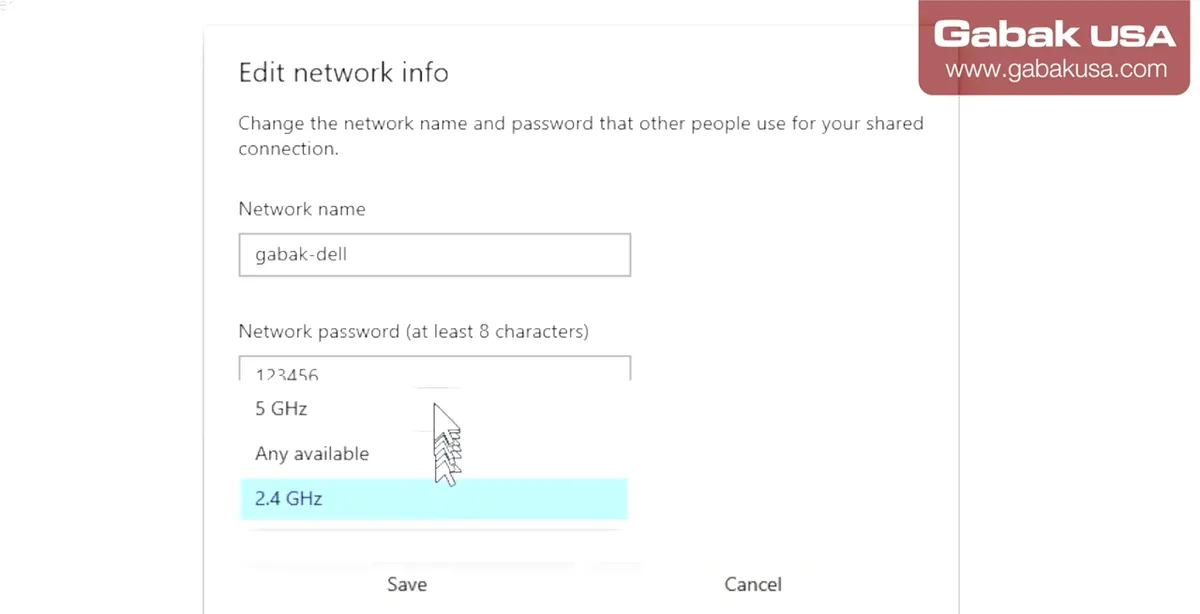
- **5 GHz** gives higher speed at short range. **2.4 GHz** reaches farther and works with older devices that can't connect to 5 GHz.
- **Any available** lets Windows decide. If an old phone, printer or smart device does not see the network, switch to 2.4 GHz.
- In the video the band was set to 2.4 GHz for compatibility. Not every Wi-Fi card offers the 5 GHz option.
Step 9Use a password of at least 8 characters
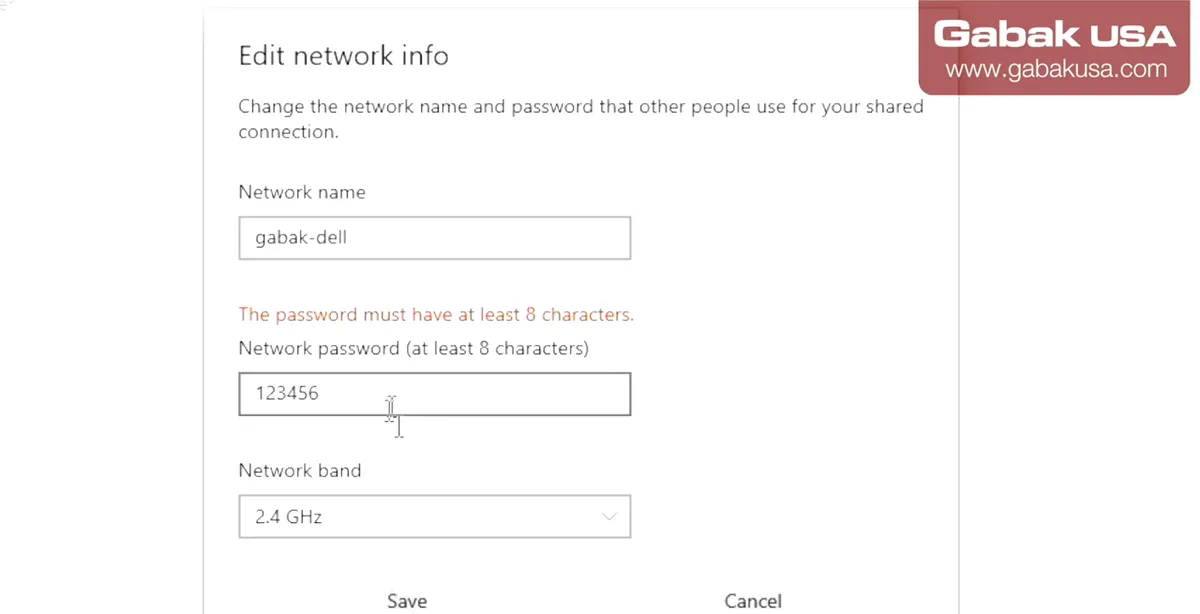
- Windows **won't save a password shorter than 8 characters**. In the video a 7-digit password was rejected until one more digit was added.
- Write the password down before you close the window; you will type it on every phone and laptop.
- Numbers are fine for a quick test, but use a longer mix of letters and numbers for anything permanent.
Step 10Turn the hotspot on
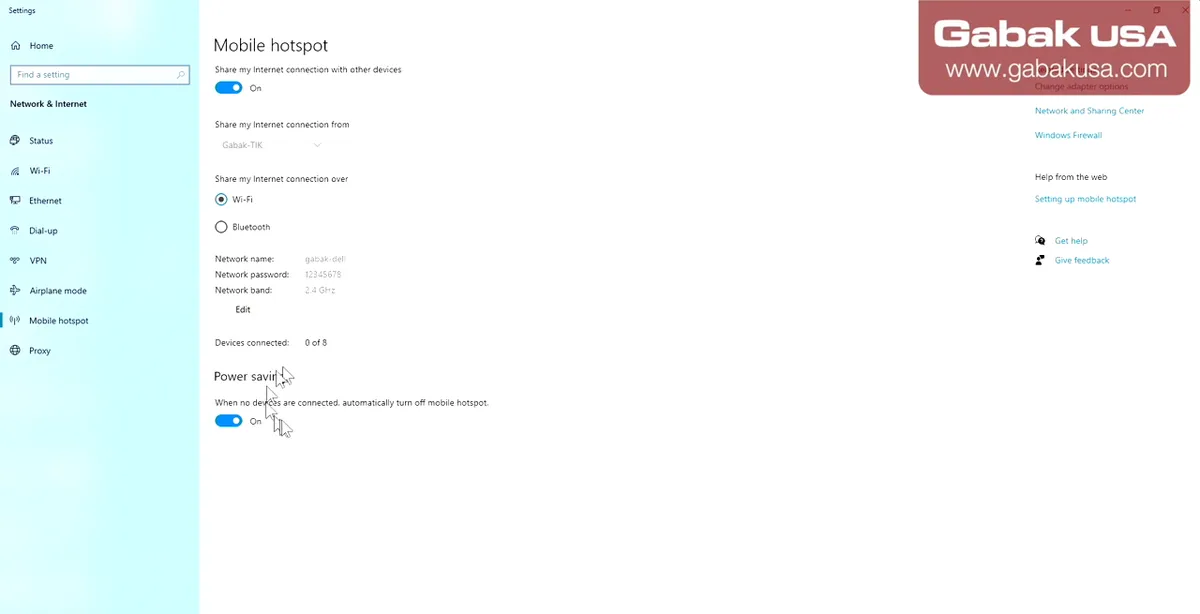
- Switch **Share my Internet connection with other devices** to **On**. That's it: the PC is now broadcasting your Wi-Fi network.
- The page also has **Power saving**: when no devices are connected, Windows turns the hotspot off automatically. Turn it off if you want the network to stay up all the time.
- Keep the PC awake: if it sleeps, everyone loses internet. Set **Sleep** to Never while it works as a router.
Caution: Windows 10 reached end of support on October 14, 2025. It still works for a temporary hotspot, but a PC that stays online for others should run a supported version such as Windows 11.
Step 11Connect a phone or laptop to the PC hotspot
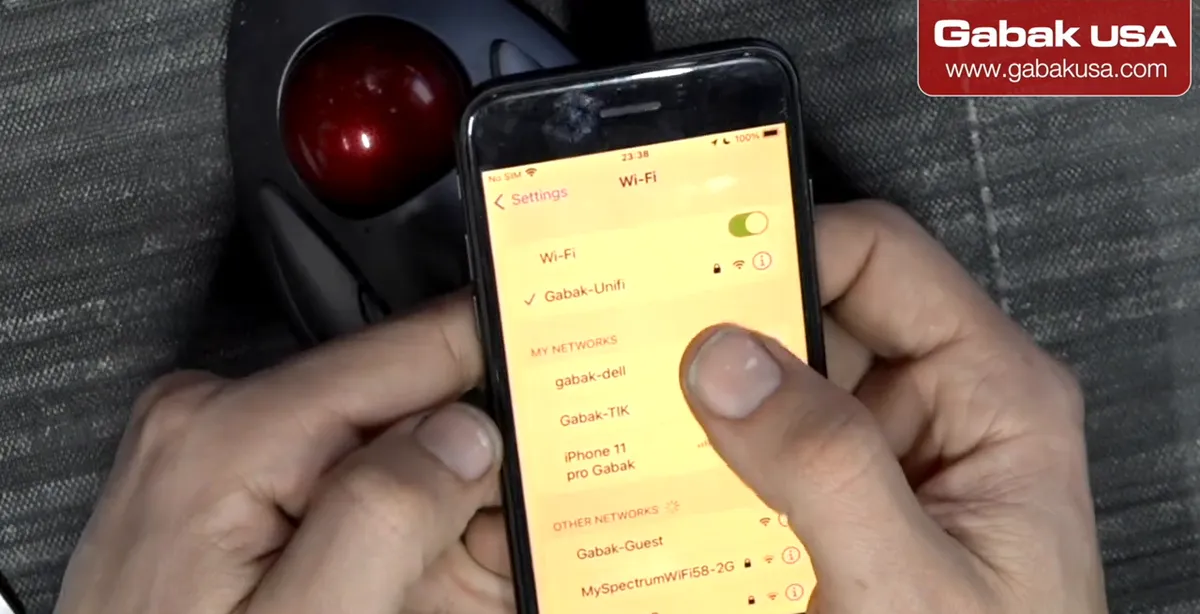
- On the phone go to **Settings > Wi-Fi**, select the network name you created and type the password.
- In the video the first attempt failed with a wrong password; after typing the right 8 digits the phone joined immediately.
- Test by opening a website or running a speed test on the phone.
Step 12See and manage the connected devices (up to 8)
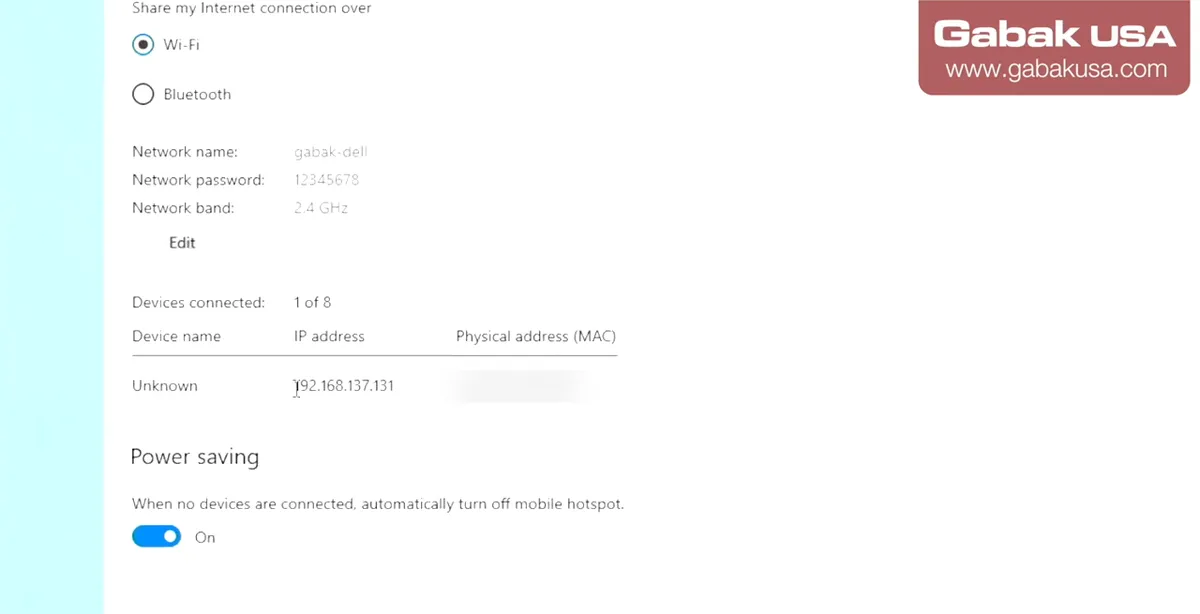
- Below the settings Windows lists every connected device with its **name, IP address and MAC address**. Phones often appear as Unknown.
- The counter shows **devices connected: 1 of 8**, so the built-in hotspot accepts **up to 8 devices**. For more, use a real router.
- To kick everybody off, simply turn the hotspot **off**.
Step 13Change the password to remove devices
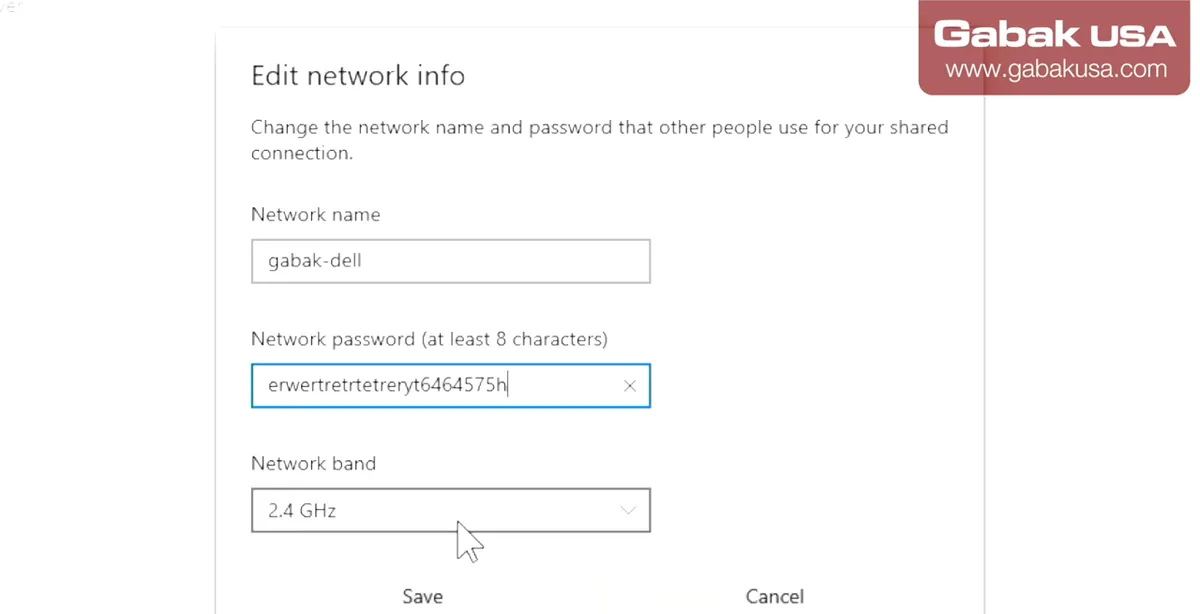
- Click **Edit**, type a new password and **Save**. Devices that knew the old password can't reconnect until they type the new one.
- In the video, after saving the new password the phone could not connect again until the new password was entered.
- This is the quickest way to stop someone from using your connection.
Step 14Find the real bottleneck: check your router's ports
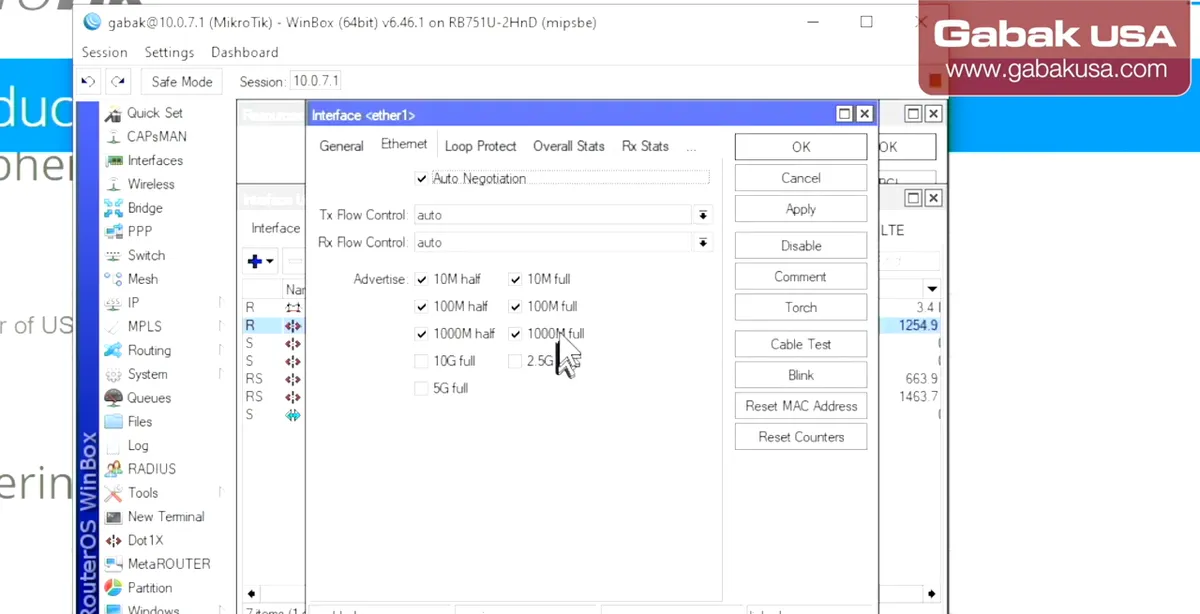
- The reason for this whole setup: my old **MikroTik RB751U-2HnD** router has a single 400 MHz core and only **10/100 Mbps** ports.
- Its interface menu lists 1000 Mbps half/full options, but the hardware is still 10/100. **Don't be fooled**: check the official specifications of your router.
- Its built-in Wi-Fi would not pass a gigabit either, so a gigabit plan can't be used through that router.
Step 15Compare speeds before and after
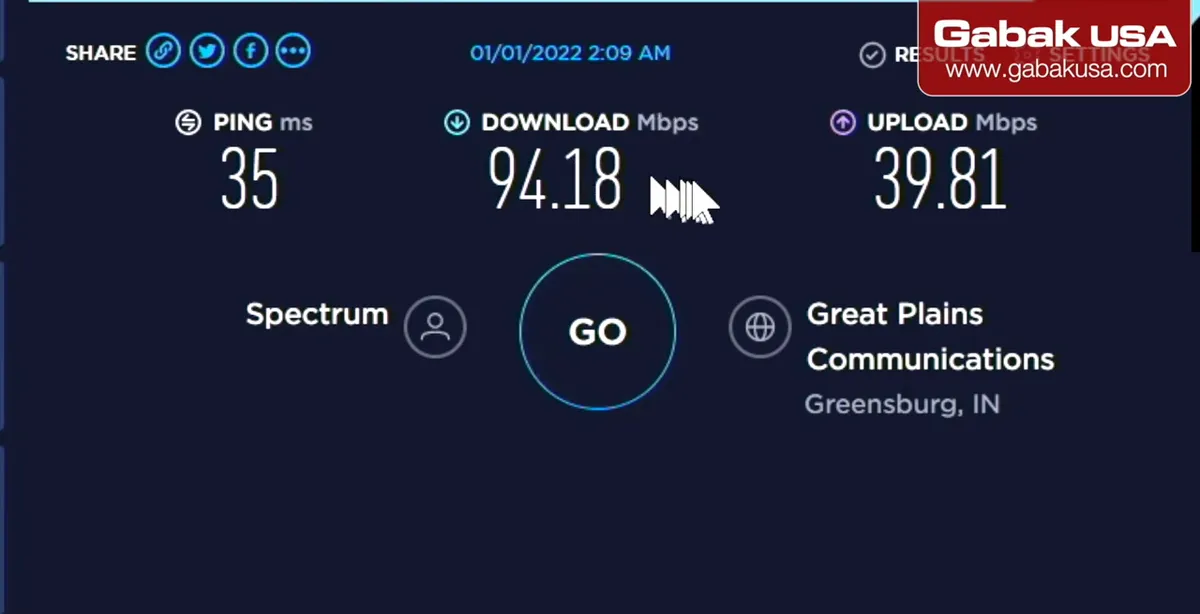
- Run a speed test through the old router and through the PC. In the video the old router gave about **94 Mbps download** on a gigabit plan.
- Test with a **wired** computer first; Wi-Fi results are always lower than the plan speed.
- If the wired PC connected straight to the modem is fast and the router is slow, the router is the bottleneck and needs replacing.
Why use your PC as a router (and its limits)
Using a Windows PC as a Wi-Fi router makes sense when your router died, when it is too slow for the new plan, or when you need internet for a few devices for a few days. It costs nothing if you already have the computer.
The limits are real, though:
- 8 devices maximum with the built-in Mobile hotspot.
- The PC must stay on and awake; a reboot or Windows update drops everyone.
- A desktop computer uses much more power than a small router.
- Wi-Fi speed depends on the PC's Wi-Fi card. In my case I didn't expect more than about 300 Mbps over Wi-Fi even with a gigabit plan.
- There is no advanced control (port forwarding, bandwidth limits, VPN) in the simple hotspot.
For an emergency it works perfectly. For a business or a permanent setup, get a proper router. If you are choosing one, see how I set up a small travel router in this GL.iNet Opal setup guide.
Speed: your internet is only as fast as the slowest link
A gigabit plan only reaches your device at gigabit speed if every link in the chain supports it:
| Link | What to check | Typical limit |
|---|---|---|
| Modem port | Gigabit LAN port on the modem | Usually 1 Gbps on gigabit-ready modems |
| Cable | Cat5e or better, not damaged | Old or broken cables can drop to 100 Mbps |
| PC / router port | Link speed in adapter Status | 10/100 ports cap you near 100 Mbps |
| Router CPU | Cores and clock speed | Single-core older routers can't route a gigabit |
| Wi-Fi | Band, adapter, distance | Wi-Fi is always below the wired speed |
That's exactly what happened in the video: the plan was a gigabit, the PC port was gigabit, but the router ports were 10/100, so every test showed about 90 Mbps. A good test is to plug one computer directly into the modem with a cable: if that is fast and your router is slow, the router is the problem.
Better option: MikroTik RouterOS on an old PC
If you want something much more powerful than the Windows hotspot, MikroTik offers RouterOS for x86 computers. You download the installation image from MikroTik's software page, install it on the PC (it replaces Windows), and it boots into a text console. Configure it with Winbox or the web interface from another computer.
In my experience a plain x86 PC with RouterOS handled around 200 users even on a very old Pentium III, because routing does not need a supercomputer; the network cards and the speed you give each user matter more.
Things to know before you try it (from MikroTik's documentation):
- Licensing: after installation x86 RouterOS runs in trial mode for 24 hours. Then you register a free Level 1 demo (very limited) or buy a Level 4, 5 or 6 license.
- Hardware: current documentation lists a 64-bit x86 CPU and at least 512 MB of RAM for RouterOS v7, so a very old 32-bit PC won't run the current version.
- Virtual machines: the Cloud Hosted Router (CHR) version runs in VirtualBox, Hyper-V or VMware; its free license is limited to 1 Mbps upload per interface, so it's for testing.
- Disk: the x86 license is tied to the drive, so don't reformat it after licensing.
What to look for in a real router
When you replace the router, check these points before buying:
- Gigabit ports on WAN and LAN (and SFP if you use fiber).
- At least two CPU cores. I wouldn't buy a single-core router today for a fast plan.
- Enough RAM for your features; tiny amounts like 32 MB belong to very old models.
- A USB port if you want an LTE modem as backup internet (see my LTE backup internet guide).
- PoE if you want to power the router or an access point over the network cable.
- Features like bandwidth control and VPN if you need them. MikroTik routers do both without paying for a VPN service.
Also check whether the model is discontinued on the manufacturer's site; old models stop getting updates.
Troubleshooting the Windows Mobile hotspot
| Problem | Likely cause | Fix |
|---|---|---|
| Can't save the settings | Password shorter than 8 characters | Use 8 or more characters |
| Phone connects but no internet | Wrong adapter in Share from | Select the Ethernet adapter connected to the modem |
| Old device doesn't see the network | Band set to 5 GHz | Change the band to 2.4 GHz or Any available |
| Hotspot turns off by itself | Power saving is on | Turn off Power saving on the Mobile hotspot page |
| Hotspot stops at night | PC goes to sleep | Set Sleep to Never while it's the router |
| 9th device can't join | Built-in limit of 8 devices | Disconnect a device or use a real router |
| Speed is low | Slow Wi-Fi card, distance or router port | Test wired, move closer, use 5 GHz |
If devices show Wi-Fi with an exclamation mark, also check the PC itself has internet over Ethernet. Once your new router is in, you can give important devices fixed addresses; see fixed IP addresses with DHCP reservations.
Frequently asked questions
Can I turn my PC into a Wi-Fi router?
Yes. Windows 10 and 11 have Mobile hotspot built in: plug the modem into the PC's Ethernet port, share that connection over Wi-Fi, set a name and password and turn it on.
What do I need to use my computer as a router?
A Windows computer with two network adapters: an Ethernet port for the modem and a Wi-Fi adapter (built-in, USB or PCIe) to share the connection.
How many devices can connect to a Windows Mobile hotspot?
The built-in Mobile hotspot shows a limit of 8 connected devices. For more devices, use a real router or a dedicated router OS.
Why is my gigabit internet only giving 100 Mbps?
Usually one link is limited to 100 Mbps: an old router with 10/100 ports, a bad cable or a slow network card. Test with a computer wired directly to the modem.
Should I use 2.4 GHz or 5 GHz for the hotspot?
Use 5 GHz for speed when devices are close, and 2.4 GHz for range and older devices. Any available lets Windows choose.
What is the minimum password length for Windows Mobile hotspot?
The password must be at least 8 characters; Windows won't save a shorter one.
How do I kick someone off my PC hotspot?
Change the hotspot password and save it, or turn the hotspot off. Devices must enter the new password to reconnect.
Can I install MikroTik RouterOS on a regular PC?
Yes. MikroTik provides RouterOS for x86 PCs; it runs as a 24-hour trial, then needs a free Level 1 demo key or a paid license.
Watch the video


Comments
Comments appear after Gabriel reviews them.
Loading comments…