
Step-by-step guide
How to transfer Google Authenticator codes to a new phone
What you will do: transfer all your Google Authenticator two-factor codes from your old phone to a new phone using the app's export QR codes.
When you move to a new iPhone, the transfer doesn't bring everything over properly. Many apps show up only as icons that you have to tap to download, and Google Authenticator starts empty. This guide moves the codes from an iPhone 11 to a new iPhone, and the same steps apply on Android.
Step 1: Put the old and new phone side by side
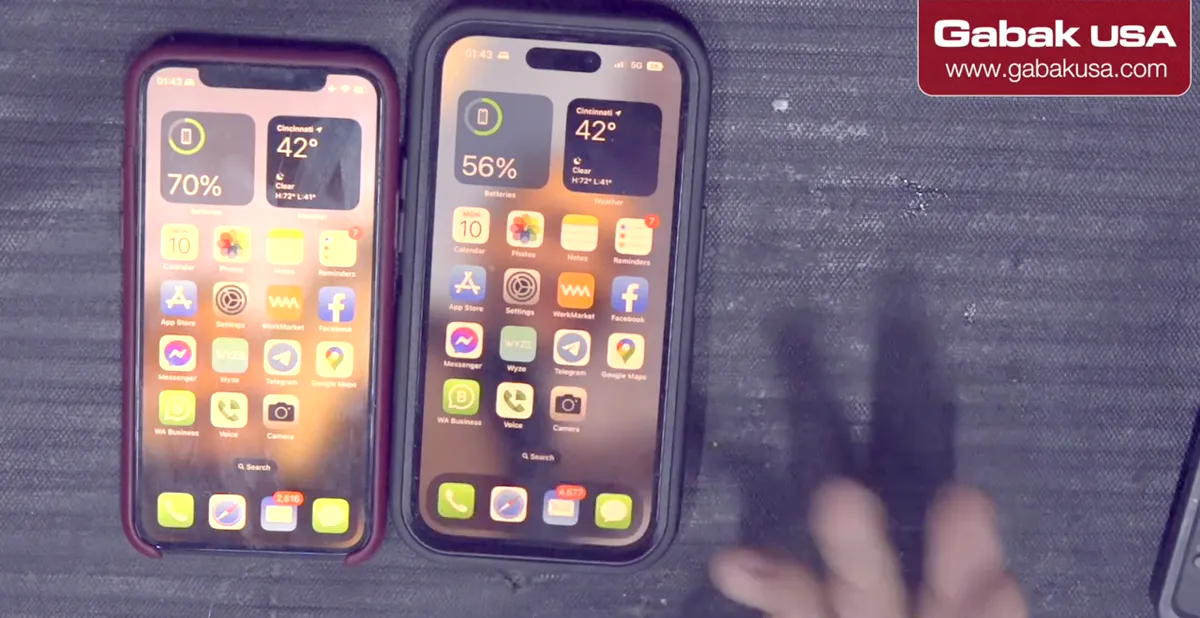
- Have both phones ready: the old one with your codes and the new one.
- Install Google Authenticator on the new phone. After an iPhone transfer the icon may be there, but you have to tap it to download the app.
Step 2: On the new phone, choose Scan a QR code
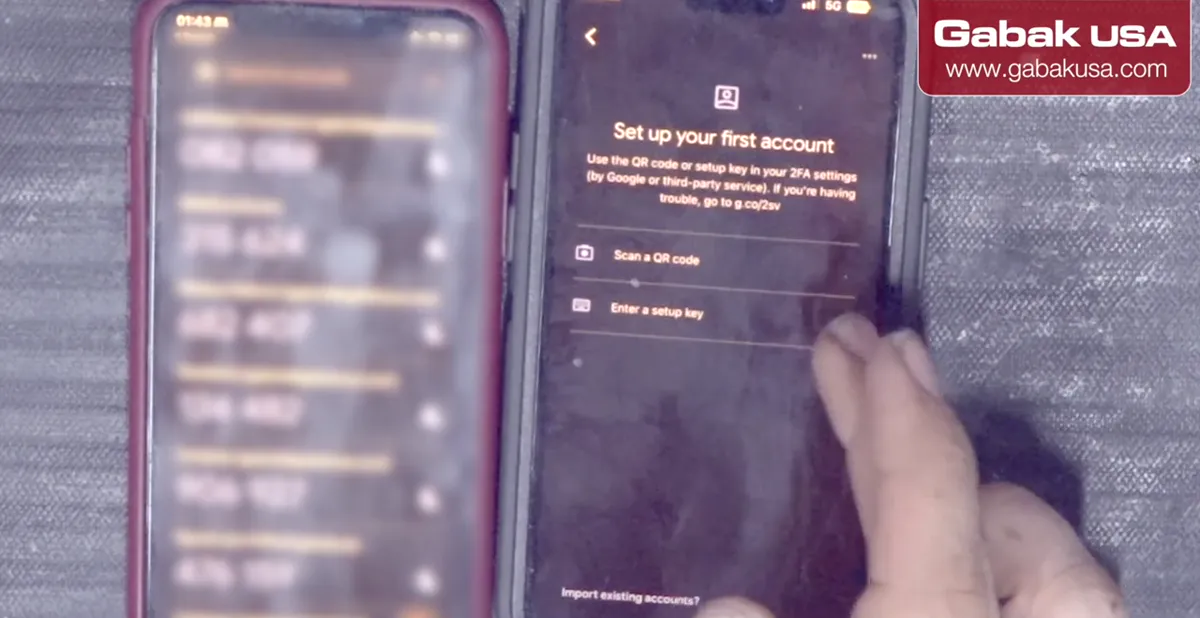
- Open Google Authenticator on the new phone. It shows no codes yet.
- On Set up your first account, tap Scan a QR code. That's the easiest way.
- Allow the camera when asked and tap OK.
Step 3: On the old phone, open Export accounts
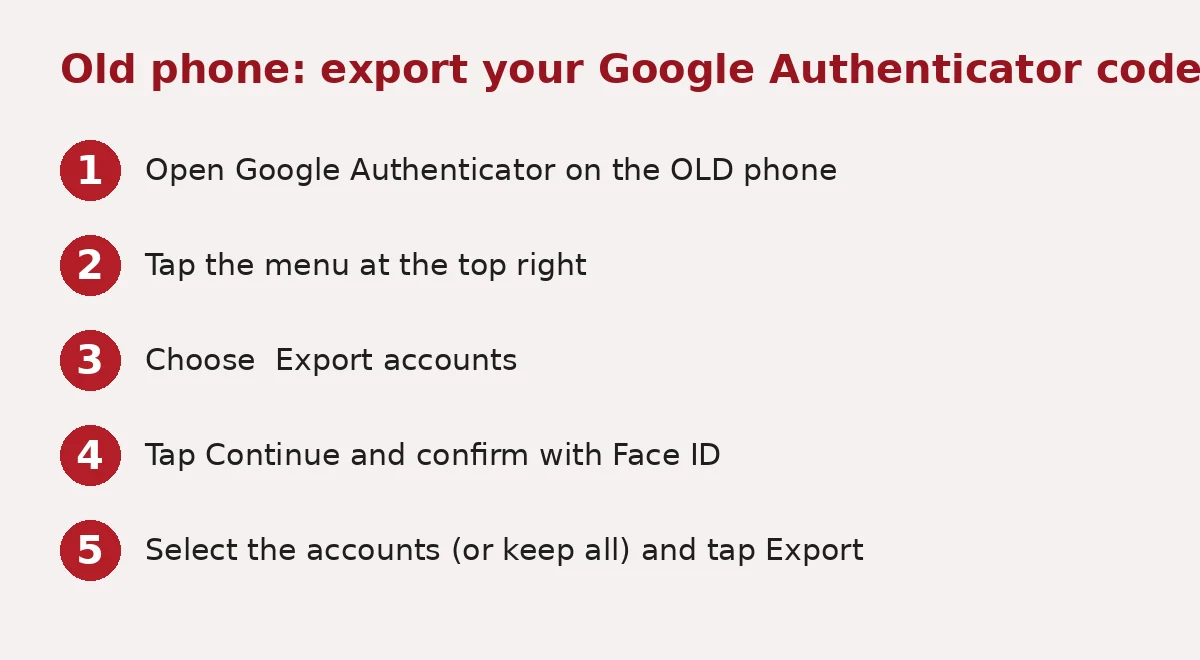
- In Google Authenticator on the old phone, tap the menu at the top right.
- Choose Export accounts and tap Continue.
- Confirm with Face ID.
Step 4: Pick the accounts and show the QR code
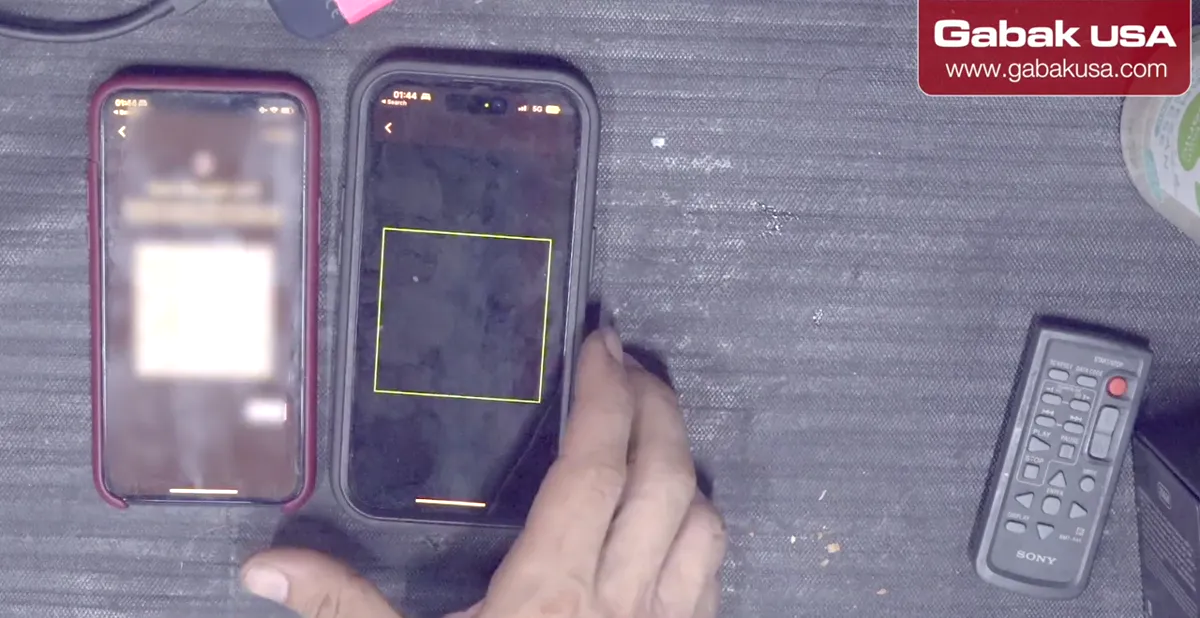
- All accounts are selected. You can also pick only some of them.
- Tap Export. The old phone shows a QR code.
Step 5: Scan each QR code, then tap Next
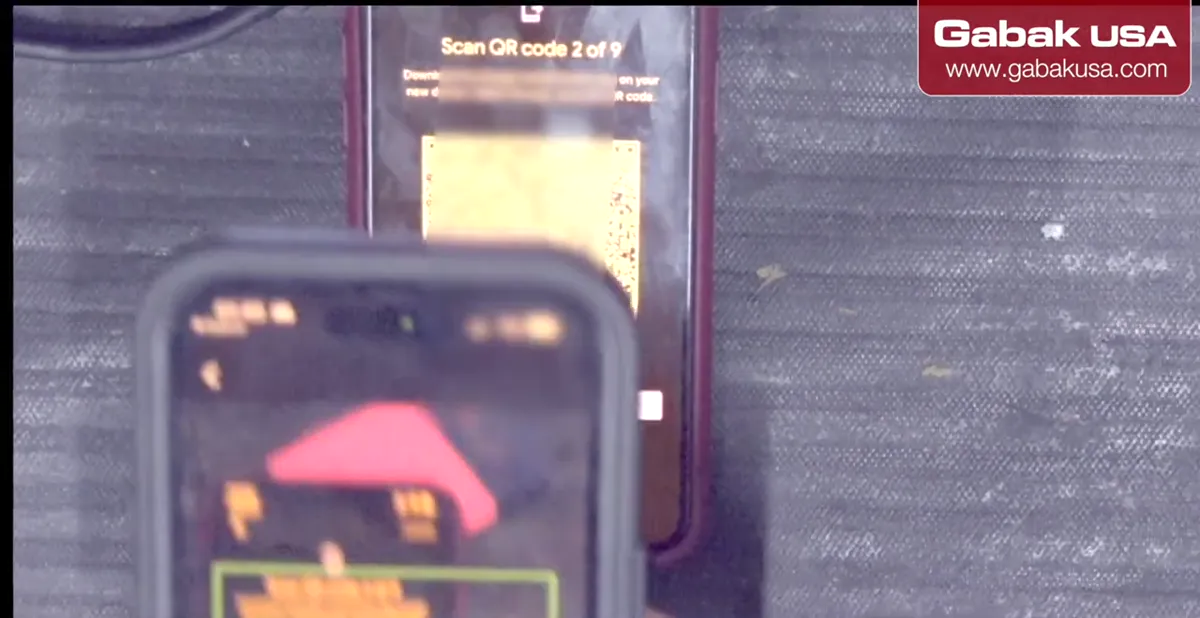
- Point the new phone at the QR code and tap Continue.
- On the old phone tap Next to show the next code, and scan it too.
- With many accounts there are several codes. Here it was 9 (“Scan QR code 2 of 9”).
Caution: Keep going until the last QR code is scanned. Otherwise some accounts won't move.
Step 6: Confirm the accounts were imported
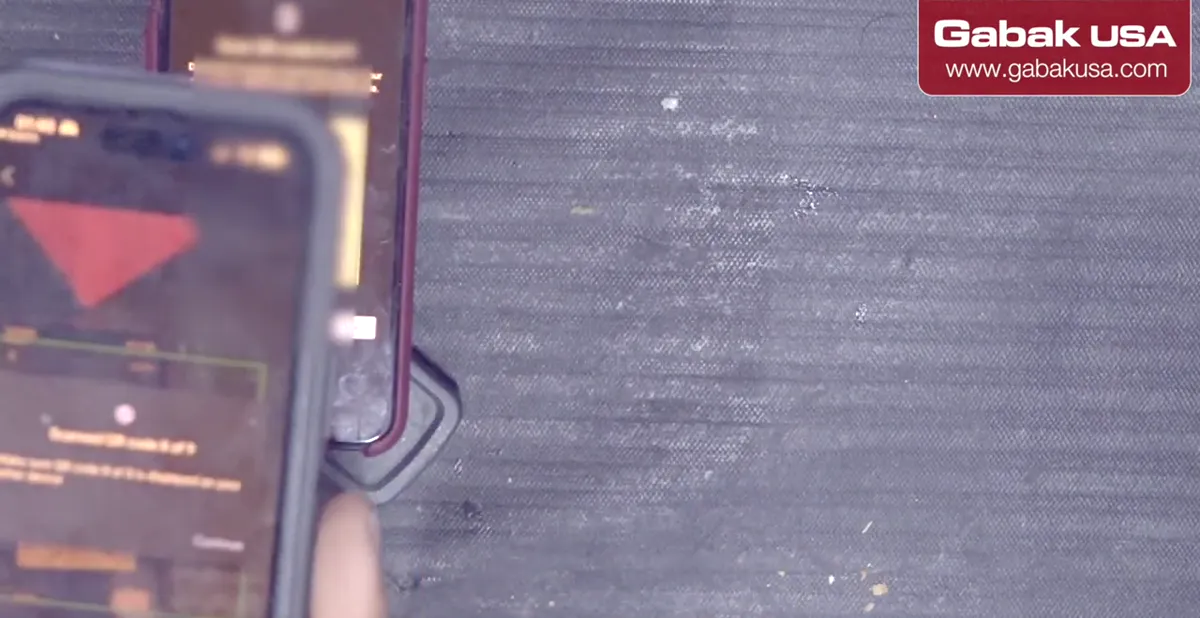
- After the last code, the new phone says the accounts were imported.
- Tap OK. Your codes now show in Google Authenticator on the new phone.
Step 7: Decide what to do with the old phone
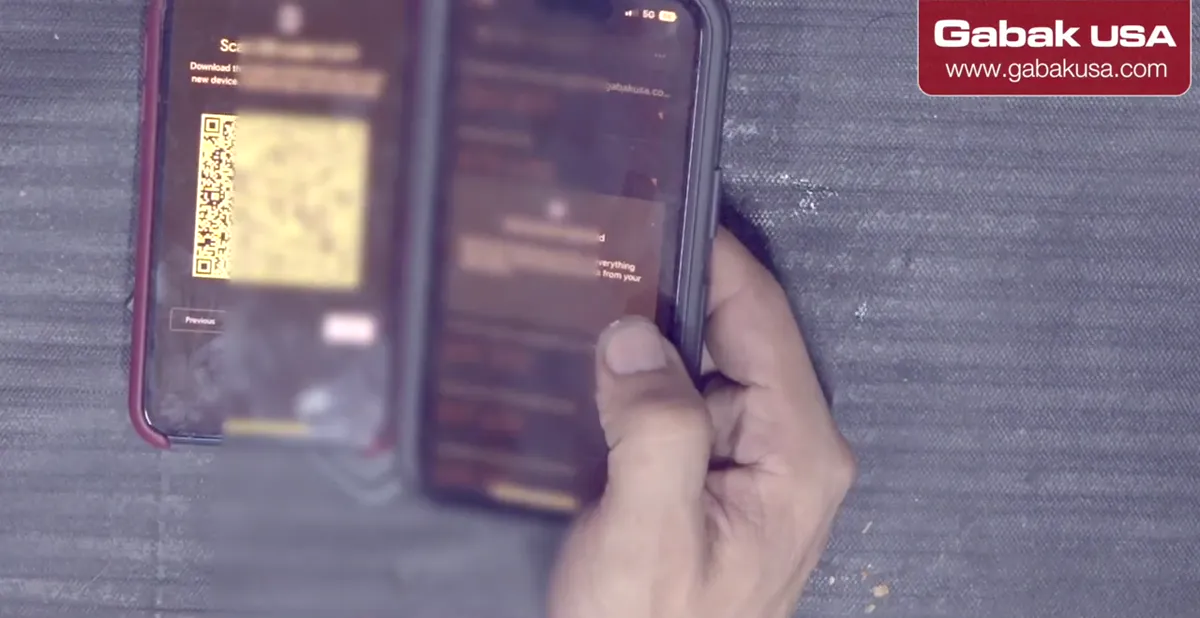
- Tap Next on the old phone. It offers to remove the exported accounts.
- In the video this was skipped, because the old phone was going to be erased anyway.
Frequently asked questions
Does an iPhone transfer move Google Authenticator codes automatically?
Not properly, according to the video. Apps often come over only as icons, and Google Authenticator opens empty, so export the accounts from the old phone instead.
How do I export Google Authenticator accounts?
On the old phone tap the menu at the top right, then Export accounts, Continue, confirm with Face ID, select the accounts and tap Export to show the QR codes.
Why does Google Authenticator show more than one QR code?
With many accounts the export is split into several QR codes. Scan each one and tap Next on the old phone. In the video there were 9.
Should I remove the accounts from the old phone?
The app offers to remove them after the export. In the video it was skipped because the old phone was going to be erased.
Watch the video

Comments
Comments appear after Gabriel reviews them.
Loading comments…