
Step-by-step guide
How to connect an external wireless microphone to an iPhone or Android phone
What you will do: connect an external wireless microphone to an iPhone or Android phone so your videos get clean, professional audio even when you stand away from the phone.
The kit in this guide is a DJI wireless mic (transmitter + receiver). You will also see how to plug the same receiver into a camcorder, and the two downsides found while using it: interference on external power and a battery that does not look replaceable.
Step 1: Understand why the built-in microphone is not enough
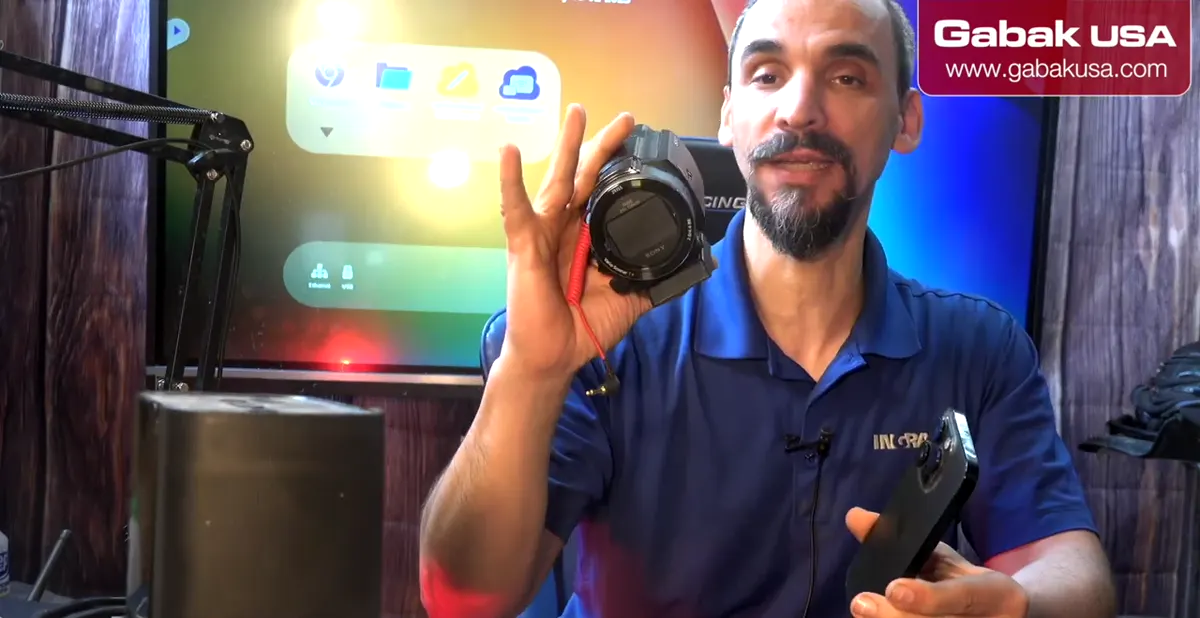
- The mic built into a phone, camera or camcorder captures the ambience and noise of the room.
- If you record a little further away from the device, the audio quality drops.
- A wireless lavalier-style mic on your clothing keeps the voice clear at a distance.
Step 2: Check what comes in the DJI wireless mic kit
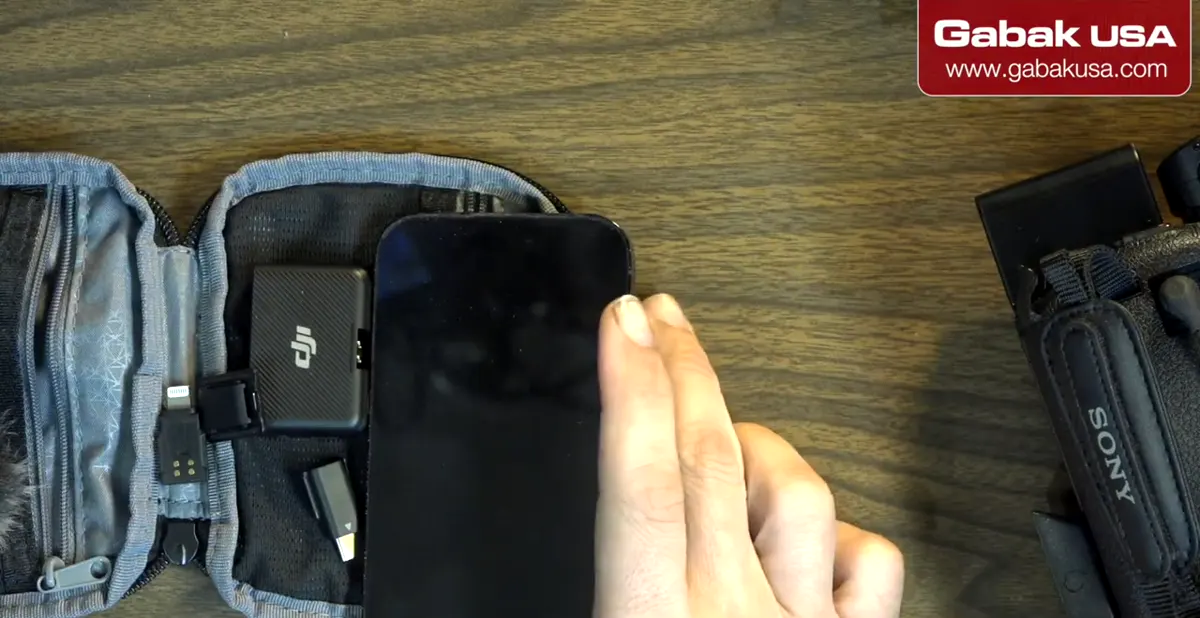
- The kit comes in a small pouch with the receiver and the transmitter.
- A furry windscreen ("dead cat") goes on top of the mic for windy recordings.
- A clip lets you attach the transmitter to your shirt or anywhere you want.
- It feels sturdy and premium, not cheap.
Step 3: Turn on the receiver and the transmitter
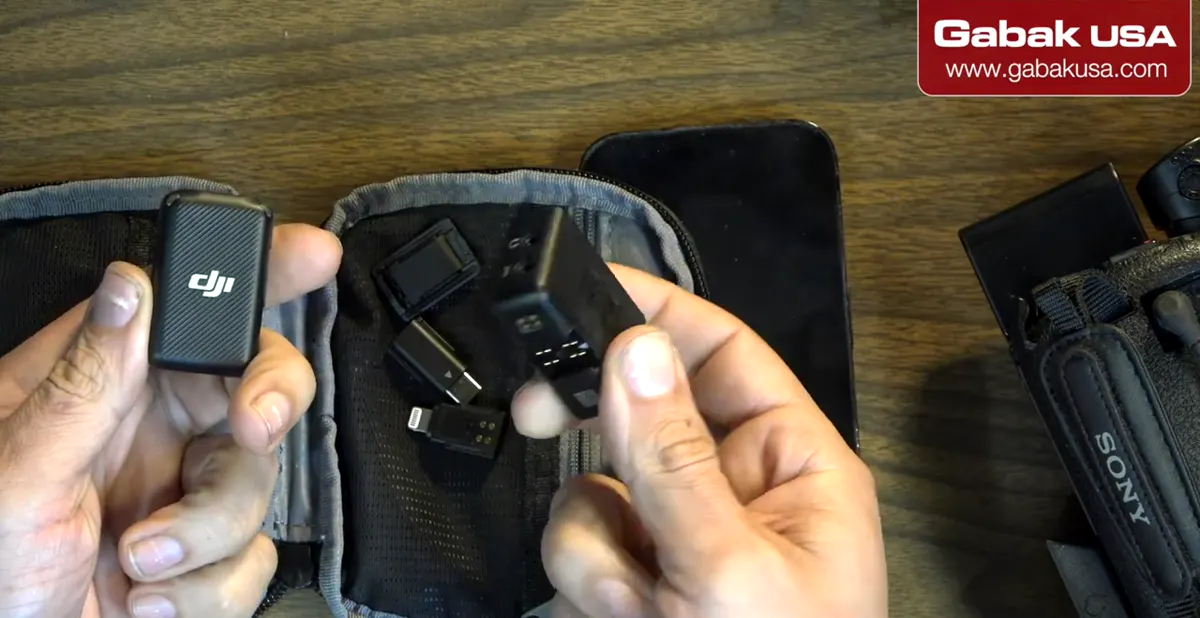
- The power button is on the side; the screen is on the front.
- Turn both units on and they are ready to go.
- Each unit charges through its own USB-C port.
Step 4: Pick the right phone adapter: Lightning or USB-C
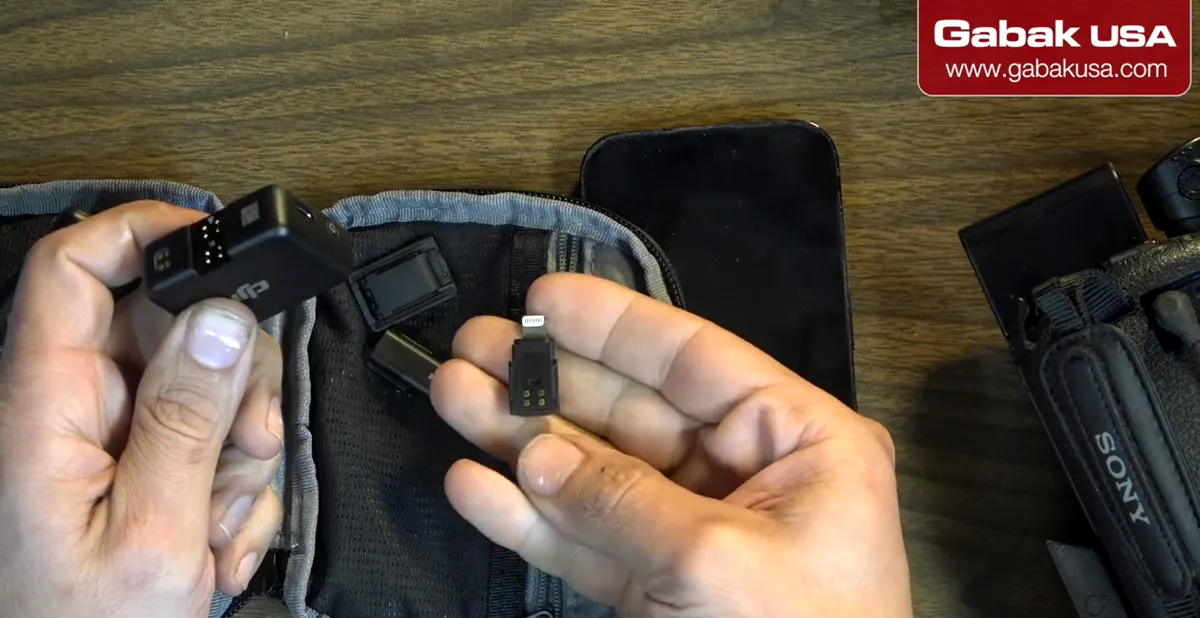
- The receiver has an 8-contact connector on one side for the adapters.
- iPhone: use the Lightning adapter.
- Android: use the USB-C adapter.
- Push the adapter all the way into the receiver.
Step 5: Plug the receiver into the phone (remove a thick case)
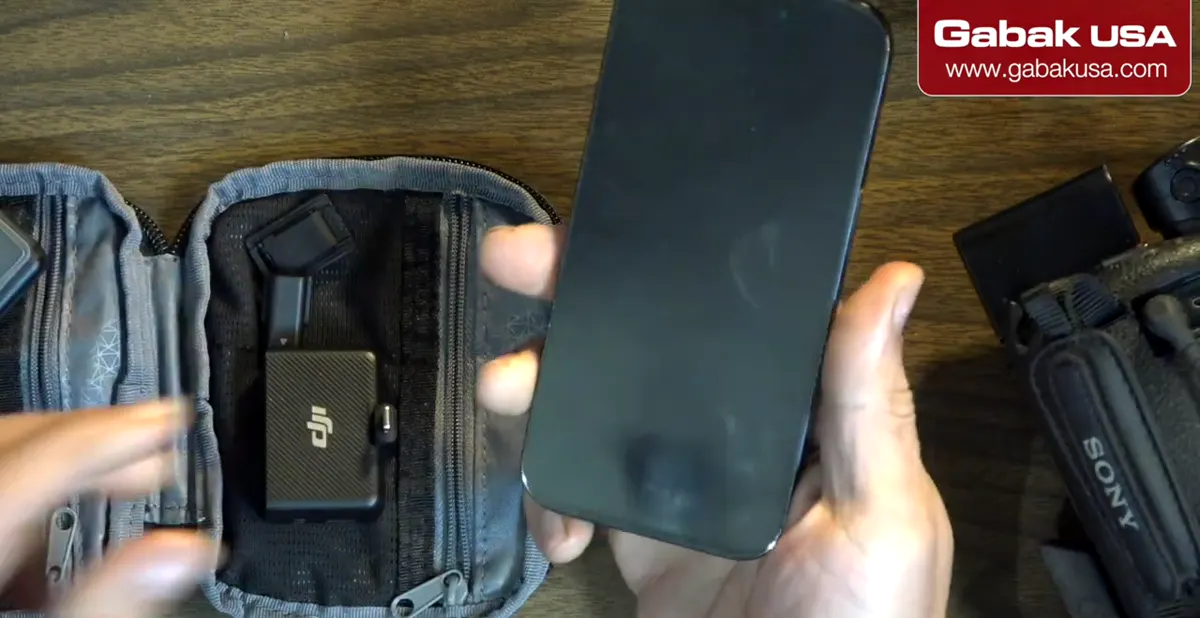
- Push the receiver with its adapter all the way into the phone's port.
- It can be connected either way around.
Caution: A thick rugged case (an OtterBox Defender Pro in the video) does not let the receiver plug in. Remove the case first.
Step 6: Clip on the transmitter, start recording and watch the meter
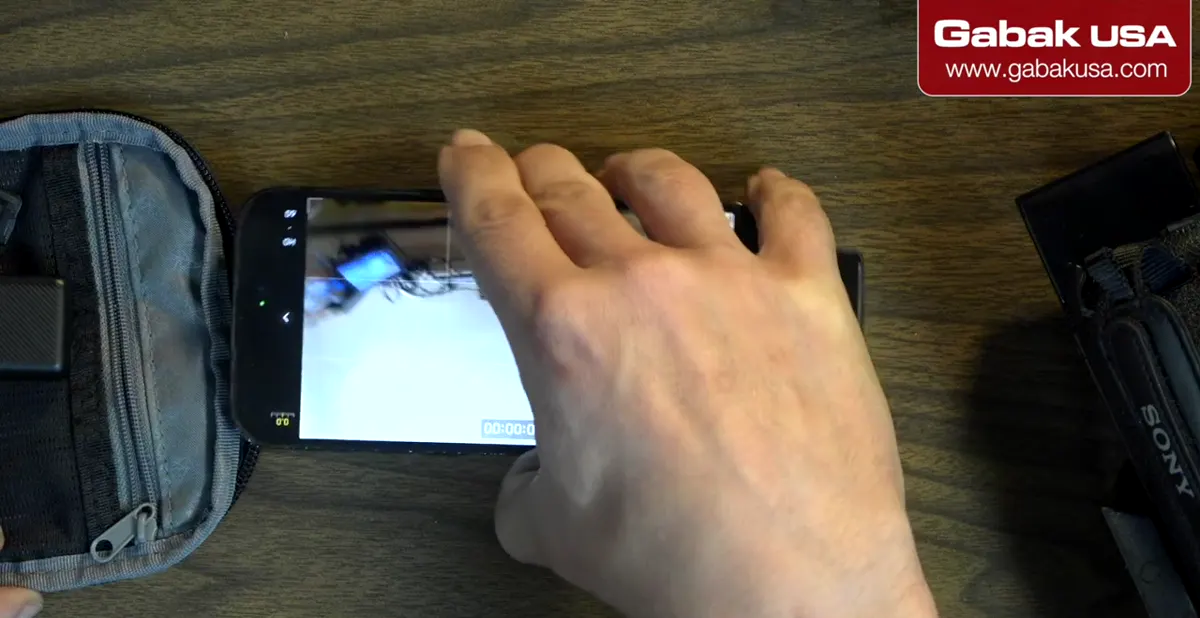
- Clip the transmitter on your clothing and start recording on the phone.
- The receiver shows a level meter, so you can see the audio being picked up.
- The receiver also has a headphone jack so you or a cameraman can monitor the sound.
Step 7: Use on-board recording as a backup
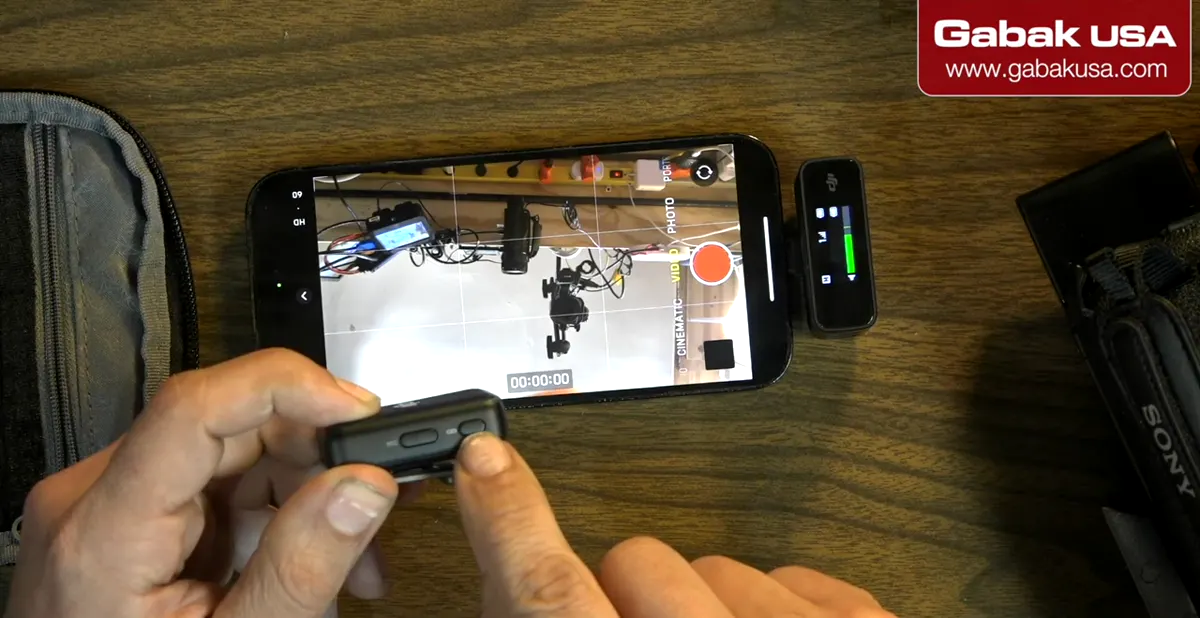
- The transmitter can record the audio itself, so you don't lose it if you go out of range.
- Press the button once to start recording and once again to stop.
Caution: In the video this button sometimes worked and sometimes didn't. Check that the recording actually started.
Step 8: Connect the receiver to a camcorder
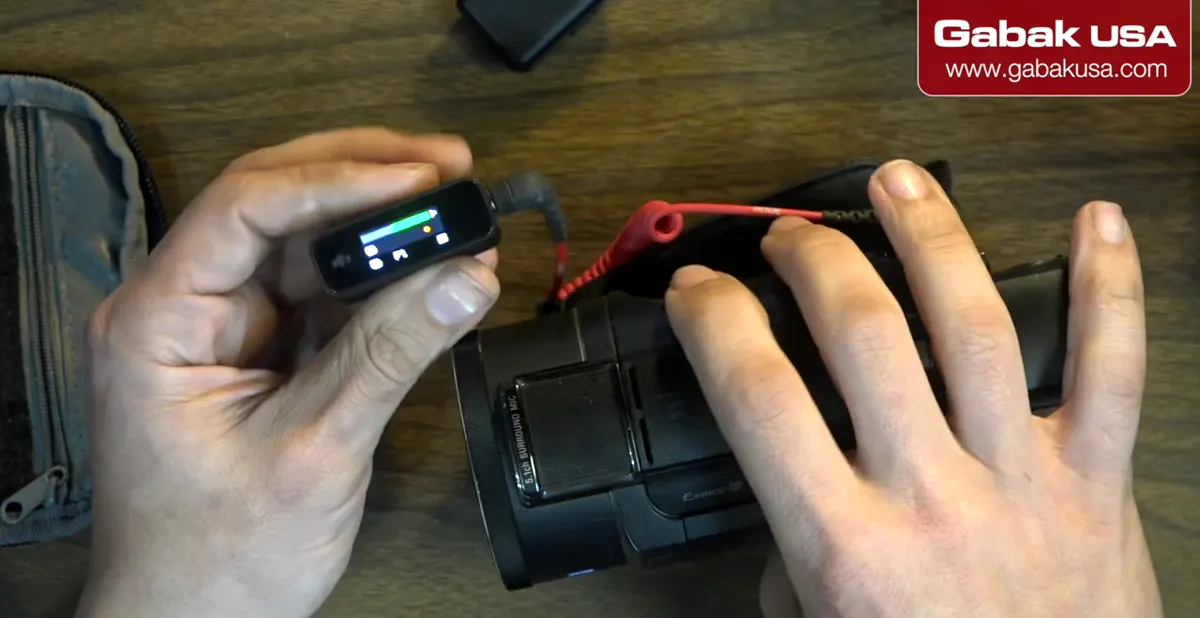
- Remove the phone adapter from the receiver.
- Plug a cable from the receiver's output into the camcorder's red mic input.
- Start recording. That's it.
Step 9: Avoid interference: run on battery
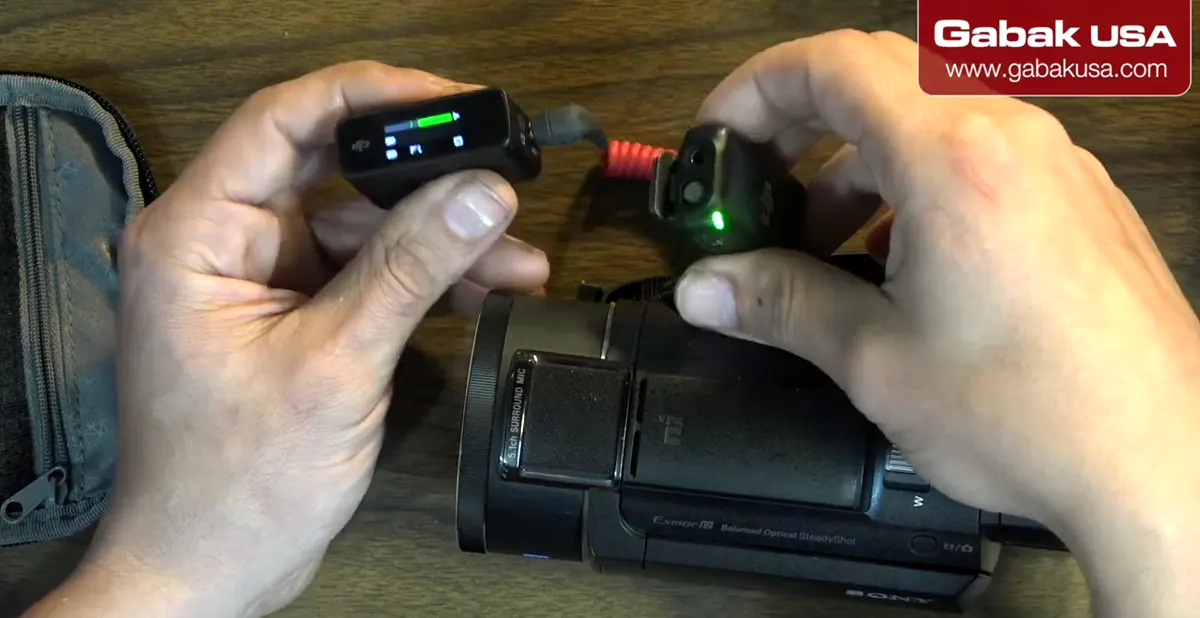
- With the camcorder and the mic both on external power, a Sony AX100 got interference; a Sony AX53 did not.
- The manufacturer saw the same issue with a DSLR. Running the mic on its own battery solved it.
- The battery is sealed (no screws). Expect to replace the whole kit when it wears out, maybe in 2–4 years.
Caution: For a studio where the cameras stay on 24/7, a wireless mic you can leave plugged in is a better choice.
Pros and cons of the DJI wireless mic for phones
- Pros: great sound, sturdy premium feel, phone adapters for iPhone and Android, level meter, headphone monitoring and on-board backup recording.
- Cons: interference when the camera and the mic both run on external power, and the battery looks glued in. That is only an opinion; the manufacturer wasn't asked. Rode's similar kit has the same battery concern and does not plug into a phone.
Frequently asked questions
Can I connect a wireless microphone to an iPhone?
Yes. With the DJI kit, put the Lightning adapter on the receiver and plug it into the iPhone. Remove a thick case like an OtterBox Defender Pro first.
How do I connect a wireless mic to an Android phone?
Use the USB-C adapter on the receiver, push it all the way in and plug it into the phone's USB-C port.
Why does my wireless mic get interference?
In the video it happened when the camcorder and the mic were both on external power at the same time. Running the mic on its battery fixed it.
Can I replace the battery in the DJI wireless mic?
No screws are visible, so the battery looks glued in. The kit may have to be replaced when the battery wears out.
Watch the video

Comments
Comments appear after Gabriel reviews them.
Loading comments…