
Step-by-step guide
How to make a laptop water resistant: coat the motherboard with acrylic conformal coating
Short answer: to make a laptop water resistant, take out the motherboard and brush a thin layer of acrylic conformal coating over the electronic components, keeping every connector, the RAM slots and the SSD socket clean. The coating puts a clear, insulating film over the board, so a small spill is much less likely to short or corrode the most expensive part of the computer.
In this guide you will open the laptop, unplug the ribbon cables, remove the logic board, mark the connectors, apply the coating, let it dry and test that the computer still boots. The video does it on a 2011 MacBook Pro with MG Chemicals 419D, but the same idea works on almost any brand or year of Windows laptop or MacBook where the motherboard can come out. It is a cheap way to protect an expensive computer, especially if you work in the field or drink coffee next to your keyboard.
The focus is the motherboard on purpose. A damaged USB port can usually be replaced quickly, or its contacts cleaned with a little sanding, but when liquid reaches the electronic board everything becomes much harder and more expensive to fix.
Step 1: Check that the laptop works before you start
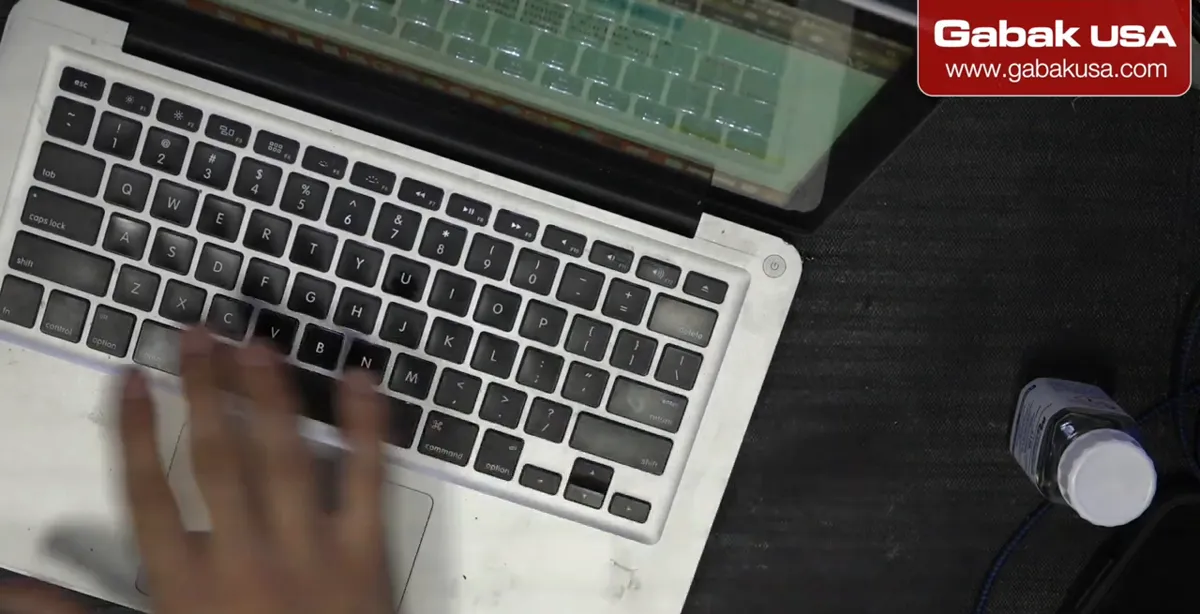
- Turn the laptop on and confirm that everything works: screen, keyboard, trackpad, Wi-Fi and fan. If something is already broken, you want to know before you open it, not after.
- Look up the exact model (the video shows the serial number and laptop type). Each laptop comes apart differently, so search for a teardown of your model before you remove anything.
- Shut the computer down completely before taking it apart.
Step 2: Remove the bottom cover and keep the screws in order
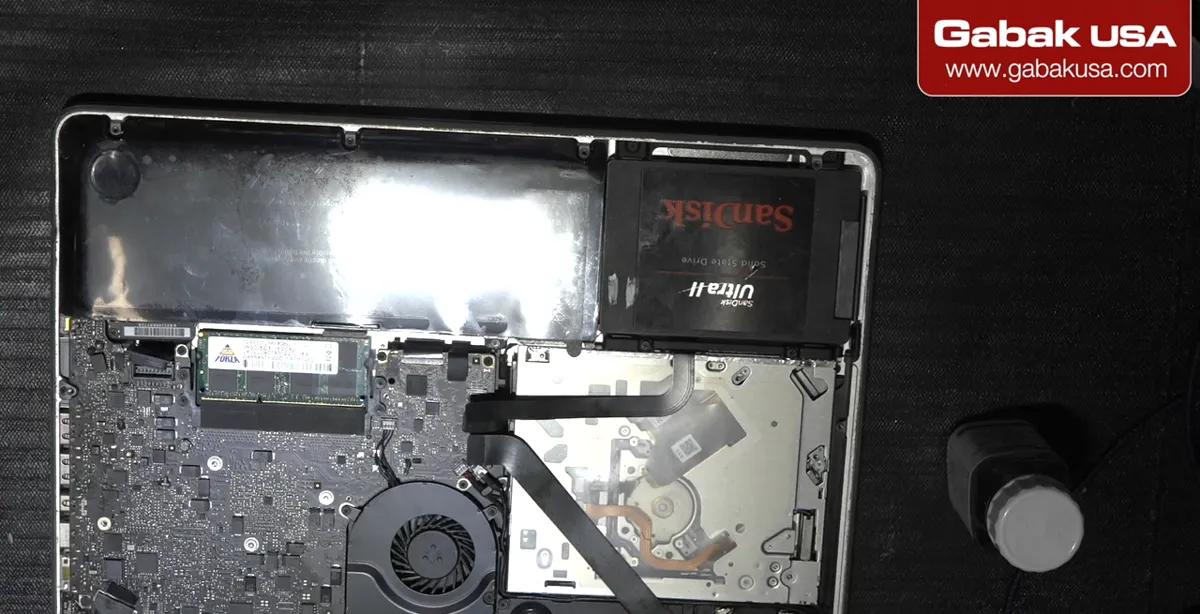
- Remove the bottom cover. Every laptop is different, but you always have to get the cover off somehow to reach the board.
- If you don't have much experience, mark or note where each screw goes. Laptop screws are often different lengths, and a long screw in the wrong hole can damage the board.
- Disconnect the battery before you start unplugging other parts, so nothing on the board is powered while you work.
Caution: Static can damage the motherboard as much as liquid. Touch something grounded before you start, or use an anti-static wrist strap or anti-static gloves.
Step 3: Unplug the ribbon cables, RAM and anything holding the board
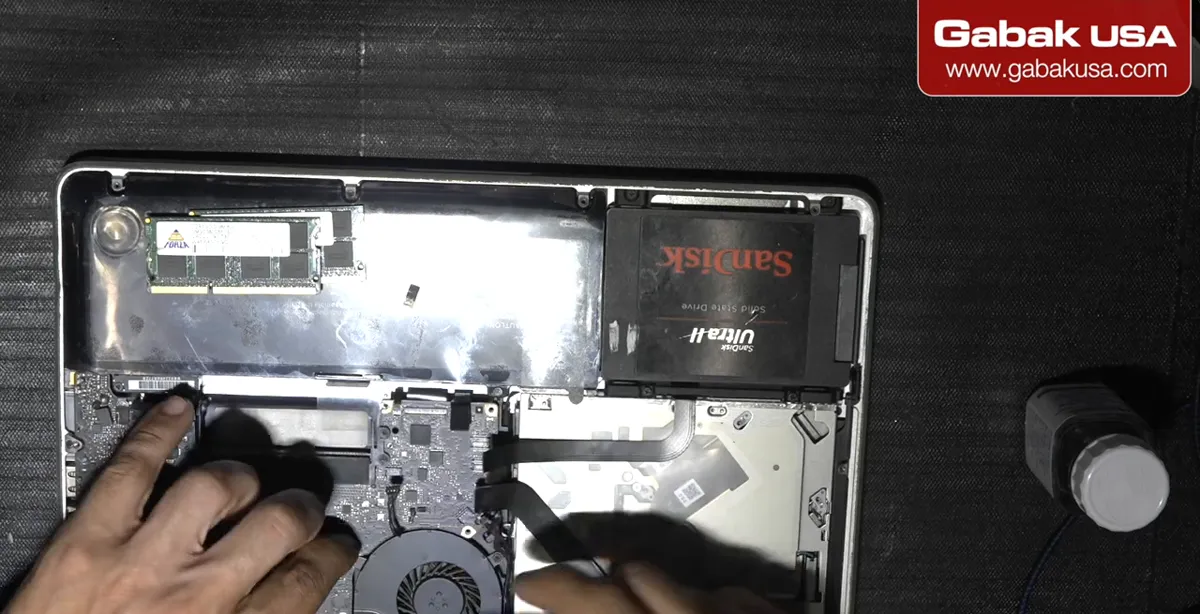
- Unplug every ribbon cable and connector one by one. Don't force anything.
- Remove the RAM if your laptop has removable memory. On newer MacBook Pro models the RAM is soldered, so there is nothing to remove.
- On the 2011 MacBook in the video, the fan had to come out before the motherboard could be removed. Other models may need the heatsink, speakers or other parts removed first.
- Remember that some connectors are on the other side of the board too, so unplug those as well.
Caution: Everything here is very fragile. If you break or cut a ribbon cable, the computer may not work again. If you break the Wi-Fi antenna connector, Wi-Fi stops working; break the fan connector and the fan stops.
Step 4: Lift the motherboard out of the case
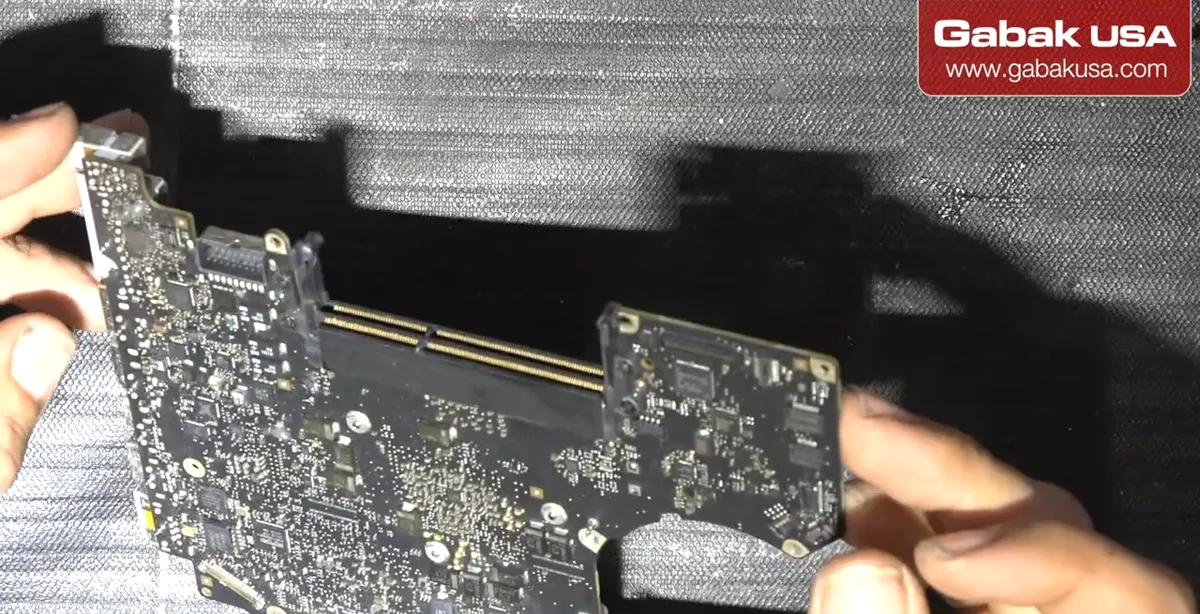
- Once every screw and cable is loose, lift the board out gently.
- If it doesn't come loose with a little pressure, stop. There is still a screw, a ribbon cable or something else holding it in place.
- Taking the board out lets you coat one side and then the other, which is the whole point of the process.
Step 5: Inspect the motherboard and find every connector
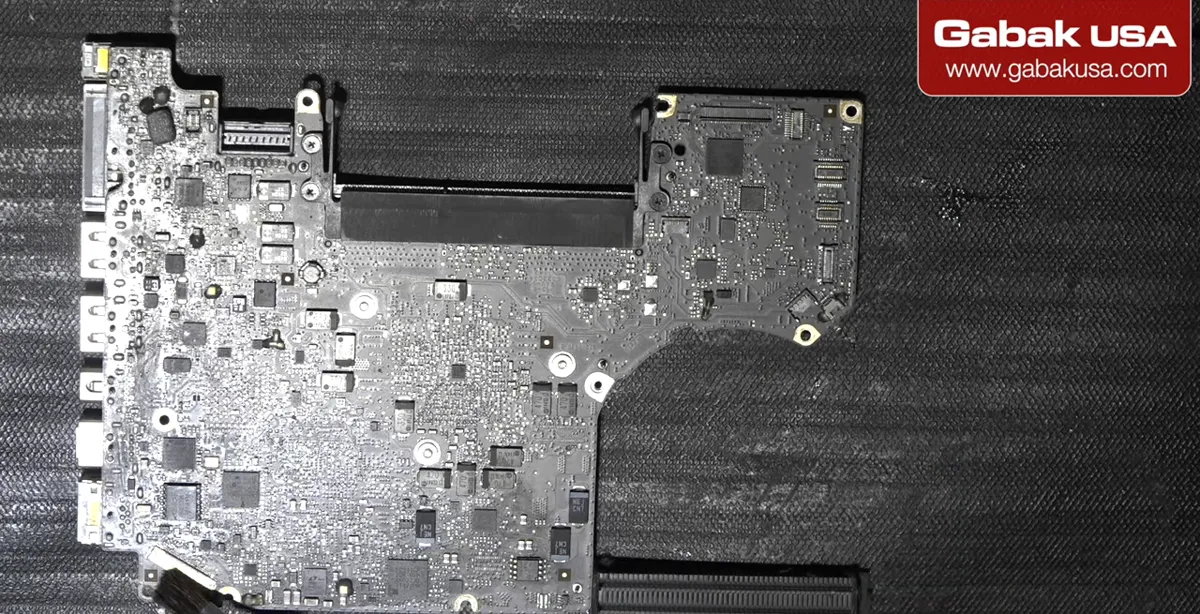
- Zoom in and look at the whole board. Find every connector where a ribbon cable plugs in, the RAM slots, the SSD and SATA connectors, the USB ports and any other contacts.
- These are the places the coating must not touch. All the small electronic components around them are fine to coat.
- Do this on both sides of the board.
Step 6: Mark the connectors so you keep the coating off them
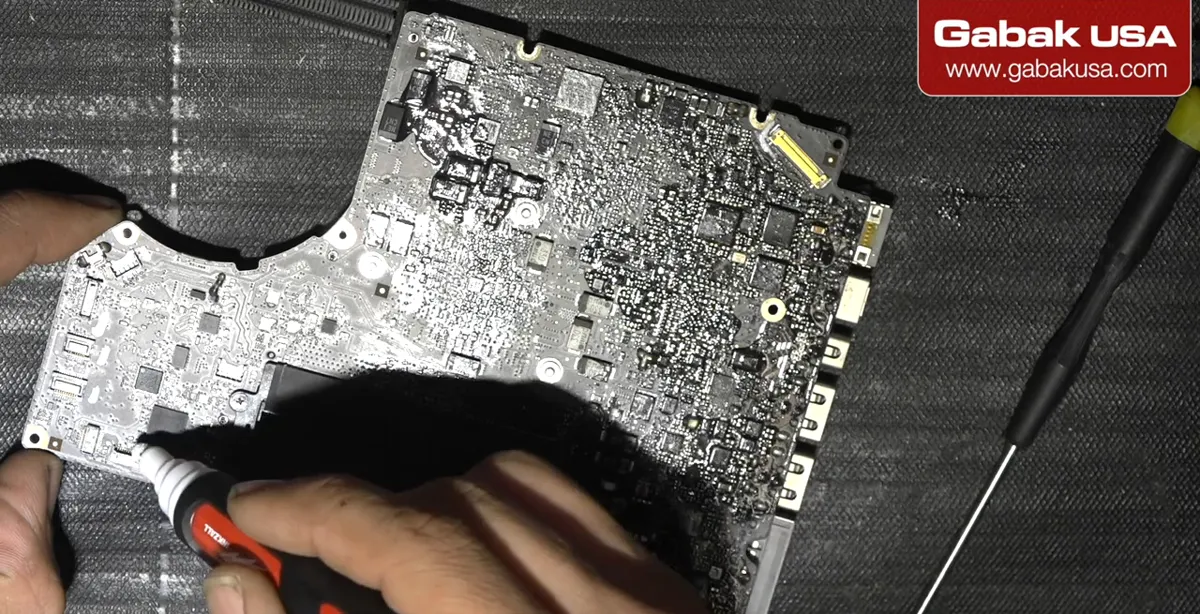
- Mark next to each connector so you can see it clearly while you brush. The video uses a Milwaukee paint marker.
- Marking helps you avoid putting acrylic in the wrong place when you are concentrating on coating everything else.
- Why it matters: the coating is an electrical insulator. If it gets on a connector, the cable will not make contact when you plug it back in.
Note: MG Chemicals' own instructions for its acrylic coatings say contacts and pins must be masked so they stay conductive. Masking tape or a peelable masking product over the connectors is the stricter way to do this; marking them and brushing carefully is what the video does.
Step 7: Set up ventilation before you open the coating
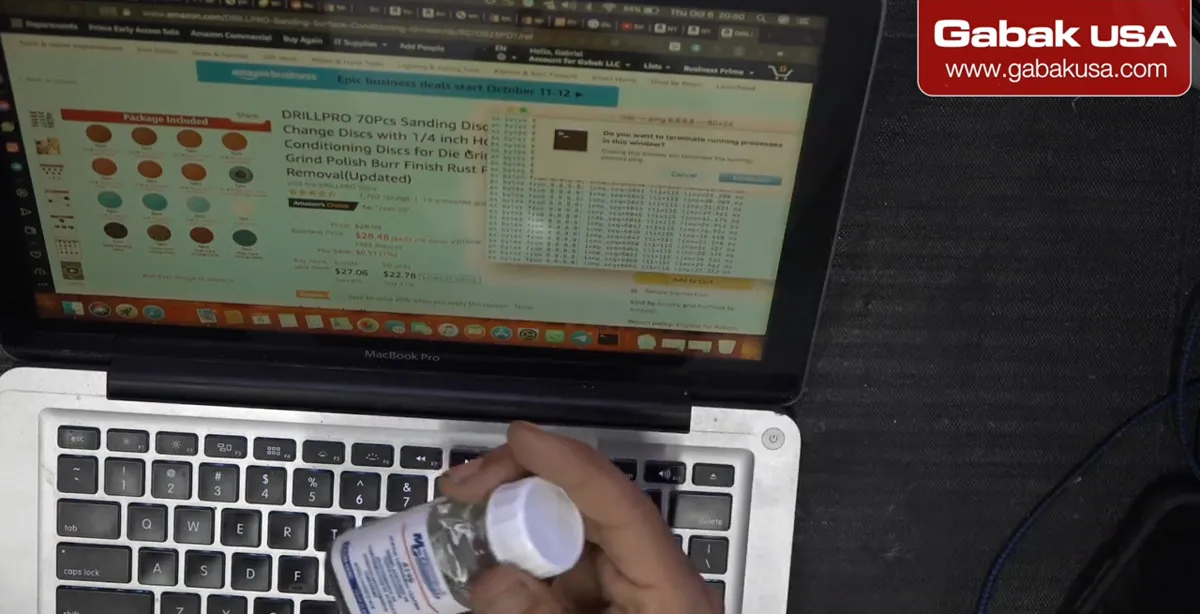
- The video uses MG Chemicals 419D, an acrylic conformal coating. This bottle has a brush that comes with it.
- It is very powerful. Don't smell it, don't breathe it and don't drink it.
- Use a fume extractor with activated carbon if you have one (the video mentions a Hakko unit), or an exhaust fan and a very well-ventilated room. A regular fan only recirculates the fumes around you.
Caution: Work in a well-ventilated area and keep the bottle closed when you are not using it. Read the safety data sheet of the coating you buy.
Step 8: Brush the coating over the components
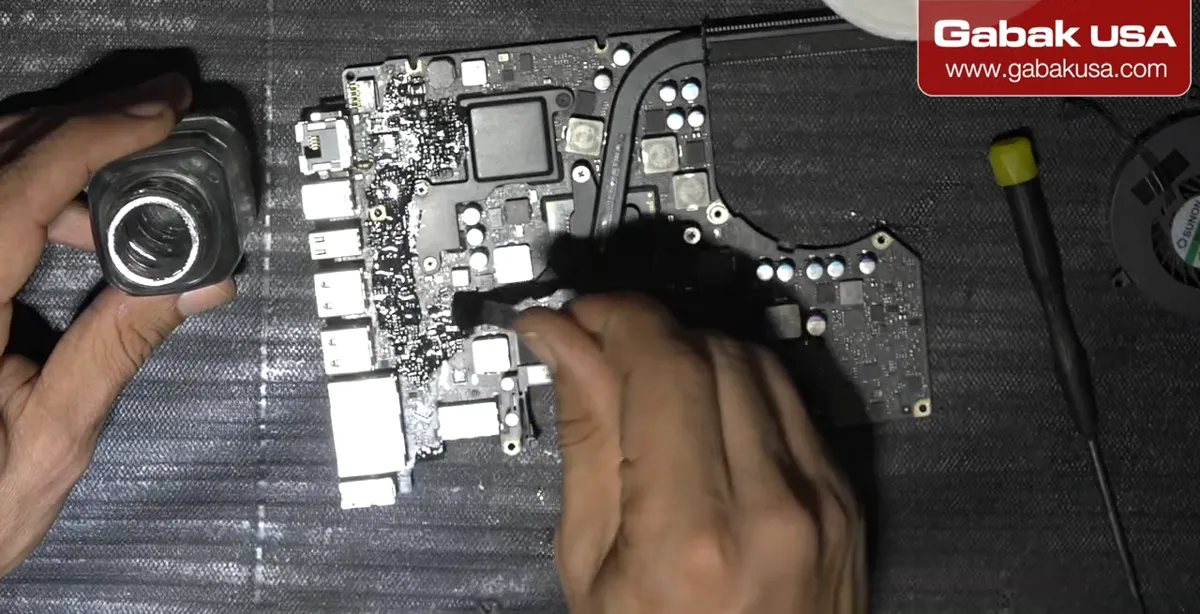
- Brush the coating over as much of the electronics as possible: chips, small components and the areas around them.
- Stay away from the connectors, the RAM slots, the SSD connector, SATA and USB connectors, and anything else where a part plugs in.
- Thin, even coats work better than one thick blob. MG Chemicals recommends a dry film of about 25 to 75 microns (roughly 1 to 3 mils), and says thicker films don't add protection.
Caution: If coating gets into a connector, the only way to fix it is to remove the acrylic or sand the contacts so they conduct again. It is much easier to keep it off in the first place.
Step 9: Inspect and add more where it didn't reach
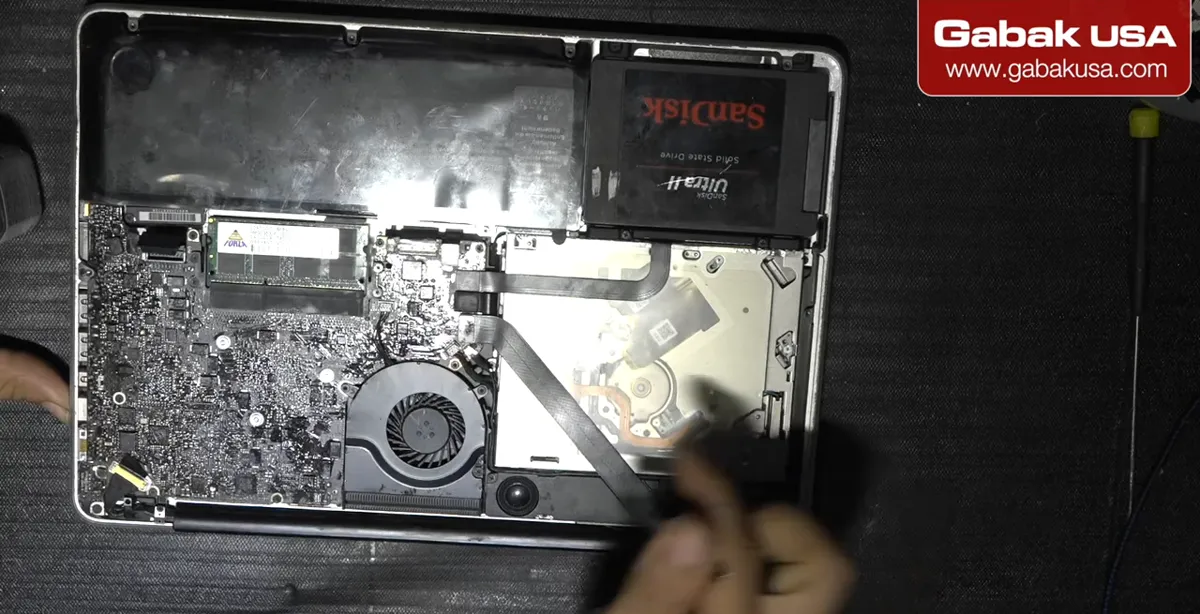
- Look at the board under good light. Coated areas look brighter and shinier; dull spots are places the coating didn't reach.
- Add a little more in those places, then do the other side of the board.
- MG Chemicals' coatings glow under a UV black light, so if you have one you can check coverage more precisely.
Step 10: Clean the brush with alcohol
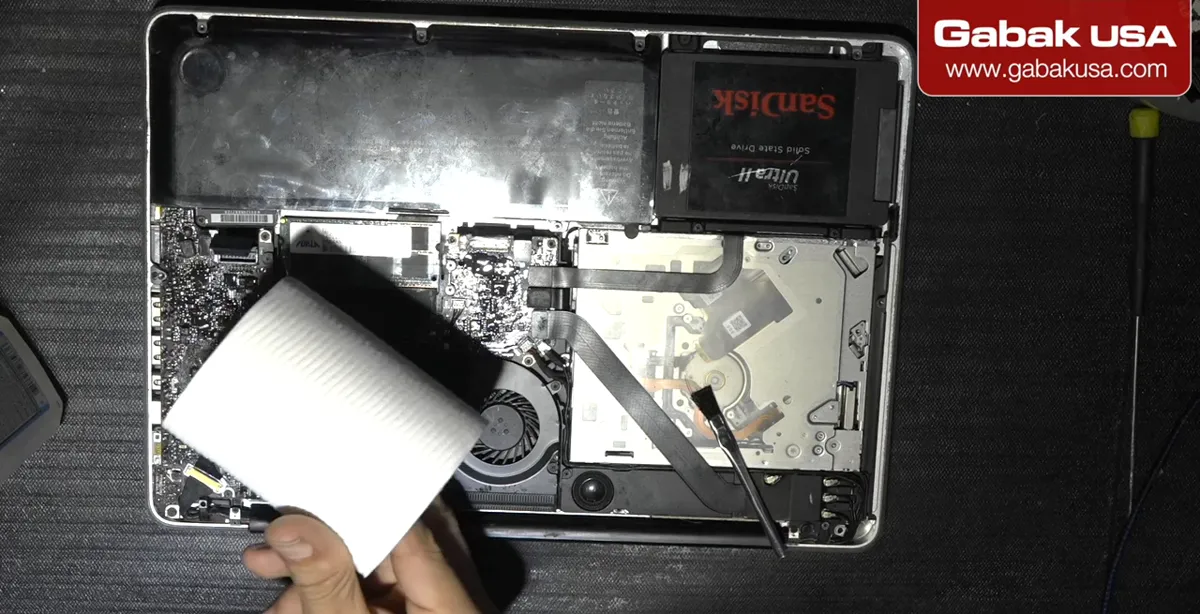
- Clean the brush with alcohol and toilet paper or cotton. It works well for small jobs like this.
- If you don't clean it, the brush hardens and you will have to buy more brushes.
Caution: Use the alcohol on the brush, not on the coated board. MG Chemicals notes that acrylic coatings can be attacked by solvents such as alcohols, so wiping the board with alcohol can soften or remove the protection you just applied.
Step 11: Let it dry, reassemble and test
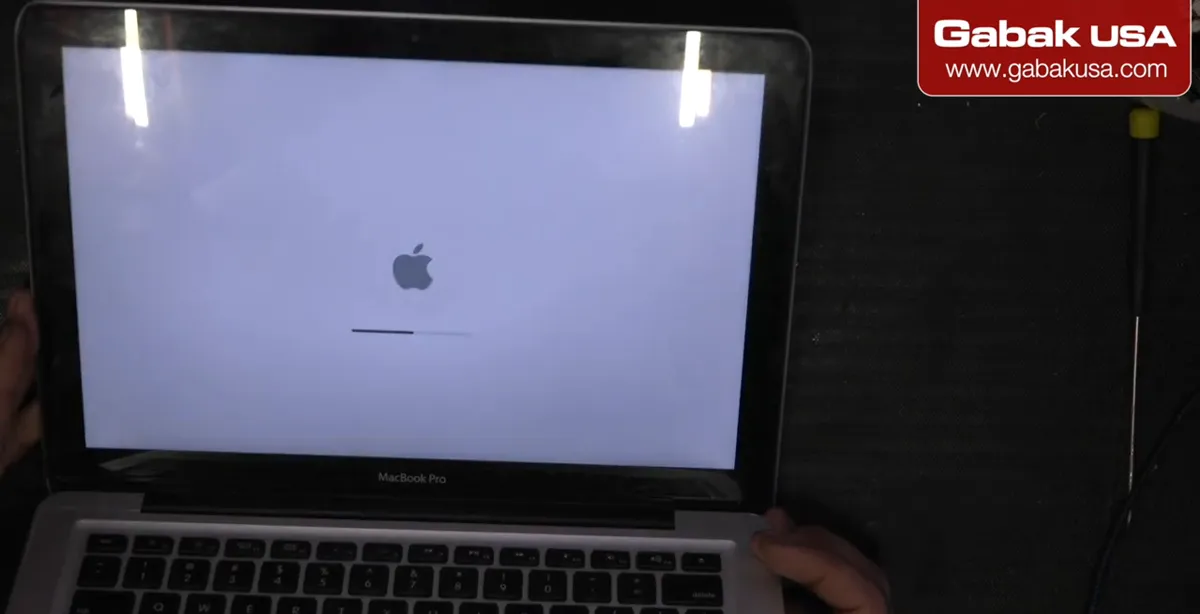
- Let the coating dry. In the video the computer is reassembled and tested after about half an hour.
- Put the board back, reconnect every cable you unplugged, reconnect the battery and turn it on. In the video the MacBook booted normally.
- Set the clock if needed (the video sets the date and time automatically) and check that everything works, then put the cover back.
Note: For MG Chemicals 419D the manufacturer lists about 10 minutes until it can be handled and 24 hours for a full cure at room temperature, or about 30 minutes in an oven at 65 °C. Waiting longer before the laptop goes back into daily use is the safer choice.
Step 12: Know what water damage looks like
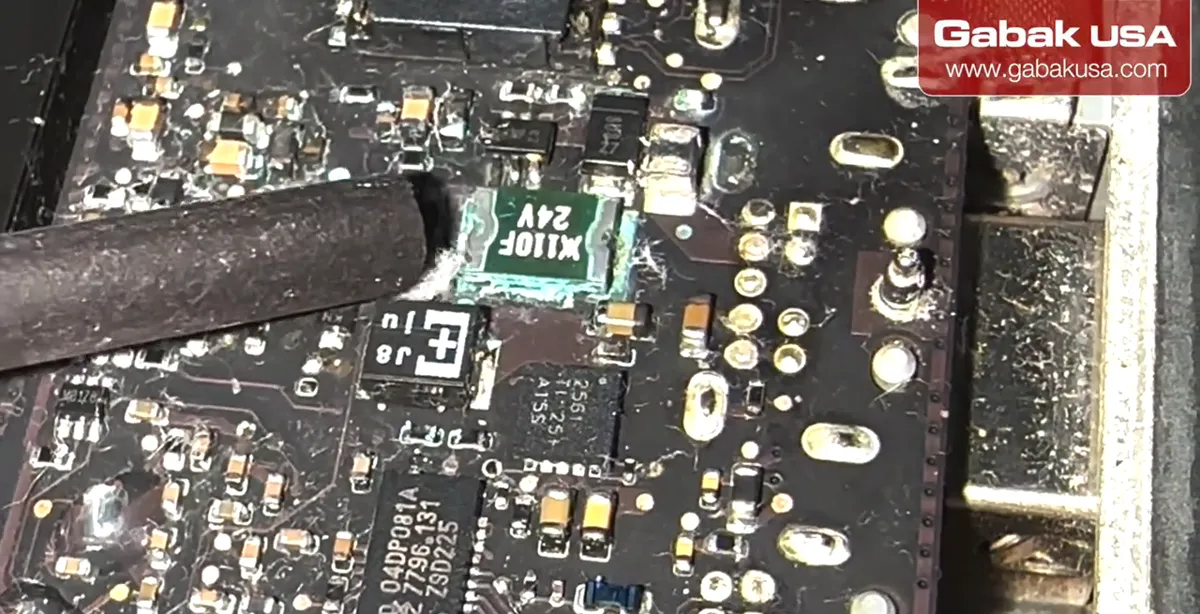
- This is a different laptop that got a little water inside and stopped working. The green stuff around the components is corrosion from the water.
- Compare it with an area that had no water: the components look clean, with none of the green residue.
- Fixing this is hard. Manufacturers usually don't sell the individual parts and want you to replace the whole motherboard, which is very expensive. A donor board can work, but few people do this type of repair. Protecting the board in advance avoids all of that.
Does conformal coating make a laptop waterproof?
No. It makes the motherboard much more resistant to water, but the laptop is not waterproof. A conformal coating is a thin protective film that follows the shape of the board. MG Chemicals describes its 419D acrylic coating as protection against moisture, corrosion, fungus, dirt, dust, short circuits and static discharge.
The parts you leave uncoated are still exposed: the connectors, RAM and SSD sockets, the USB ports, the keyboard, the screen and the battery. That is why the video's goal is to protect the most expensive part, the board, while accepting that a port can be replaced if it gets wet. Think of it as insurance for small spills, not permission to use the laptop in the rain.
Why spills kill laptops
When you drink next to the laptop there is always a risk that liquid gets inside and reaches the motherboard. Water and drinks leave minerals and residue that conduct electricity between tiny components, and over time they cause the green corrosion you see in the last step. A board can work after a spill and then fail days or weeks later when the corrosion grows. A coating keeps that liquid from touching the metal of the components in the first place.
Which laptops can you do this on?
According to the video, it doesn't matter if it is a 2011 or a 2022 model, or which brand: the technique is the same on Windows laptops and Macs. You have to remove the cover, unplug the ribbon cables and the RAM if it is removable, take out the motherboard, and coat it. Each model comes apart differently, so search for a teardown of your exact model first.
Laptops with soldered RAM and storage, like newer MacBook Pro models, have fewer sockets to avoid, but the board can be harder to remove and some repairs void the warranty. If your laptop is still under warranty, check that before you open it.
Troubleshooting after coating
| Problem | Likely cause | What to do |
|---|---|---|
| Laptop doesn't turn on | Battery or a power ribbon not reconnected, or coating on a connector | Re-check every cable; inspect connectors for acrylic |
| Wi-Fi, keyboard, trackpad or fan not working | Ribbon or antenna connector loose, damaged or coated | Reseat the cable; remove coating from the contacts |
| RAM or SSD not detected | Coating got into the slot | Remove the acrylic from the slot contacts and reseat the module |
| Wrong date and time | Battery was disconnected | Set date and time automatically, as in the video |
MG Chemicals says its acrylic coatings can be removed with its conformal coating thinners or strippers, and soldered through for repairs, so a mistake on a connector can be fixed with patience.
Tips before you start
- Take photos of each stage so you know how every cable and screw goes back.
- Work on a clean, well-lit mat, and keep drinks away from the bench while you work.
- Use only a thin coat; a thick layer does not protect better.
- If you are not comfortable removing a motherboard, practice on an old laptop first or have a technician do it.
- If you already had a spill, turn the laptop off and unplug it right away; a coating only helps before damage happens.
If you are working on the board anyway, these guides may also help: how to swap a Lenovo motherboard and keep the same components, how to replace a laptop battery and how to test any laptop charger.
Frequently asked questions
How do I make my laptop water resistant?
Remove the motherboard and brush a thin acrylic conformal coating over the electronic components, keeping all connectors, RAM slots and the SSD socket clean. Let it dry, reassemble and test. The video does this on a 2011 MacBook Pro with MG Chemicals 419D.
Will conformal coating make my laptop waterproof?
No. It protects the coated motherboard from moisture and corrosion, but ports, connectors, the keyboard, screen and battery are still exposed. It reduces the risk from small spills; it does not make the laptop waterproof.
What coating is used in the video?
MG Chemicals 419D, an acrylic conformal coating that comes in a small bottle with a brush. The manufacturer lists it as tack-free in about 10 minutes and fully cured in 24 hours at room temperature.
Can I put conformal coating on the connectors?
No. The coating is an insulator, so a coated connector, RAM slot or SSD socket will not make contact. If it happens, you have to remove the acrylic or sand the contacts so they conduct again.
How long should the coating dry before I turn the laptop on?
In the video the laptop was tested after about half an hour and it booted. MG Chemicals lists 24 hours at room temperature for a full cure of 419D, so letting it cure longer is safer.
Can I clean the board with alcohol after coating it?
Use alcohol to clean the brush, not the coated board. MG Chemicals notes acrylic coatings can be attacked by solvents such as alcohols, which could soften or remove the protection.
Do I need to protect the USB ports too?
The video doesn't coat them. A damaged USB port can usually be replaced quickly or its contacts cleaned, while a damaged motherboard is much harder and more expensive to fix.
What does water damage on a motherboard look like?
Green or white residue and corrosion around the components, usually in the area where the liquid got in. A clean area of the board has no residue.
Watch the video

Comments
Comments appear after Gabriel reviews them.
Loading comments…