
Step-by-step guide
How to watch your security cameras on a TV or monitor with the Ubiquiti UniFi Protect ViewPort
What you will do: connect a Ubiquiti UniFi Protect ViewPort to a TV or monitor so your UniFi Protect security cameras show on screen all the time – powered by one Ethernet (PoE) cable, adopted in UniFi Protect and updated, with no computer or long HDMI cable from the recorder.
The video title calls it the “Portview”; the product is the UniFi Protect ViewPort (shown as “UP Viewport” in UniFi Protect). If you are outside the US and the store is sold out, see how to buy from Ubiquiti Canada and ship to the USA.
Step 1: Understand what the ViewPort does
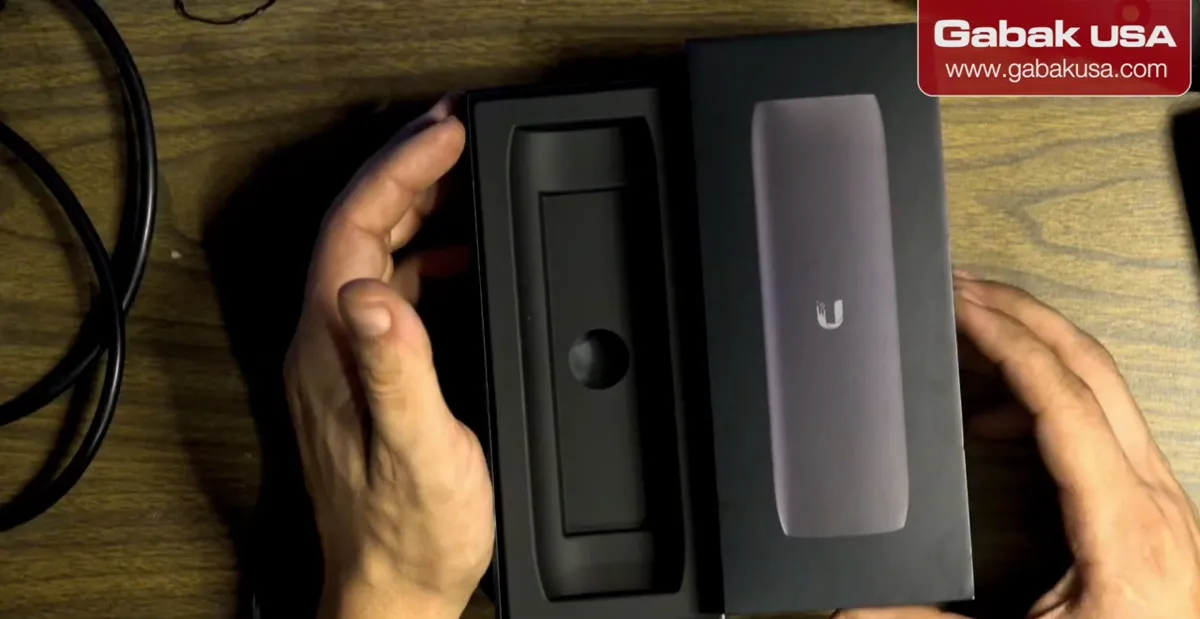
- The UniFi Protect ViewPort shows your UniFi Protect cameras on any TV or monitor with an HDMI port, with no computer or DVR next to the screen.
- It gets video and power over one Ethernet (PoE) cable, so you don't need a long HDMI run from the recorder to the TV.
- Ethernet can run up to about 100 m (300 ft) to the ViewPort, as mentioned in the video.
- In the video it cost about $199 in the US; it is about the size of an iPhone 14 Pro.
Step 2: Check what comes in the box
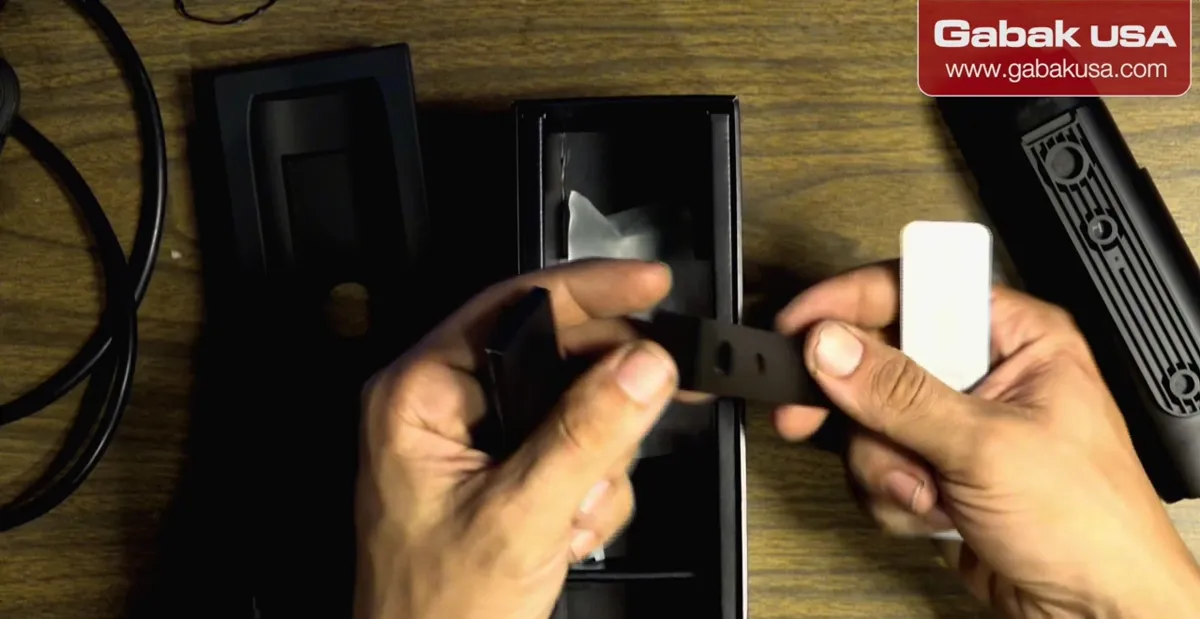
- A holder/bracket that clips the ViewPort so you can hang it behind the TV or on a wall.
- Wall anchors and screws, plus two small screws for the hole on the device (for example to fix it behind a TV).
- An adhesive sticker for the back of the TV, a quick-setup guide with a QR code for your phone, and a short HDMI cable.
Note: If your TV already has a wall bracket in that spot, you may need longer screws or another way to mount it.
Step 3: Get a PoE injector or PoE switch
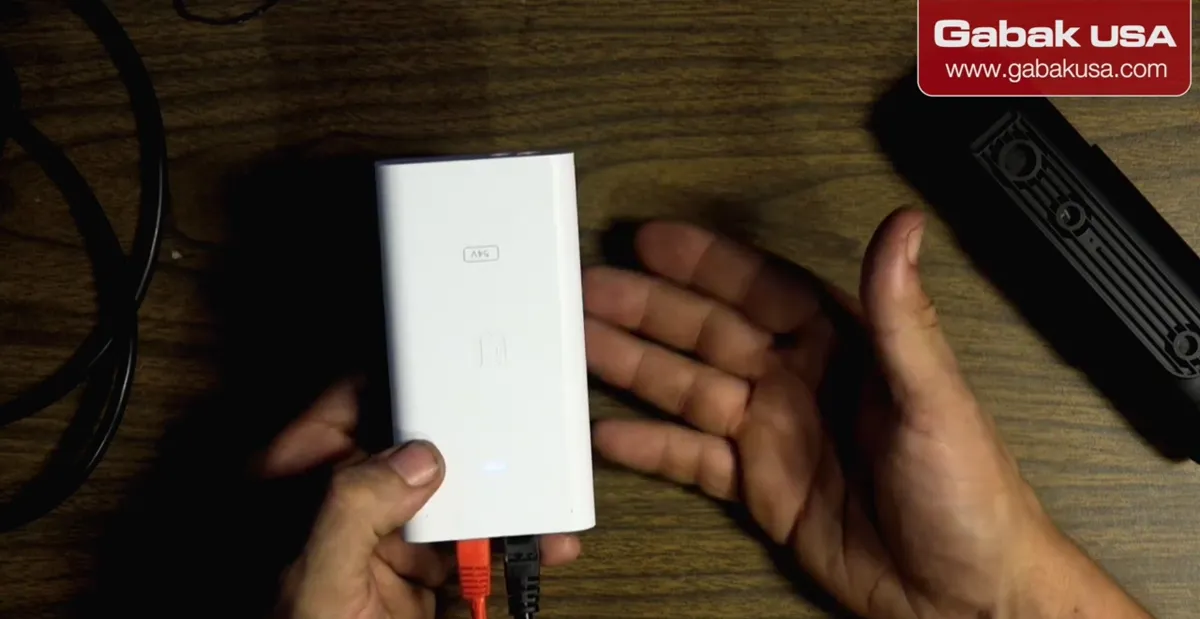
- A PoE power source is not included; buy a PoE injector or use a PoE switch.
- On an injector, plug in the power cable, then run the cable from the port marked PoE to the ViewPort.
- Don't use the secondary (LAN) port for the ViewPort.
Caution: Without PoE power the ViewPort will not turn on.
Step 4: Find the reset button (only if you need it)
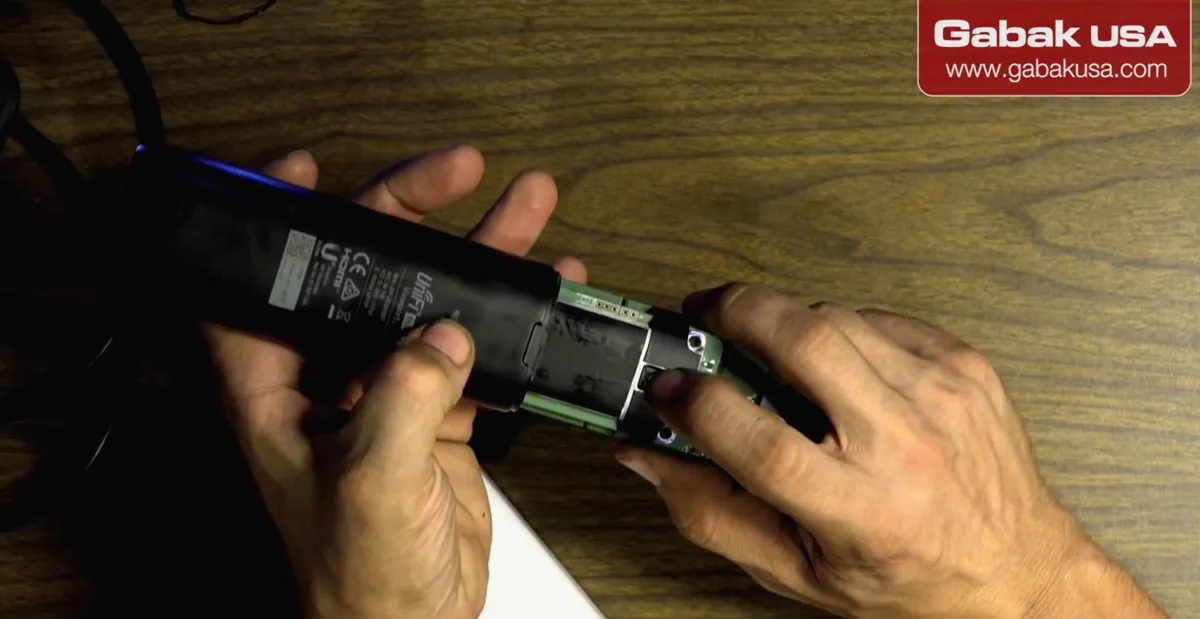
- The end cover can come off if you pull it firmly; the reset button is under it.
- You only need this to reset the device; otherwise leave the cover on.
Caution: The cover does not look like it is meant to be serviced. If it comes loose, the video suggests a drop of super glue, or just leave it as it is.
Step 5: Connect HDMI and the Ethernet cable
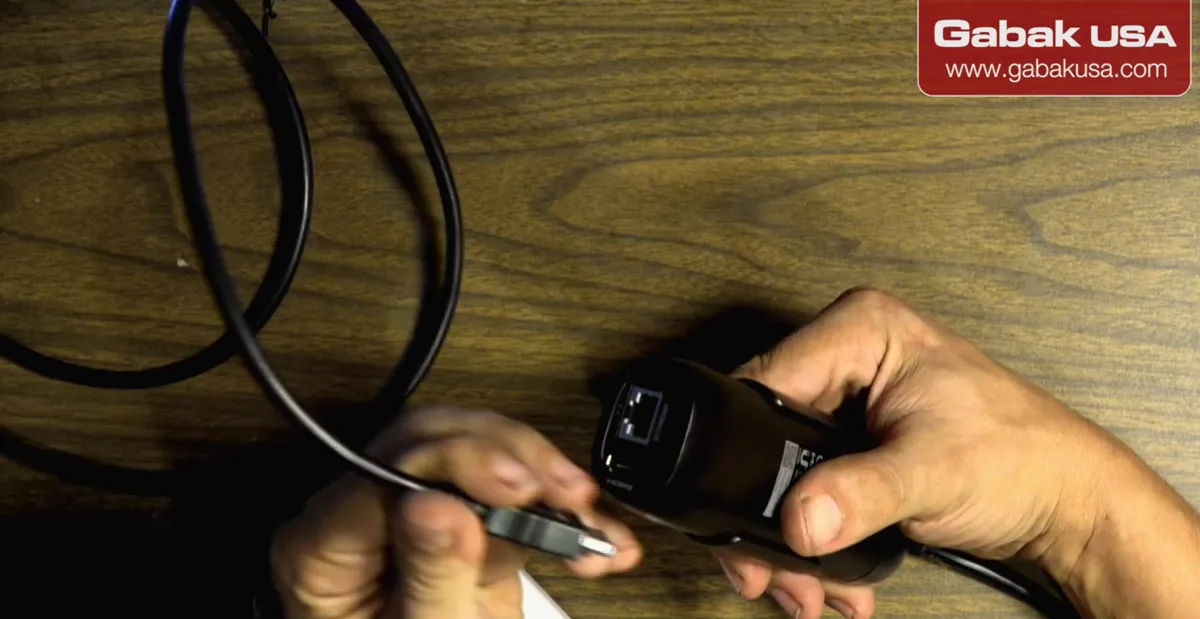
- Plug the HDMI cable into the ViewPort and into the TV or monitor.
- Plug the Ethernet cable from the PoE injector or switch into the ViewPort's main PoE port.
- The front light blinks while it boots; it runs its own small operating system, so give it a moment.
Step 6: Put it on the same network as your Protect controller
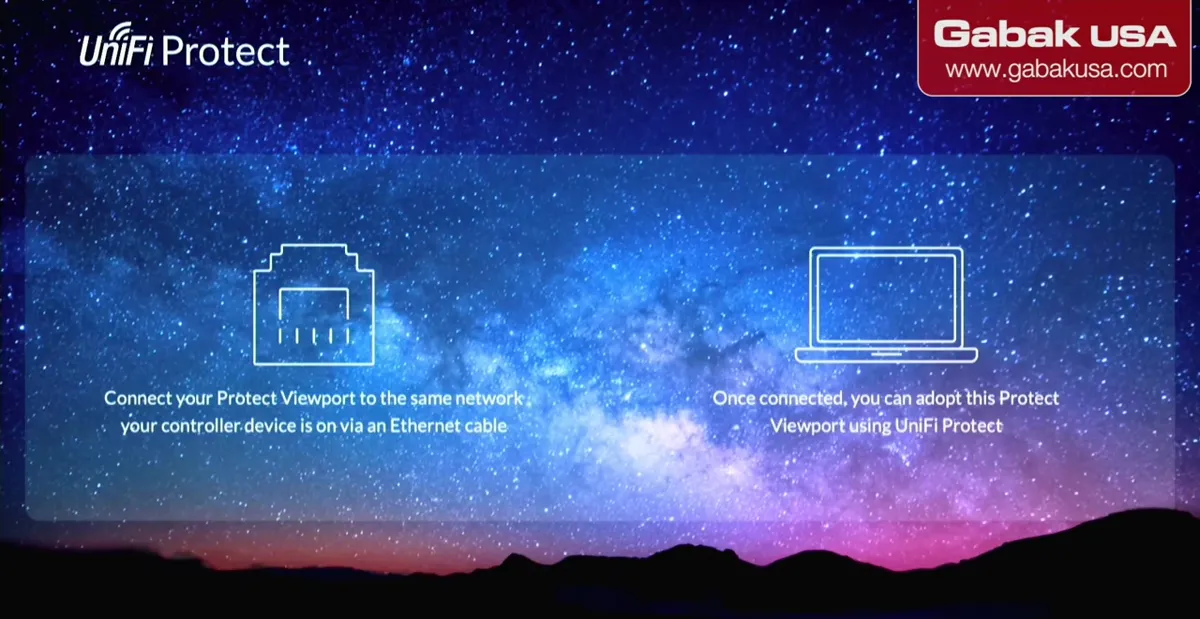
- If the ViewPort can't find the network, the TV shows a message asking you to connect it.
- Connect it via Ethernet to the same network as the device running UniFi Protect (your controller).
Step 7: Adopt the ViewPort in UniFi Protect
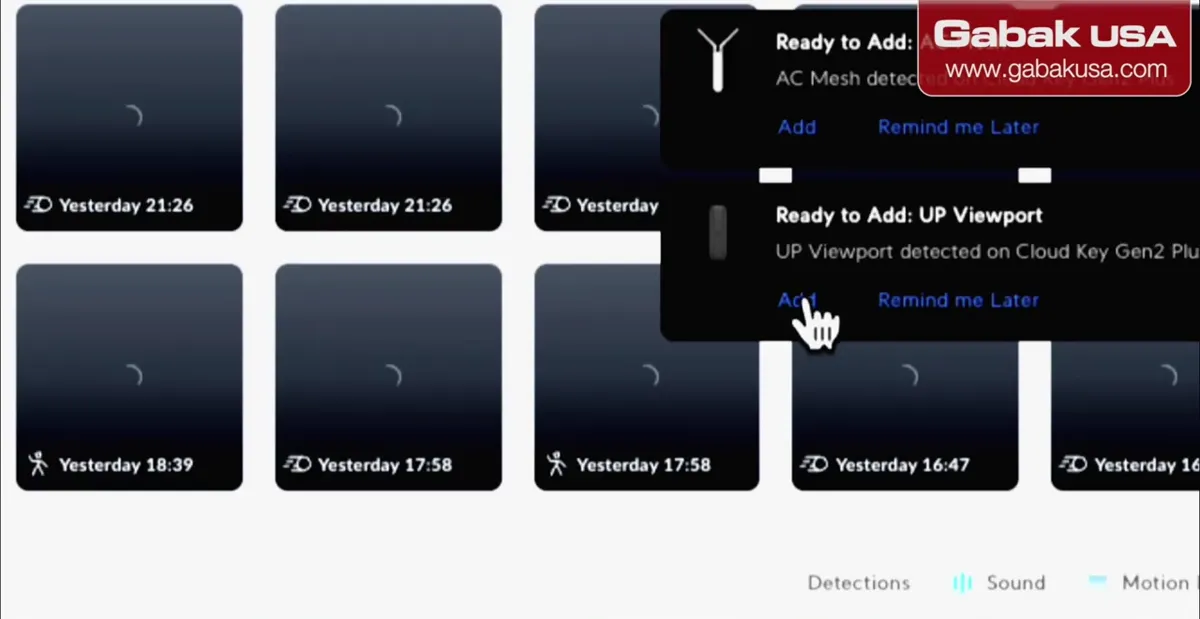
- Open UniFi Protect in your web browser (the video uses Opera).
- Look for Ready to Add: UP Viewport and click Adopt.
- If you don't see it, the ViewPort is not on the same network or something else is wrong with your network; check that first.
Step 8: Let it update without unplugging
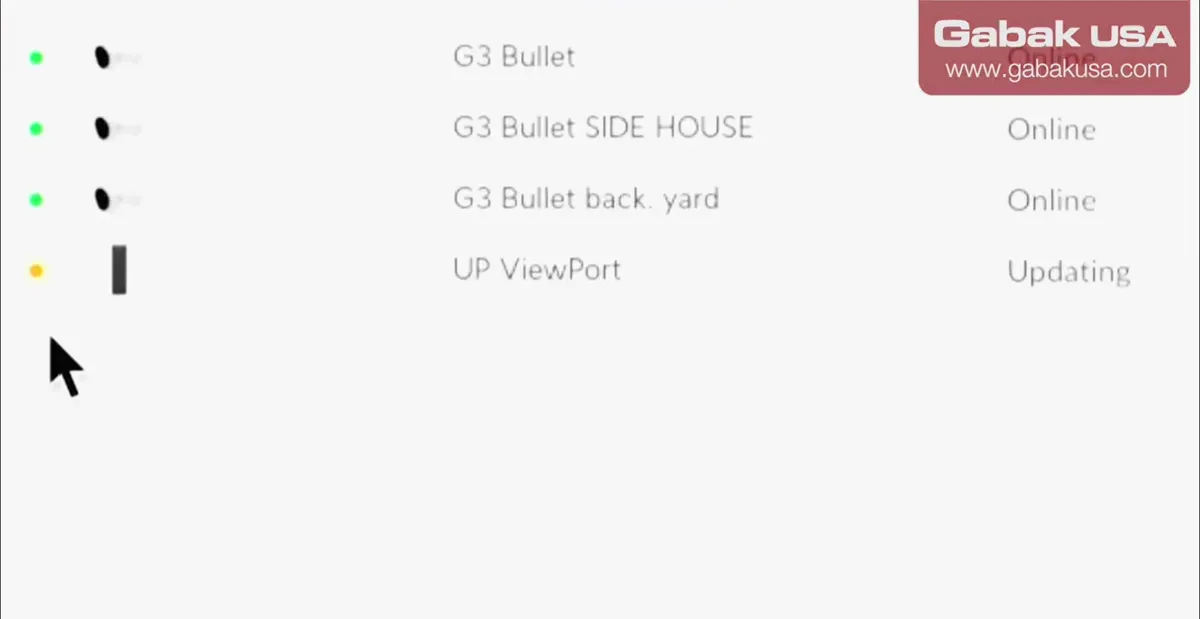
- As soon as it is adopted, the ViewPort searches for updates and installs them automatically.
- It may update more than once; wait until it shows as up and running.
Caution: Don't reboot or unplug the ViewPort (or any monitor or network device) during an update, or it can be damaged.
Step 9: Watch your cameras on the TV
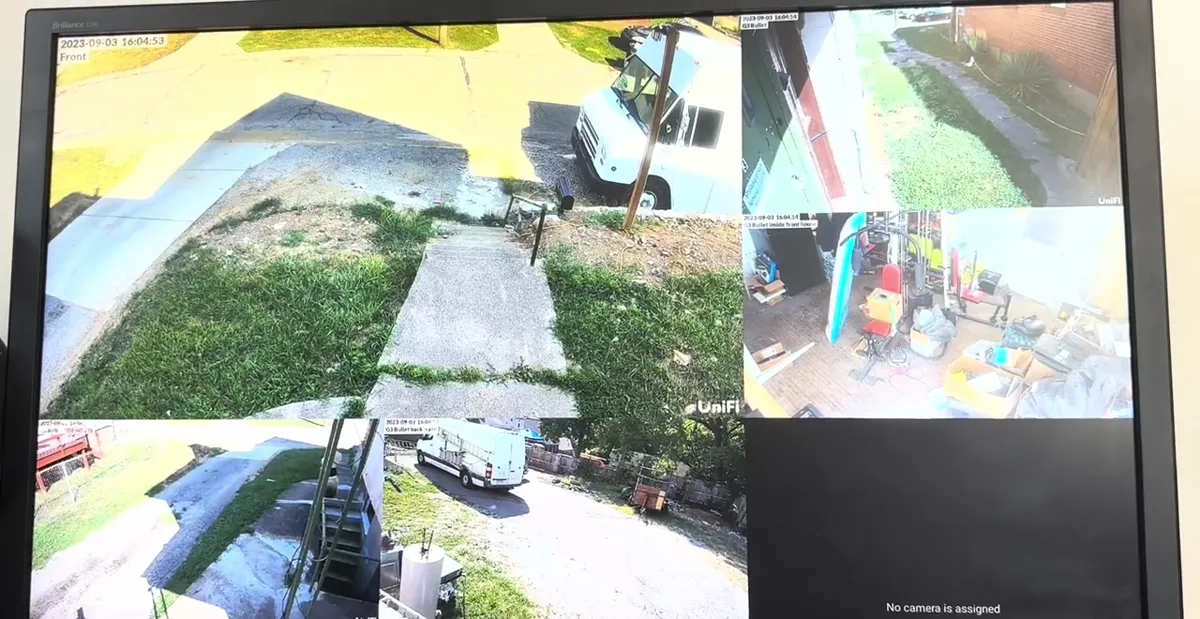
- The ViewPort shows all your cameras on screen; in the video four cameras fill the screen at the same time.
- It runs 24/7 without touching anything; layout changes are made from UniFi Protect.
- Any TV or monitor with HDMI works; the video uses a 27-inch monitor.
- Place it behind or next to the screen, wherever is convenient.
Note: In the video no option was found to split the screen differently (for example two cameras only); Ubiquiti keeps updating the software, so more features may come.
Frequently asked questions
Does the UniFi Protect ViewPort need a computer?
No. It plugs into the TV or monitor by HDMI and gets power and data over Ethernet (PoE). You only use a web browser once, to adopt it in UniFi Protect.
Does the ViewPort come with a PoE injector?
No. The box includes a holder, mounting screws and anchors, a sticker, a quick guide and an HDMI cable. You need a separate PoE injector or PoE switch.
Why doesn't the ViewPort show up to adopt?
It has to be on the same network as your UniFi Protect controller. If you don't see Ready to Add: UP Viewport, check the Ethernet connection and your network.
Can I unplug it while it updates?
No. It installs updates automatically right after adoption; don't reboot or unplug it until it finishes, or the device can be damaged.
Comments
Comments appear after Gabriel reviews them.
Loading comments…